Roadmap
The Roadmap page provides an interactive view of planned features, in-progress work, and shipped improvements. You can vote on items, submit feature requests and bug reports, and (for admins) manage GitHub issues directly.
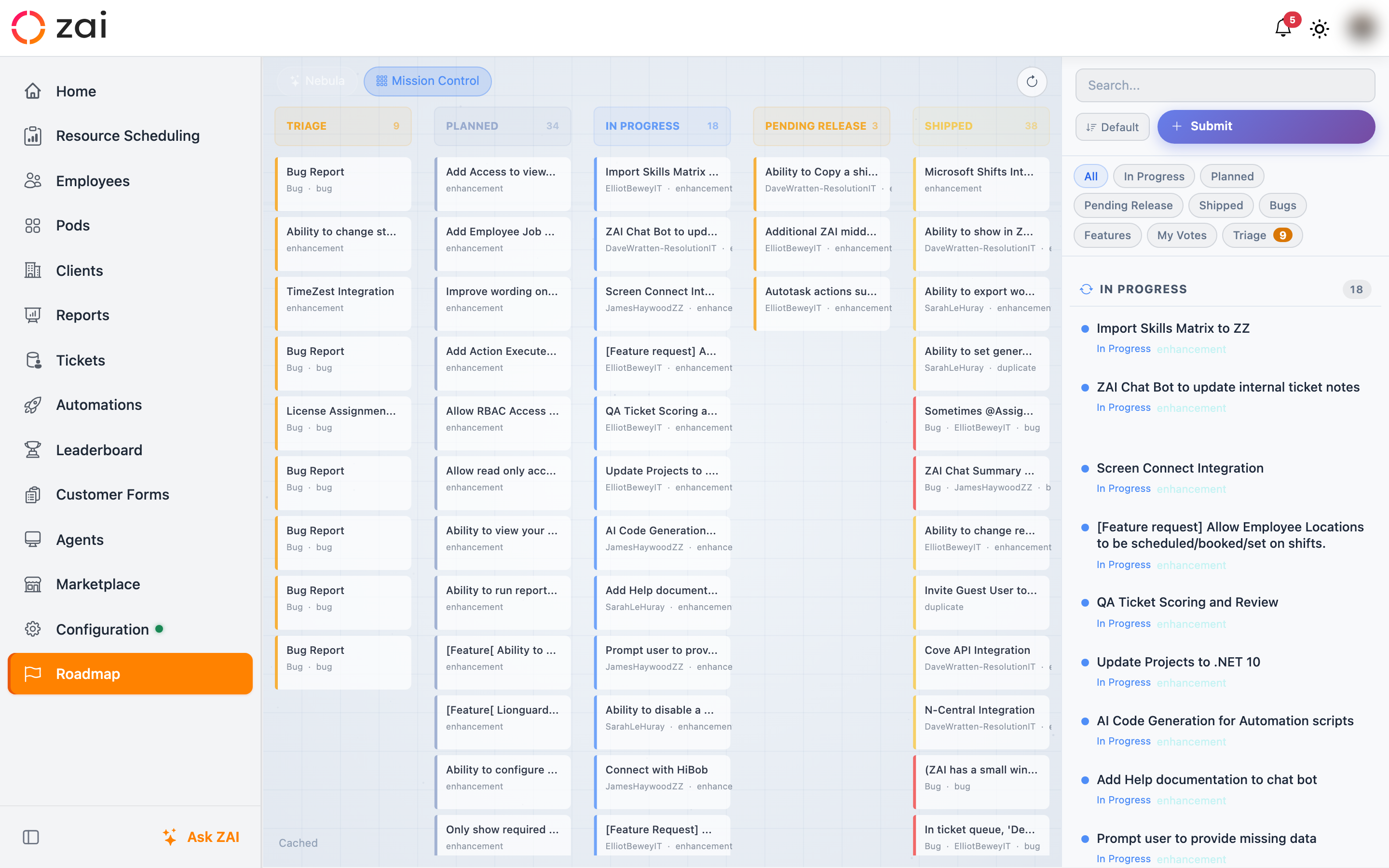
Views
Mission Control
The default view — a holographic kanban-style display with three columns:
- Planned — features and bugs that are planned but not yet started
- In Progress — items currently being worked on
- Shipped — completed items
Each card shows the title, type indicator, vote count, labels, and assignee.
Nebula
An animated space-themed visualisation where items appear as stars within coloured nebulae:
- Gold nebula — Shipped items
- Blue nebula — In Progress items
- Grey/purple nebula — Planned items
Star size is driven by vote count — more popular items appear as larger, brighter stars. You can zoom and pan to explore, and click any star to see its details.
Use the sidebar filter pills to focus on a single status — the view smoothly zooms into that nebula.
Sidebar
The right sidebar provides a searchable, filterable list of all items:
- Search — filter by title or description
- Filter pills — All, In Progress, Planned, Shipped, Bugs, Features, My Votes, Triage (admin-only)
- Sort — toggle between default (grouped by status) and Most Voted (flat list by vote count)
- Submit Request — create a new feature request or bug report
Click any card to see full details including description, labels, assignee, and a vote button.
Voting
Click the star icon on any item to vote for it. Your vote is tracked — you can vote once per item and toggle it off. Items with more votes appear more prominently in both views.
Submitting Requests
Click Submit Request in the sidebar to create a new feature request or bug report:
- Select the type (Feature or Bug)
- Enter a title and description
- Submit
This creates:
- A ConnectWise ticket on the Automations board for tracking
- A GitHub issue with a
needs-triagelabel (hidden from the public roadmap until approved by an admin) - Both are linked in the system for status synchronisation
Admins are notified that a new submission requires triage.
Triage
New submissions go through a triage step before they appear on the public roadmap. Only admins can see and process triage items.
Viewing Triage Items
Click the Triage filter pill in the sidebar (admin-only, shows a count badge). In Mission Control, triage items appear in an amber TRIAGE column on the left. In Nebula, they appear as pulsing amber stars.
Processing a Triage Item
Click a triage item to open its details. The triage panel lets you:
- Assign to Repository — choose which repo the issue belongs to (e.g., Resourcing App, External Data Connector, Middleware). If you select a different repo, the issue is transferred automatically.
- Set Priority — P0 (critical), P1 (high), P2 (normal)
- Set Size — XS, S, M, L, XL
- Approve — removes the triage label, sets the project board status to Todo, and makes the item visible on the public roadmap. A note is added to the ConnectWise ticket.
- Reject — closes the issue with a rejection reason. The reason is posted as a comment on GitHub and as a note on the ConnectWise ticket. Rejected items never appear on the public roadmap.
Drag and Drop
Tip
Drag-drop is available in Mission Control mode only and requires admin access.
Drag cards between columns to change their status:
- To Planned — removes assignees, marks as open
- To In Progress — if the issue is unassigned, a dropdown appears for you to select an assignee
- To Shipped — closes the issue
- To Triage — adds the triage label (returns the item to the triage queue)
Context Menu
Right-click any card (Mission Control) or star (Nebula) to access quick actions:
Admin actions:
- Assign to a collaborator
- Start Progress / Ship It / Reopen
- Add Comment
- View on GitHub
Triage items (admin):
- Assign to Repository, Set Priority, Set Size
- Approve / Reject
All users:
- Vote / Unvote
- View on GitHub
Admin Features
Administrators see additional controls when viewing an item's details:
- Assign — assign the issue to a GitHub collaborator
- Start Progress — mark a planned item as in-progress
- Ship It — close the issue (mark as shipped)
- Reopen — reopen a shipped item
- Add Comment — post a comment to the GitHub issue
Status changes are synced back to the linked ConnectWise ticket as internal notes.
Shipped Notifications
When an item you voted on is shipped, you receive a notification via the bell icon in the header.