Skip to content

Workflow Review & Approval

Overview

When a workflow is submitted for review, designated approvers are notified and must approve before the workflow can become active. This is a design-time review process — it happens before a workflow is activated and available for execution. This is separate from execution-time approval, which occurs when a user triggers an active workflow.

The review system provides:

  • Real-time notifications via bell icon, toast messages, and Teams (coming soon)
  • A dedicated review page with AI-powered risk analysis
  • Multi-level approval chains with configurable logic
  • An approval timeline showing progress through each level

How Review Works

graph LR
    A[Submit for Review] --> B[Approvers Notified]
    B --> C[Review Page]
    C --> D{Decision}
    D -->|Approve| E[Next Level / Active]
    D -->|Reject| F[Back to Draft]

    style A fill:#4285f4,color:#fff
    style B fill:#f4b400,color:#000
    style E fill:#0f9d58,color:#fff
    style F fill:#ea4335,color:#fff

For workflows with multi-level approval, the flow progresses sequentially:

graph LR
    A[Submit] --> B[Level 1 Review]
    B -->|Approved| C[Level 2 Review]
    C -->|Approved| D[Level 3 Review]
    D -->|Approved| E[Workflow Active]
    B -->|Rejected| F[Back to Draft]
    C -->|Rejected| F
    D -->|Rejected| F

    style E fill:#0f9d58,color:#fff
    style F fill:#ea4335,color:#fff

Notifications

Approvers are notified immediately when a workflow is submitted for their review. Multiple notification channels ensure no review request is missed.

Bell Icon & Pending Approvals

The bell icon in the top navigation bar shows a count of pending reviews assigned to you.

Bell notification badge Screenshot: Bell icon in the nav bar showing pending review count

  • The badge count updates every 60 seconds via polling
  • Instant updates via SignalR when a new review is assigned
  • Click the bell to open the Pending Approvals inbox

Pending Approvals Inbox

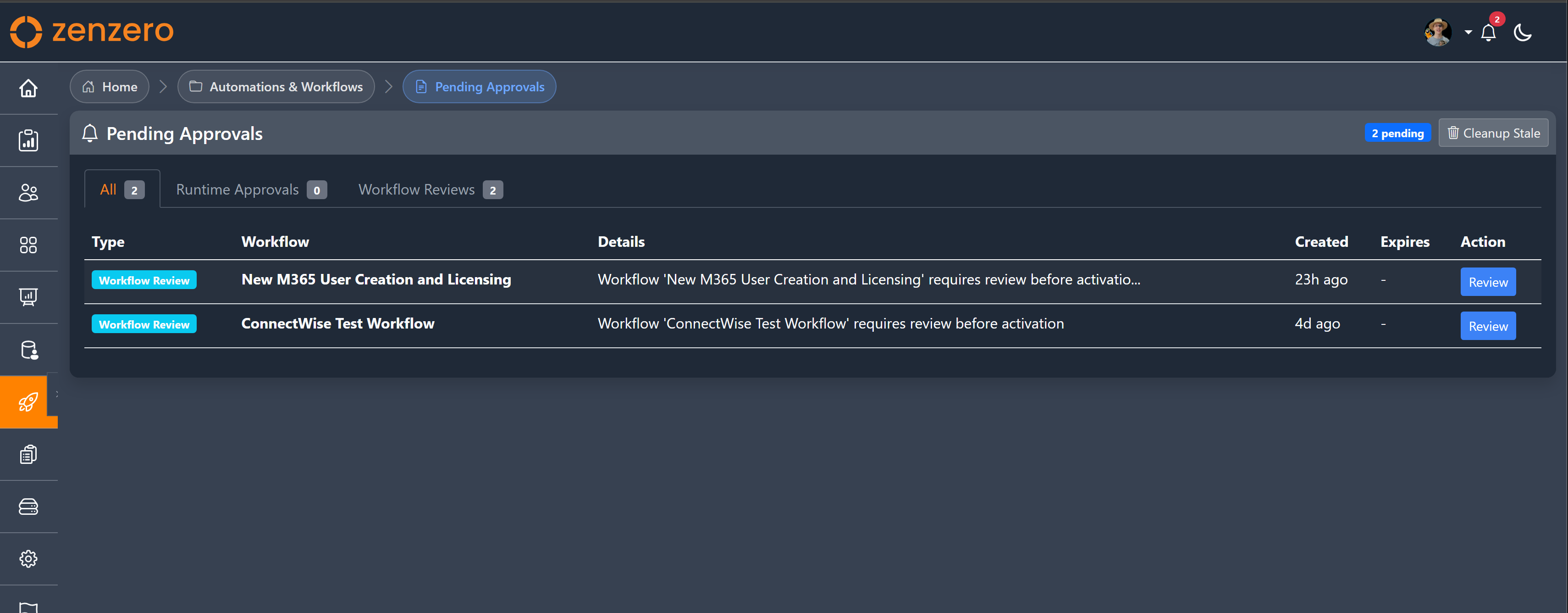
The Pending Approvals page provides a centralised view of all items awaiting your action.

Pending approvals page Screenshot: The Pending Approvals inbox with tabs and review items

The inbox has three tabs:

Tab Shows
All All pending approvals (runtime + workflow reviews)
Runtime Approvals Approval steps within running workflows
Workflow Reviews Design-time review requests

Each item displays:

  • Type badge — Distinguishes runtime approvals from workflow reviews
  • Workflow name — The workflow awaiting review
  • Details — Approval level and context
  • Created time — When the review was requested
  • Action button — Opens the review page

Real-Time Toast Notifications

Toast notifications appear in the bottom-right corner of the screen when a new review is assigned to you.

Review toast notification Screenshot: Toast notification for a new workflow review

Toast Type Duration When It Appears
New review 10 seconds A workflow is submitted for your review
Decision 15 seconds Your submitted workflow is approved or rejected
  • New review toasts show the workflow name, context, and a Review button
  • Decision toasts notify the submitter of the approval outcome (green for approved, red for rejected)
  • Toasts auto-dismiss after the timeout, or can be dismissed manually

Teams Notifications (Coming Soon)

Under Development

Teams notifications are currently being built and will be available in a future release.

When available, Teams notifications will provide:

  • 1:1 direct messages to individual approvers with workflow details and a link to the review page
  • Shared channel cards for non-specific approvals (e.g., when any pod member can approve)
  • Approvers can click through from Teams directly to the review page

The Review Page

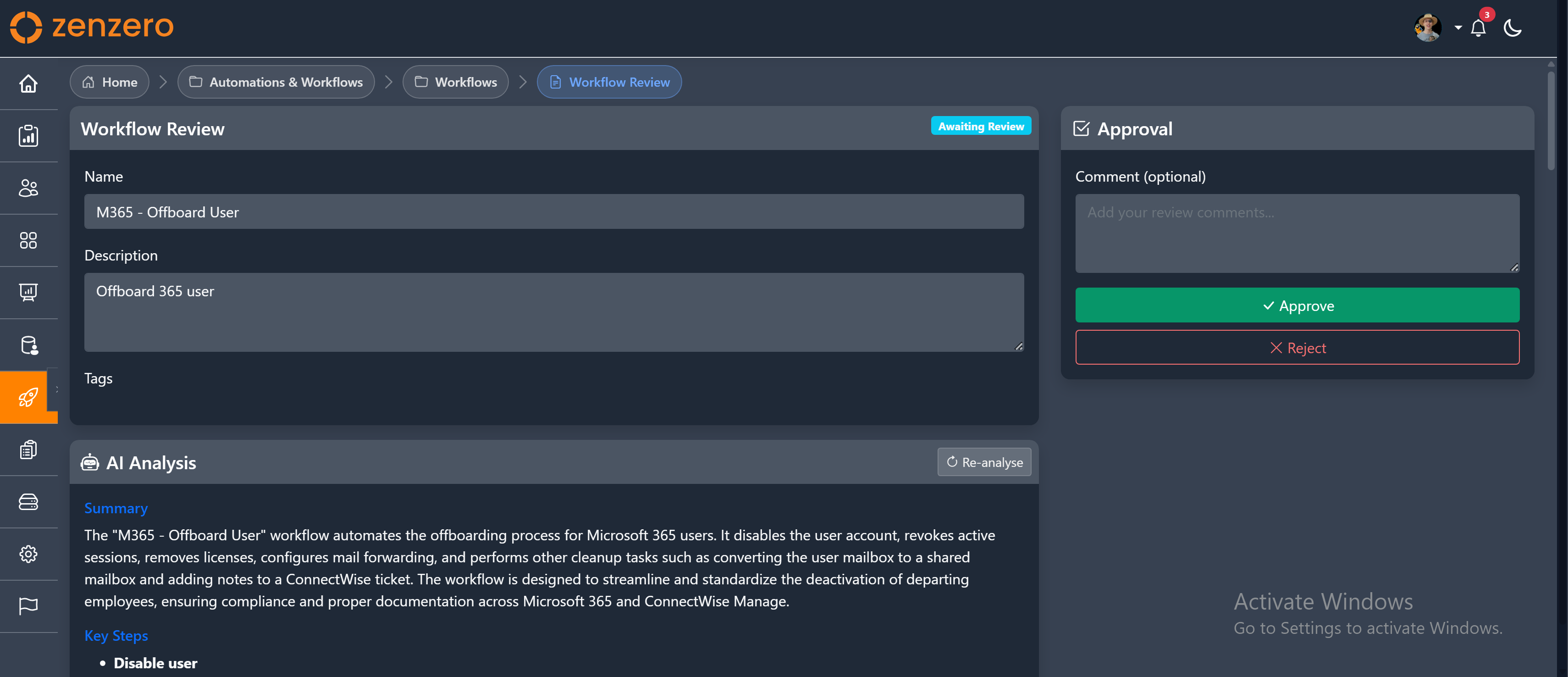
The review page is the central interface where approvers examine and decide on workflow submissions.

URL: /Automation/WorkflowReview/{workflowId}

Workflow review page Screenshot: The full review page with details on the left and approval panel on the right

The page uses a two-column layout:

  • Left column — Workflow details, AI analysis, steps, and canvas visualisation
  • Right column — Sticky approval panel with decision controls

Workflow Details (Left Column)

The left column provides all the information an approver needs to make an informed decision:

  • Workflow name and description
  • Tags assigned to the workflow
  • AI Analysis card (see AI Analysis)
  • Expandable detailed workflow steps — Raw description of each step
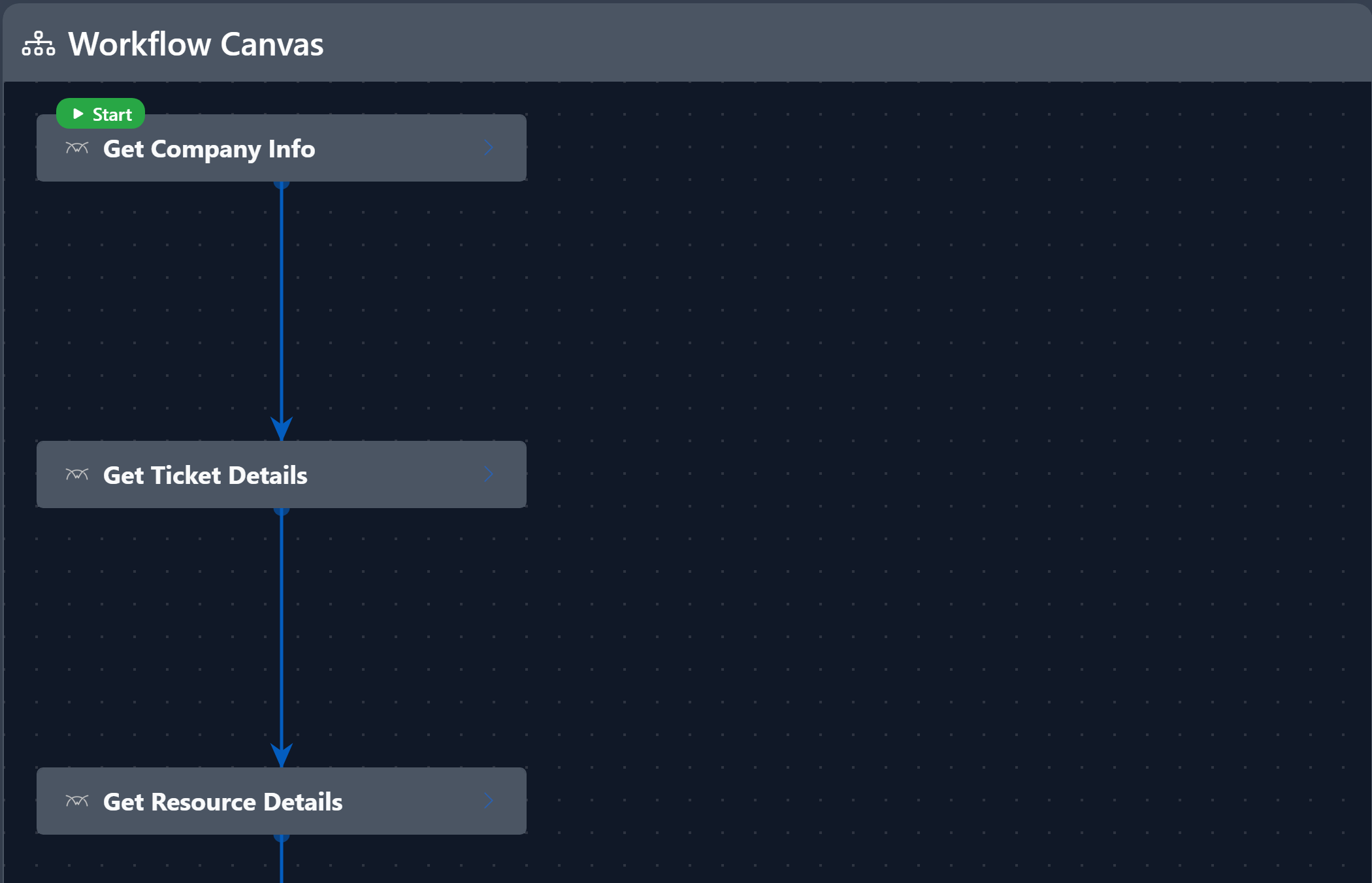
  • Read-only canvas visualisation — Step cards and coloured connection arrows showing the execution flow

Read-only workflow canvas Screenshot: The read-only canvas showing workflow steps and connections

AI Analysis

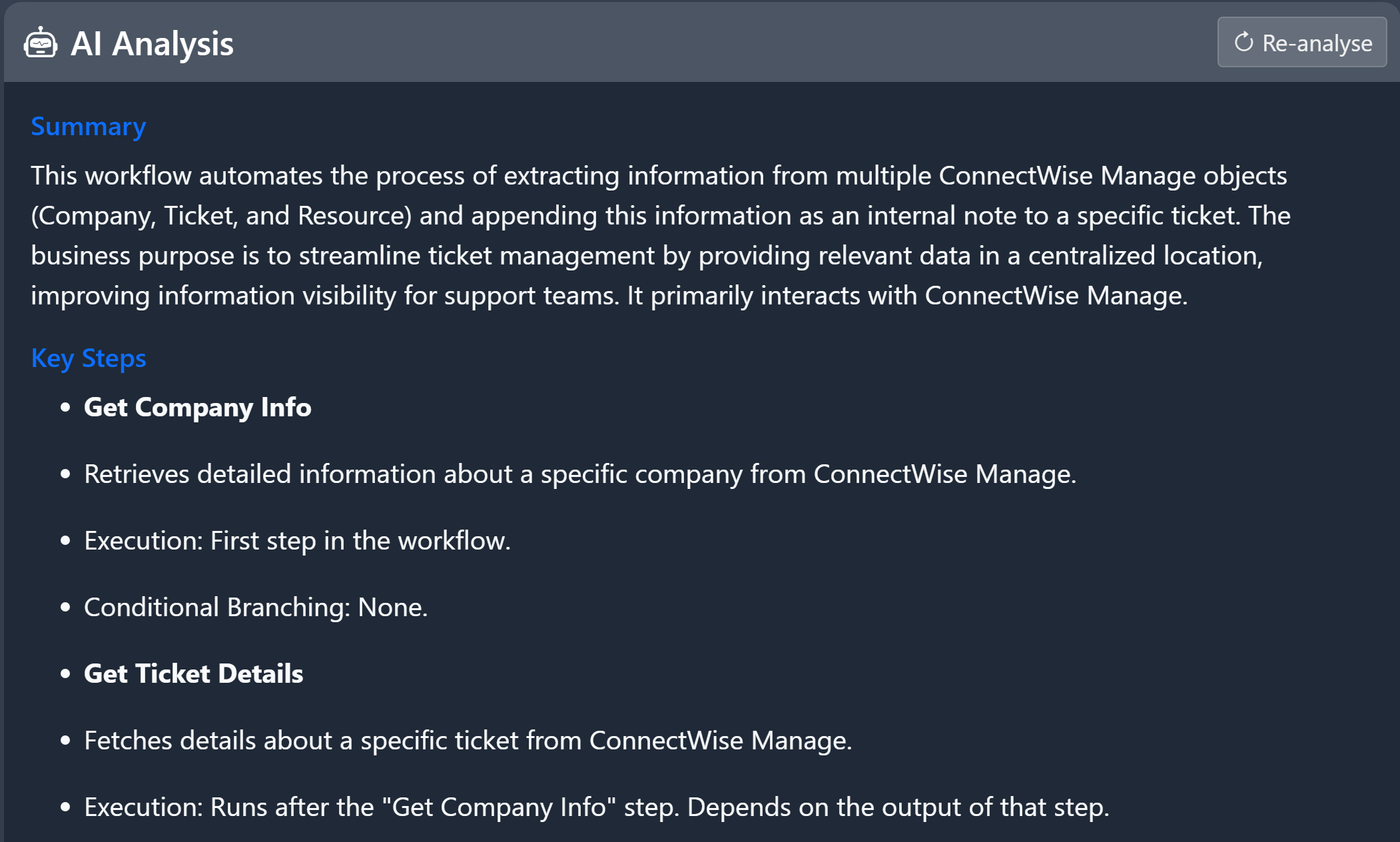
The AI analysis is automatically generated when the review page loads. It examines the workflow steps and provides an intelligent summary to help approvers understand what the workflow does and identify potential risks.

AI analysis card Screenshot: The AI Analysis card showing summary, key steps, and risk assessment

The analysis includes:

Section Description
Summary Plain-language explanation of what the workflow does
Key Steps Up to 5 of the most important steps
Risk Assessment Security and operational risk analysis
Configuration Concerns Issues or recommendations for improvement

Risk Severity Levels

Risks are colour-coded by severity:

Severity Colour Examples
HIGH Red Password resets, MFA changes, user deletion, admin role changes
MEDIUM Amber Ticket changes, configuration modifications, email notifications
LOW Blue Read-only operations, record creation

Click Re-analyse to regenerate the AI analysis if the workflow has been updated or if you want a fresh assessment.

Approval Timeline (Multi-Level)

For workflows with multi-level approval configured, the approval timeline shows progress through each approval level.

Approval timeline Screenshot: The approval timeline showing progress through multiple levels

Each level in the timeline displays:

  • Status badge — Current state of that level
  • Level name — e.g., "Level 1: Team Lead", "Level 2: Manager"
  • Logic type — Any One or All Required
  • Approver actions — Who has approved, rejected, or is still pending

Levels are colour-coded:

Colour Meaning
Green Approved
Red Rejected
Amber Awaiting decision (current level)
Grey Pending (future level, not yet active)

Approval Panel (Right Column)

The approval panel is sticky — it stays visible while you scroll through the workflow details on the left.

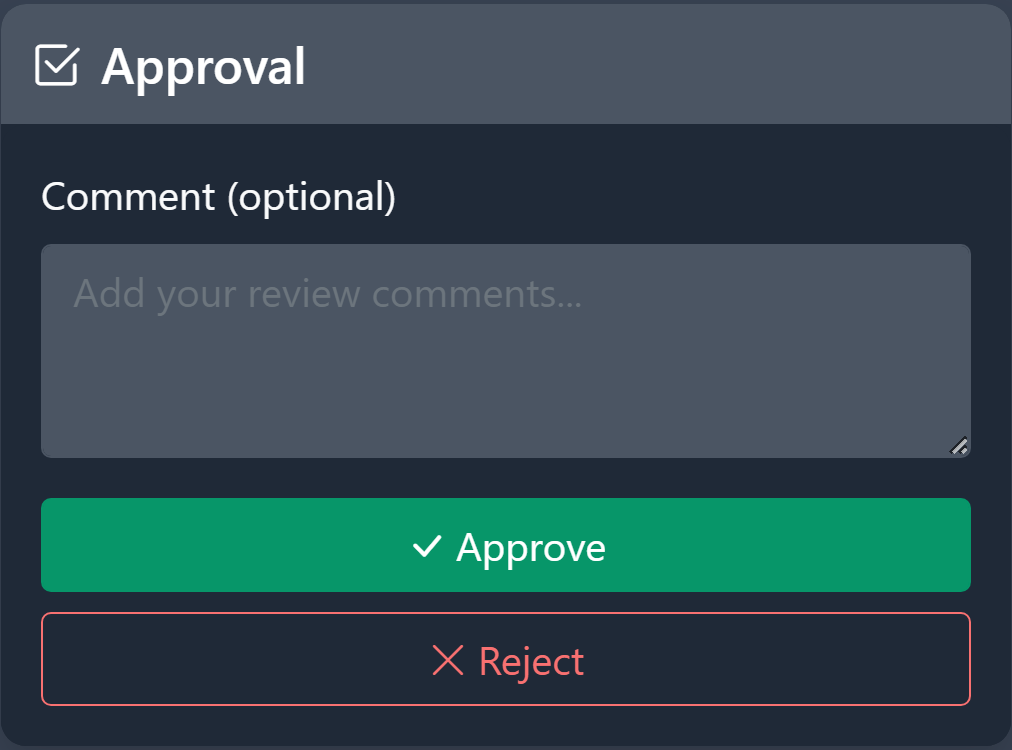
Approval panel Screenshot: The approval panel with comment box and approve/reject buttons

The panel shows:

  • Current approval level — "You are approving at Level X"
  • Comment textarea — Optional comments explaining your decision
  • Approve button (green) — Approve the workflow at this level
  • Reject button (red) — Reject the workflow

Panel States

State What You See
Awaiting your decision Comment box + Approve/Reject buttons
Not authorised Warning: "You are not an approver at the current approval level"
Already approved Success message confirming your approval
Rejected Danger message showing the workflow was rejected

Multi-Level Approval

Multi-level approval allows workflows to require sign-off from multiple stakeholders in sequence before activation.

How Levels Work

  • Approval progresses sequentially: Level 1 → Level 2 → Level 3 → Active
  • Each level must be fully approved before the next level's approvers are notified
  • Rejection at any level immediately rejects the entire workflow — it returns to Draft status

Approval Logic

Each approval level can use one of two logic modes:

Mode Description When to Use
Any One A single approver at the level can approve to advance Fast approval, any team member can sign off
All Required Every approver at the level must approve before advancing High-security workflows needing consensus

Approval Scopes

Approval configuration can be set at different scopes, with a priority resolution order:

Scope Description Priority
Workflow Configuration specific to one workflow Highest
Pod-Client Default for workflows in a specific pod + client combination Medium
Pod Default for all workflows in a pod Lowest

Resolution order: Workflow → Pod-Client → Pod. If a workflow-level configuration exists, it takes precedence over pod-client and pod defaults.

Specific Reviewers

When specific employees are assigned as approvers at a level:

  • Only those people can approve or reject at that level
  • Other staff (even admins) will see "You are not an approver at the current approval level" on the review page
  • Each approver receives individual notifications (bell + Teams when available)

Configuring Approval Levels

Approval levels are configured in the Workflow Designer:

  1. Open the approval configuration in the Workflow Designer
  2. Toggle Enable Multi-Level Approval
  3. Add levels with a name, logic type (Any One / All Required), and approvers
  4. Select approvers from the searchable employee dropdown
  5. Levels execute in numeric order (Level 1, Level 2, etc.)

Configure single level approver Demo: Configuring a single-level approval chain

Configure second level approver Demo: Adding a second approval level for sequential sign-off

Submitting a Workflow for Review

To submit a workflow for review from the Workflow Designer:

  1. Save all changes — The Save button should not be visible (all changes saved)
  2. Run validation — Press V and ensure the workflow passes with no errors
  3. Click "Submit for Review" in the toolbar

After submission:

  • The workflow status changes to Awaiting Review (or "Awaiting Level 1 Approval" for multi-level)
  • The workflow becomes locked from further editing until reviewed
  • Approvers are immediately notified via bell icon and toast notifications

Warning

The Submit for Review button is disabled if there are unsaved changes or if validation has not been run / has errors.

After Review

Approved

When a workflow is approved (all levels pass):

  • The workflow becomes Active and available for execution
  • The submitter receives a notification (toast + bell) confirming approval
  • The workflow appears in the active workflows list and can be triggered by users

Rejected

When a workflow is rejected at any level:

  • The workflow returns to Draft status
  • The submitter receives a notification with the reviewer's comments
  • The submitter can make changes in the designer and resubmit for review

Best Practices

For Reviewers

  • Review the AI analysis before approving — it highlights risks you might miss
  • Add comments explaining your approval or rejection reasoning
  • Check the approval timeline to see who else has reviewed (for multi-level workflows)
  • Coordinate with other approvers when "All Required" logic is used at your level
  • Examine the canvas visualisation to understand the execution flow

For Submitters

  • Run validation and fix all errors before submitting
  • Write clear descriptions so reviewers understand the workflow's purpose
  • Use meaningful step names that describe what each step does
  • Test the workflow using test runs in the designer before submitting
  • Review the AI analysis yourself before submitting — address any HIGH-risk concerns proactively

Next Steps