Automation Review & Approval
Automation scripts must be reviewed and approved before they can be used in workflows.
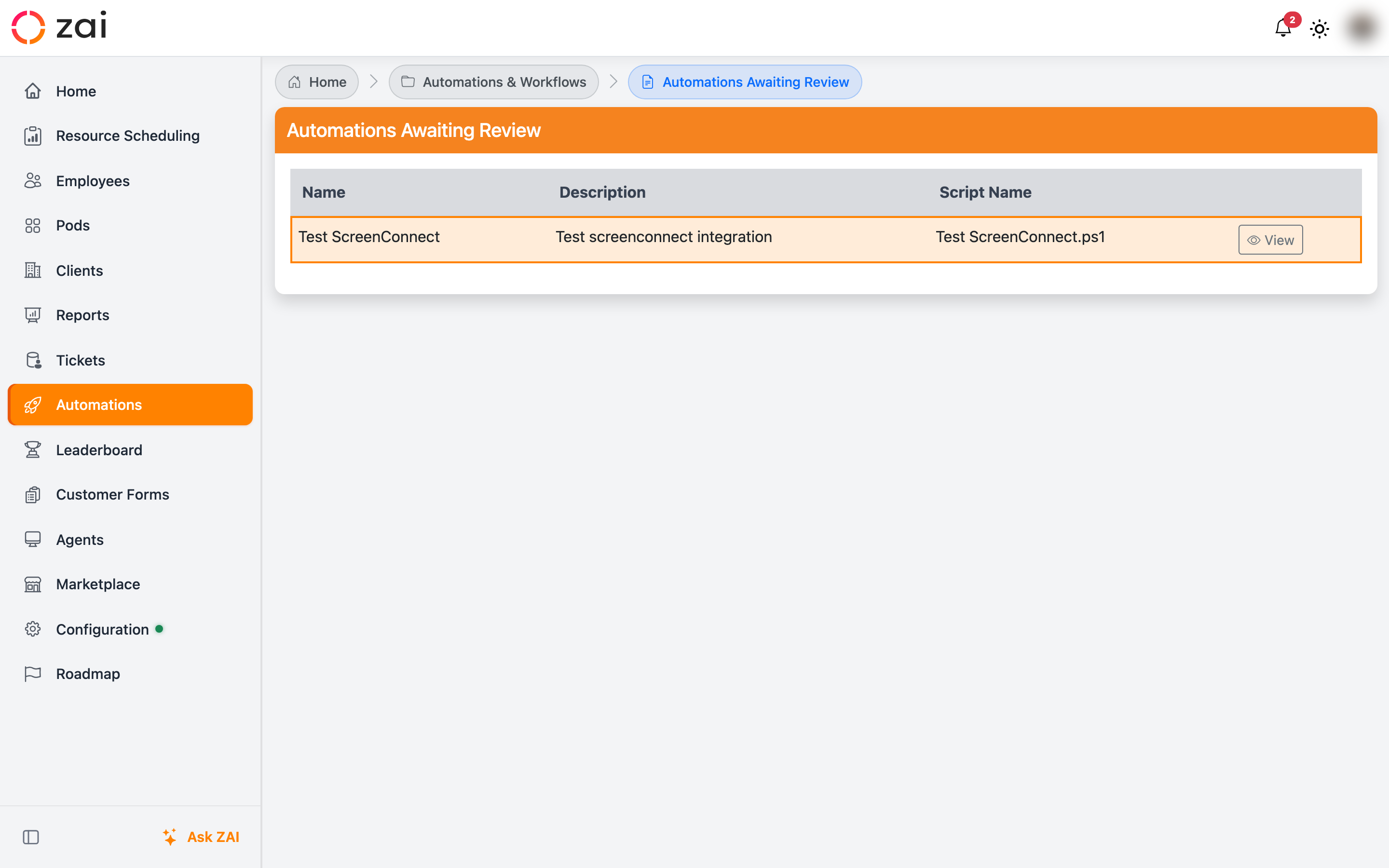
Review Process
When an automation is submitted via the Wizard, it enters "Awaiting Review" status:
- Users with the AutomationReview role (or Admins) are notified via email, Teams, and the in-app bell icon
- The automation appears on the Pending Approvals page under the "Automation Reviews" tab
- Reviewers open the script review page to examine the code and AI analysis
AI Script Analysis
The review page shows an AI-generated analysis of the PowerShell script:
- Summary — plain-English description of what the script does
- Risks — flagged operations with severity levels:
- HIGH — destructive operations (Remove-Item -Recurse, registry writes, credential access)
- MEDIUM — state-changing operations (service restarts, file writes, firewall changes)
- LOW — read-only queries and logging
- Concerns — code quality issues (missing error handling, hardcoded credentials, injection risks)
Approving or Rejecting
Reviewers can:
- Approve — activates the automation, making it available as a workflow step
- Reject — marks the automation as rejected with an optional comment
Both actions:
- Notify the submitter via their preferred channels (email/Teams)
- Award gamification points to the reviewer (30 for reviewing, +20 for approving)
Notifications
| Event | Who Gets Notified | Channels |
|---|---|---|
| Submitted for review | AutomationReview role users | Email, Teams, Bell icon |
| Approved | Submitter | Email, Teams |
| Rejected | Submitter | Email, Teams |
Permissions
| Role | Capability |
|---|---|
ZAI.Automation.Create |
Create new automations |
ZAI.Automation.Modify |
Edit existing automations |
ZAI.Automation.Review |
Approve or reject automations |
ZAI.Resourcer.Admin |
All of the above |