Running Workflows
This guide covers how to run workflows in ZAI, from selecting a workflow through to viewing results.
Overview
Running a workflow involves:
- Select - Choose a workflow using the
/runmenu - Configure - Fill in required parameters
- Approve - Review and confirm execution
- Monitor - Watch real-time progress
- Review - Check results and copy outputs
Selecting a Workflow
Using the Slash Menu
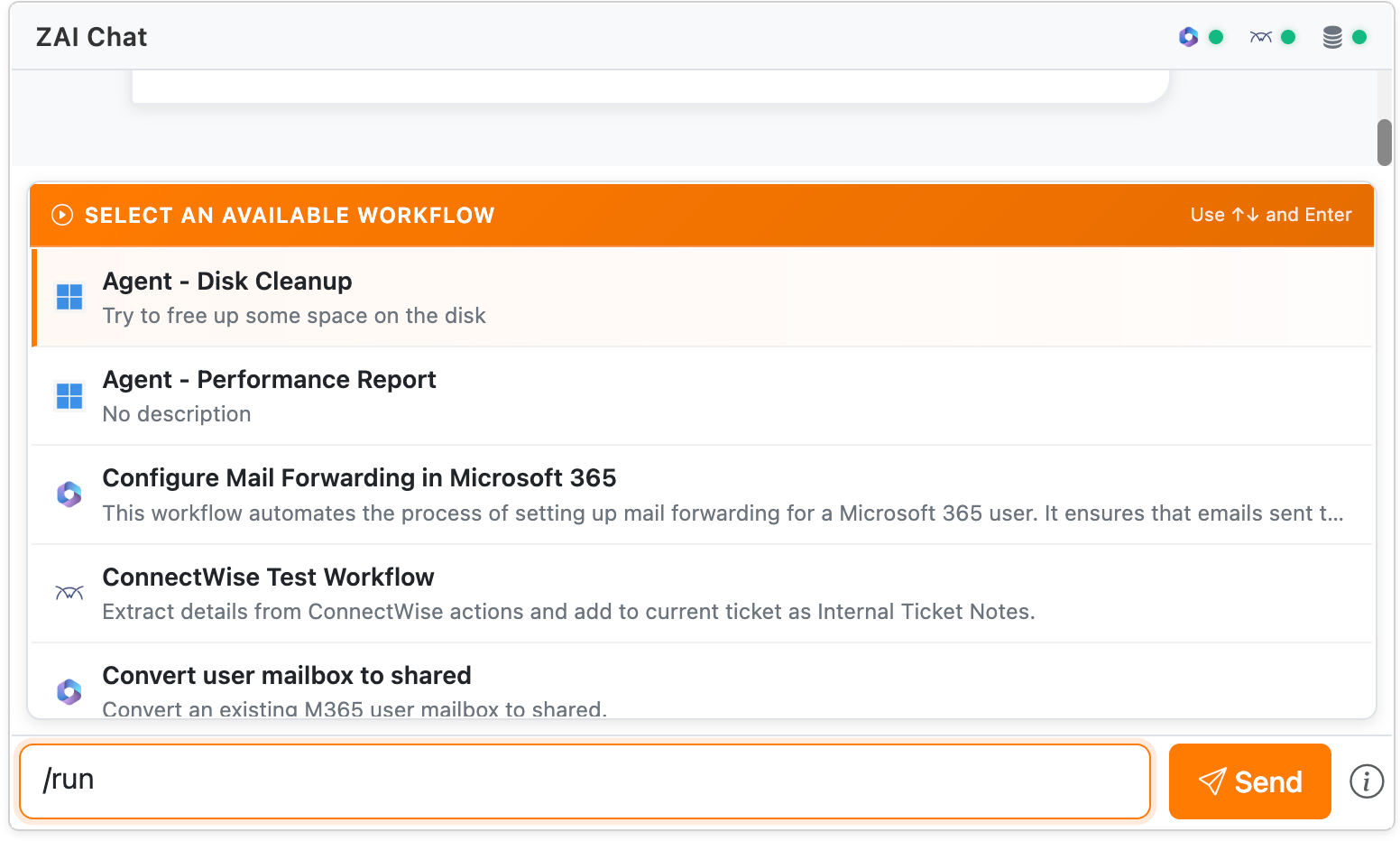
Type /run in the chat input to see available workflows:
Screenshot: The /run menu showing available workflows
A dropdown menu appears showing all workflows you can run.
Filtering Workflows
Type additional text to filter the list:
This shows only workflows with "password" in the name or description.
Keyboard Navigation
| Key | Action |
|---|---|
| ↑ / ↓ | Navigate through workflows |
| Enter | Select the highlighted workflow |
| Escape | Close the menu |
The Approval Card
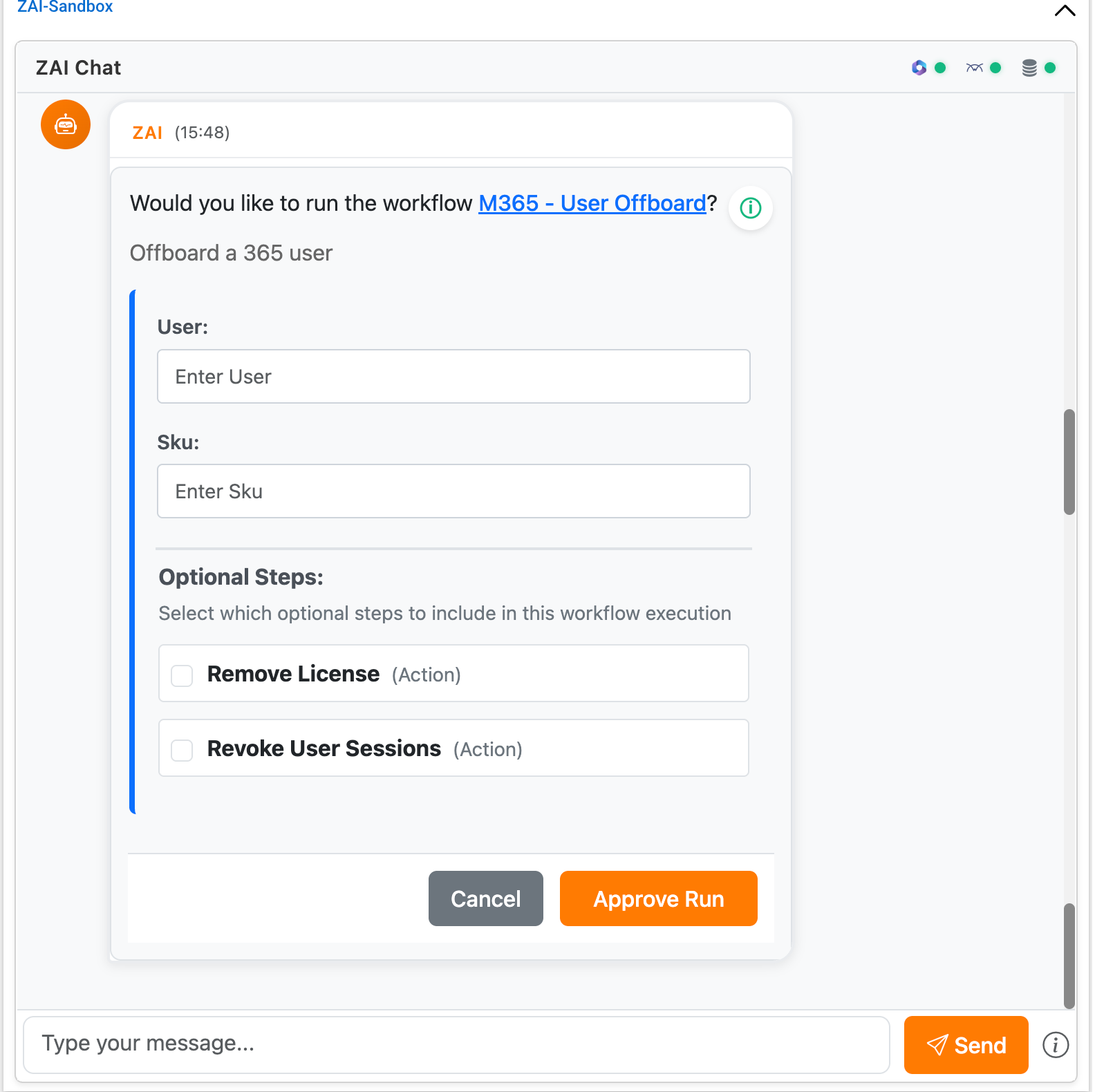
When you select a workflow, an approval card appears showing all parameters.
Screenshot: A workflow approval card ready for configuration
Approval Card Structure
The card displays:
- Workflow name - The workflow you selected
- Description - What the workflow does
- Context parameters - Auto-filled from ticket (read-only)
- Runtime parameters - Fields you need to fill in
- Optional steps - Checkboxes for optional workflow steps
- Action buttons - Approve or Cancel
Context Parameters
These are automatically populated from your ticket:
Screenshot: Context parameters section showing auto-filled values
| Parameter | Source |
|---|---|
| tenant_id | Client's M365 tenant |
| company_id | ConnectWise company ID |
| client_id | Internal client ID |
| ticket_id | Current ticket number |
Context parameters are displayed but cannot be edited. They ensure the workflow runs against the correct tenant.
Runtime Parameters
These are the parameters you need to provide:
Screenshot: Runtime parameters section with input fields
- Text inputs - Type values directly
- Dropdowns - Select from available options
- Checkboxes - Toggle on/off
Required fields are marked and must be filled before you can approve.
Optional Steps
Some workflows have optional steps that you can include or exclude:
Screenshot: Optional steps checkboxes
- Check a box to include the step
- Uncheck to skip it
For example, a user onboarding workflow might have optional steps for: - Adding to additional groups - Sending a welcome email - Creating a Teams channel
Approving a Workflow
Before You Approve
Review the approval card carefully:
- Check the tenant - Verify the correct M365 tenant
- Verify parameters - Ensure values are correct
- Select optional steps - Choose which optional steps to include
- Understand the impact - Know what changes will be made
Approve Button
Click Approve to start the workflow execution.
Cancel Button
Click Cancel if you need to: - Change parameters - Select a different workflow - Abandon the operation
Real-Time Execution
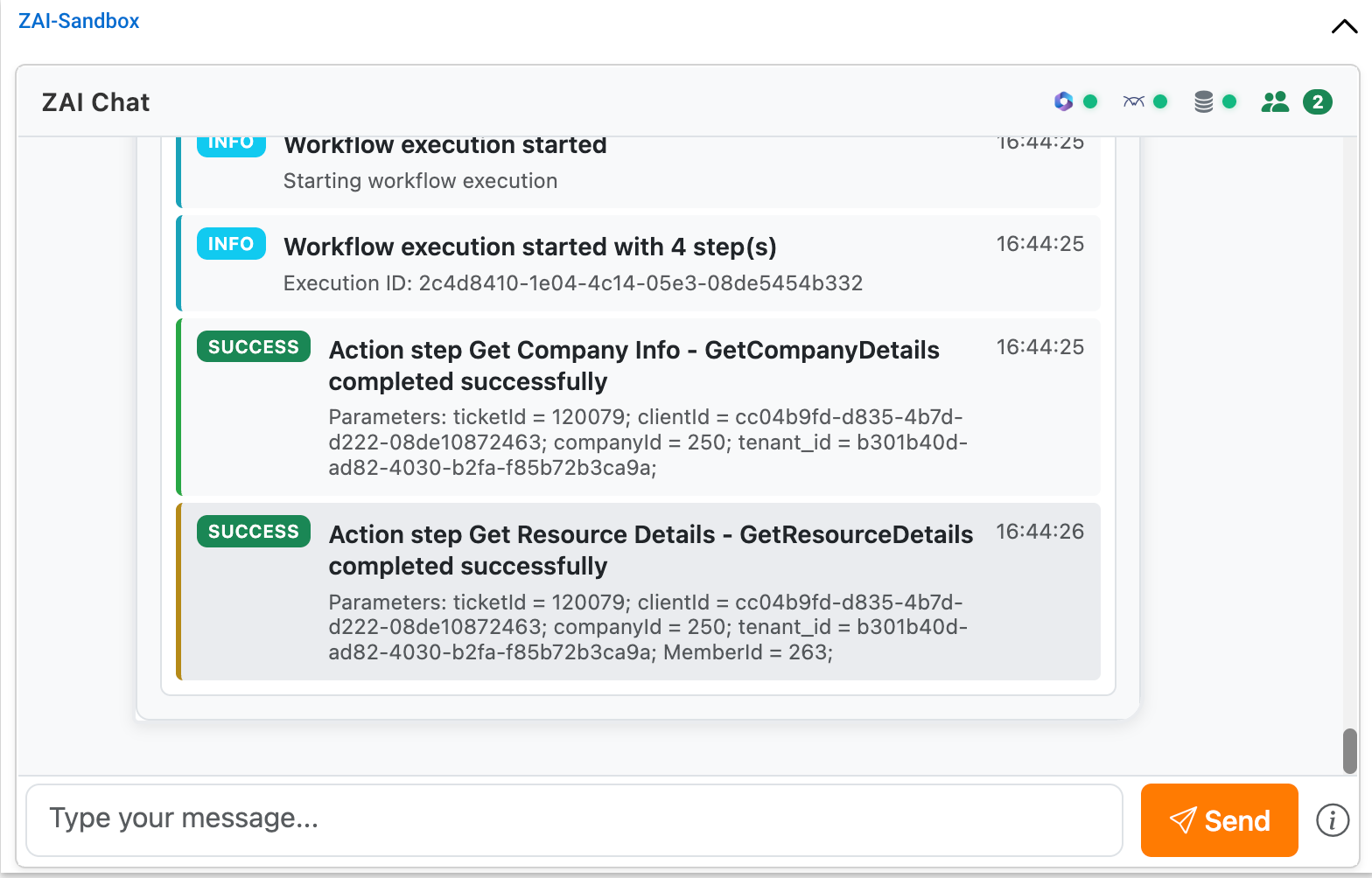
After approval, the workflow executes with live updates.
Screenshot: Workflow execution in progress showing step status
Execution Display
You'll see:
- Step name - Each step in the workflow
- Status - Running, completed, or failed
- Duration - Time taken for each step
- Output - Results from completed steps
- Errors - Details if a step fails
Status Icons
| Status | Meaning |
|---|---|
| Pending | Step waiting to run |
| Running | Step currently executing |
| Completed | Step finished successfully |
| Failed | Step encountered an error |
SignalR Updates
The status updates automatically via SignalR. You don't need to refresh - just watch as each step completes.
Viewing Results
Successful Completion
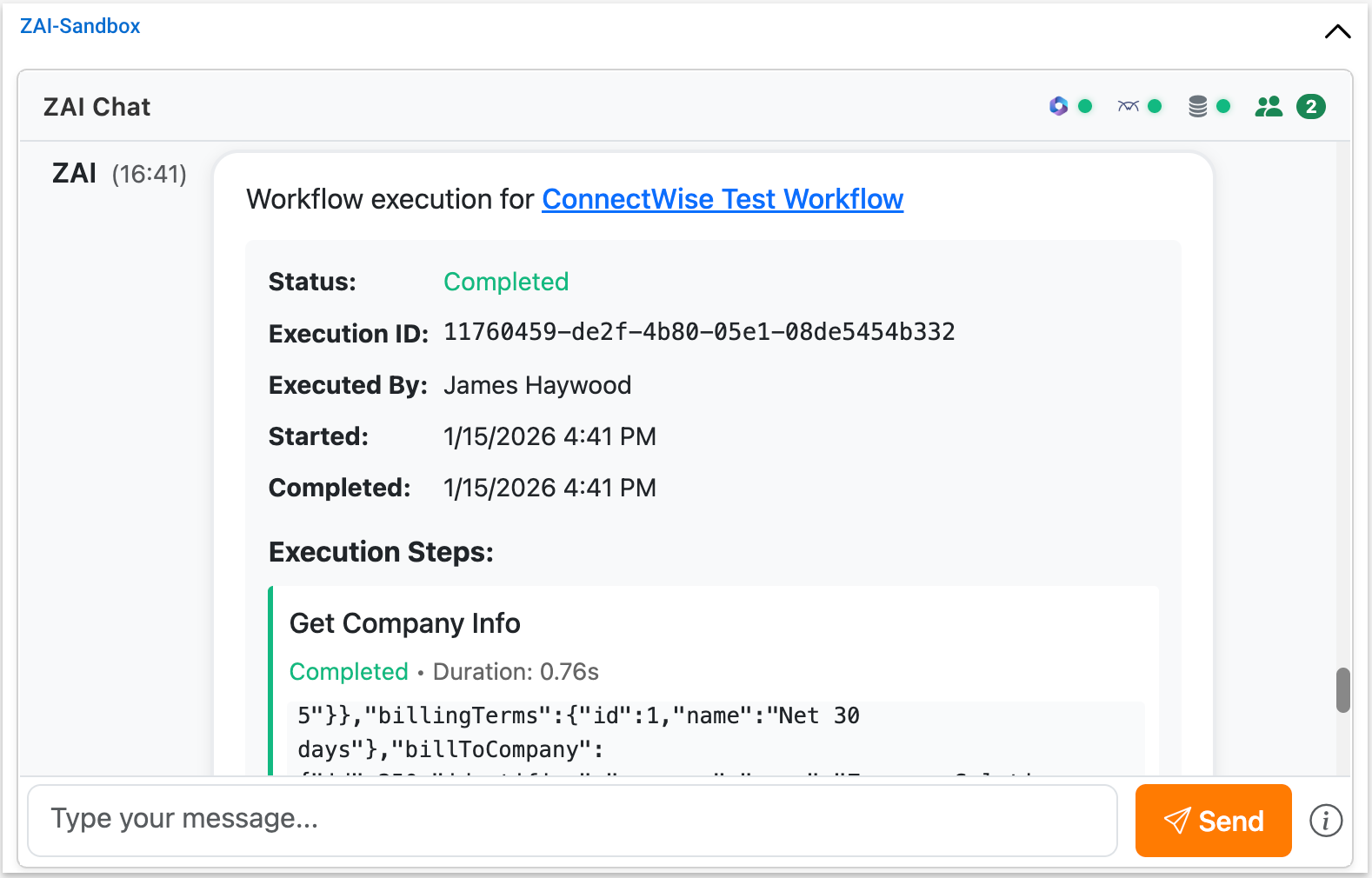
When a workflow completes successfully:
Screenshot: A completed workflow showing success status and outputs
- All steps show as completed
- Output values are displayed
- You can copy results (passwords, IDs, etc.)
Copying Outputs
Important outputs like passwords can be copied:
Screenshot: Output section with copy button
- Find the output value in the results
- Click to copy to clipboard
- Paste where needed (ticket notes, email to user, etc.)
Failed Steps
If a step fails:
Screenshot: A failed workflow showing error details
- Error details are displayed
- You can see what went wrong
- Previous successful steps remain completed
Multi-Technician Collaboration
When multiple technicians view the same ticket:
- Everyone sees workflow executions in progress
- Results are visible to all participants
- Technicians can see who ran a workflow
Coordination Tips
- Check if a workflow is already running before starting another
- Look at recent chat history for completed workflows
- Communicate with colleagues about ongoing tasks
Example: Running a Password Reset Workflow
Step 1: Open the Menu
Type /run in the chat:
Step 2: Select the Workflow
Use arrow keys to highlight "Reset User Password" and press Enter.
Step 3: Fill Parameters
The approval card appears. Fill in:
- User email:
john.doe@company.com - New password:
TempPass123! - Force change on login: Checked
Context parameters (tenant_id, etc.) are already filled.
Step 4: Approve
Click Approve to start execution.
Step 5: Monitor Progress
Watch as steps complete:
Step 6: Copy Results
When complete:
Click to copy the password and provide to the user.
Troubleshooting
Workflow Not in List
If you can't find a workflow:
- Try different search terms
- Check with your administrator that the workflow exists
- Verify you have permission to run it
Approval Card Won't Load
If the approval card doesn't appear:
- Check your network connection
- Refresh the page and try again
- The workflow may have been disabled
Step Fails
If a workflow step fails:
- Read the error message for details
- Check if it's a permissions issue
- Verify the parameters were correct
- Contact your administrator if needed
Execution Seems Stuck
If a step shows "Running" for a long time:
- Some operations take time (30+ seconds)
- Don't refresh - the workflow is likely still running
- Wait for completion or timeout
Best Practices
Before Running
- Verify you're in the correct ticket (correct tenant)
- Check recent chat for already-completed workflows
- Ensure you have the required parameter values ready
During Execution
- Monitor the progress
- Don't refresh the page
- Wait for completion before starting another workflow
After Completion
- Copy important outputs (passwords, IDs)
- Document results in the ticket notes
- Verify changes in M365 admin center if needed
Next Steps
- Chat Overview - Full chat interface guide
- Workflow History - Viewing past executions
- M365 Overview - M365 operations available