Workflow Designer
The Workflow Designer is a full-featured visual editor for building and configuring workflow steps. It provides a canvas for arranging steps, a toolbar with editing tools, version control, validation, test runs, and real-time collaborative editing.
Overview
The designer provides:
- A visual canvas showing workflow steps and connections
- A toolbar with undo/redo, zoom, auto-layout, export/import, validation, and more
- A configuration panel for editing step properties and parameters
- Conditional branching with decision-tree logic based on step outputs
- Workflow-level variables for passing data between steps
- Version control with revision history and drafts
- Real-time collaborative editing with presence indicators
- Validation, test runs, and review submission
Accessing the Designer
Open the designer from:
- Workflow Wizard - Step 4 of the creation wizard
- Workflow List - Click the Designer button on any workflow
Designer Layout
The designer uses a two-column layout with a toolbar header.
Screenshot: The full workflow designer showing toolbar, canvas, and configuration panel
| Area | Purpose |
|---|---|
| Toolbar | Save, undo/redo, zoom, validate, test, export/import, history, review |
| Left panel (Canvas) | Visual display of workflow steps and connections |
| Right panel (Configuration) | Edit selected step properties and parameters |
Toolbar
The toolbar runs across the top of the canvas and provides quick access to all designer tools.
Screenshot: The designer toolbar with save, undo/redo, zoom, validation, and more
| Button | Icon | Function | Shortcut |
|---|---|---|---|
| Status Indicator | Coloured dot | Shows saved (green) or unsaved (amber pulse) state | - |
| Draft Badge | Badge | Shows "Editing Draft" when working on a draft | - |
| Discard Draft | X | Revert to the last published version | - |
| History | Clock | Open version history in the side panel | - |
| Export | Download | Export workflow as JSON | - |
| Save | Floppy disk | Save all changes (appears when dirty) | Ctrl+Shift+S |
| Validate | Tick | Run validation rules | V |
| Test Run | Play | Open test run setup | T |
| Submit for Review | Send | Submit workflow for approval review | - |
| Fullscreen | Expand arrows | Toggle fullscreen mode | - |
| Undo | Undo arrow | Undo last change | Ctrl+Z |
| Redo | Redo arrow | Redo last undone change | Ctrl+Y |
| Zoom Out | Minus | Decrease zoom by 10% | Ctrl+- |
| Zoom Reset | Percentage | Reset zoom to 100% | Ctrl+0 |
| Zoom In | Plus | Increase zoom by 10% | Ctrl+= |
| Auto Layout | Grid icon | Auto-arrange steps on canvas | - |
| Variables | Braces icon | Open workflow variables panel | - |
| Open Editor | Panel icon | Show/hide the configuration panel | - |
| Keyboard Help | Keyboard icon | Show keyboard shortcuts reference | ? |
Canvas
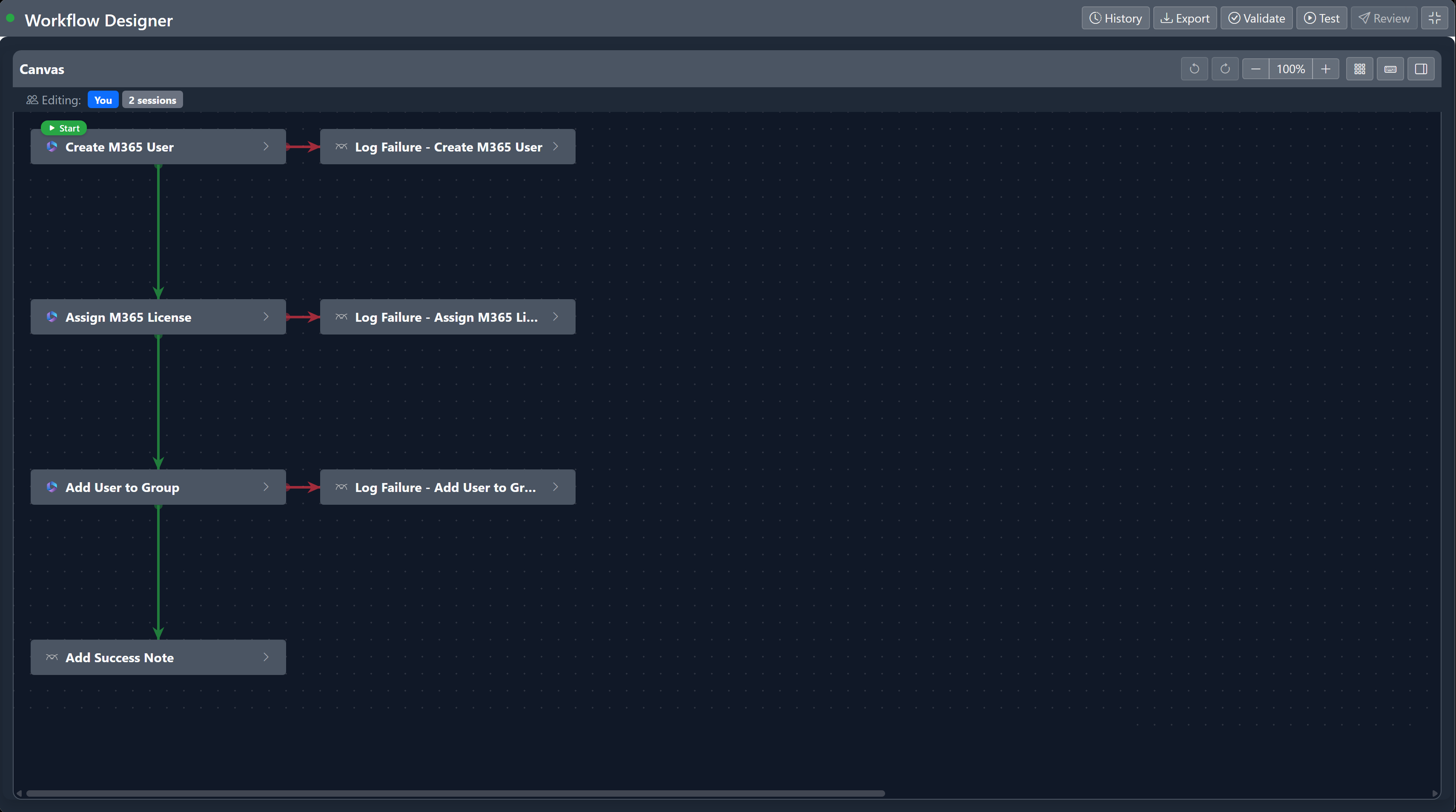
The canvas is the main working area where you arrange workflow steps and draw connections between them.
- Step cards represent individual workflow steps
- SVG arrows show connections and execution flow
- Steps snap to a 20px grid when dragged
- Right-click opens a context menu with copy, paste, and delete options
- Connection ports appear at the bottom of each step for creating links
Configuration Panel
The right-hand panel shows contextual content depending on what you're doing:
- Step Editor - Edit step properties and parameters (when a step is selected)
- Add Step - Create a new step (when "New" is clicked)
- Validation Results - Show errors and warnings (when validation is run)
- Version History - Browse and restore previous versions
- Test Run - Configure and execute test runs
Toggle the panel with the Open Editor button in the toolbar. The canvas expands to full width when the panel is hidden.
Presence Bar
Below the canvas toolbar, a presence bar shows other users currently editing the same workflow. Each user appears as an avatar with their name, along with a count of active connections.
Working with Steps
Adding a New Step
There are several ways to add a step:
From the configuration panel:
- Click the New button in the configuration panel header
- The panel clears ready for input
- Configure the step (see Configuring Steps)
- Click Save
The step appears on the canvas below the lowest existing step.
From the canvas context menu:
- Right-click on an empty area of the canvas and choose Add Step Here to create a step at the clicked position
- Right-click on an existing step and choose Add Next Step to create a new step connected below it. The new step is automatically linked to the step you right-clicked on.
Selecting a Step
Click any step card on the canvas to select it. The step's configuration loads in the right panel. Use keyboard navigation:
- Tab or J - Select next step
- Shift+Tab or K - Select previous step
Deleting a Step
Delete a step using any of these methods:
- Hover over a step and click the trash icon
- Select a step and press Del or Backspace
- Right-click a step and choose Delete Step from the context menu
You'll be asked to confirm before the step is removed.
Reordering Steps
Drag a step by its header to reposition it on the canvas. Steps snap to a 20px grid. Use keyboard shortcuts for precise positioning:
- Up / Down / Left / Right - Move 20px
- Shift+Up / Shift+Down / Shift+Left / Shift+Right - Move 100px
Copy, Paste, and Duplicate
New Feature
Copy, paste, and duplicate steps to speed up workflow creation.
Demo: Using the context menu to copy and paste steps
Copy a step:
- Select a step and press Ctrl+C
- Or right-click a step and choose Copy Step
Paste a step:
- Press Ctrl+V to paste at the bottom of the canvas
- Or right-click an empty area of the canvas and choose Paste Step
Duplicate a step:
- Right-click a step and choose Duplicate
Pasted and duplicated steps get a "(Copy)" suffix in their name. All outgoing connections are cleared - you'll need to reconnect the new step.
Context Menu
Right-click on the canvas for quick actions.
Screenshot: The right-click context menu on a workflow step
On a step:
| Action | Description |
|---|---|
| Add Next Step | Create a new step connected below this one |
| Copy Step | Copy to clipboard |
| Paste Step | Paste from clipboard (greyed out if empty) |
| Duplicate | Create a copy at the cursor position |
| Delete Step | Delete with inline confirmation |
On empty canvas:
| Action | Description |
|---|---|
| Add Step Here | Create a new step at the clicked position |
| Paste Step | Paste from clipboard (greyed out if empty) |
Configuring Steps
When you select or create a step, the configuration panel shows the step editor.
Screenshot: The step configuration panel with all fields
Basic Properties
| Field | Description |
|---|---|
| Step Name | A descriptive name for the step |
| Step Type | Action, Automation, User Prompt, or Nested Workflow |
| Integration | The system this step interacts with (M365, ConnectWise, TimeZest, etc.) |
| Action | The specific action to perform |
Step Types
| Type | Icon | Description |
|---|---|---|
| Action | Plugin | Integration action (ConnectWise, M365, TimeZest, etc.) |
| Custom Action | Warning badge | User-defined integration action |
| User Prompt | Chat | Pause for user input (Yes/No, Text, Multiple Choice, Approval) |
| Nested Workflow | Diagram | Execute another workflow as a sub-step |
| Automation | Cloud | Remote Agent or Cloud Service execution |
Selecting an Action
- Choose the Step Type (usually "Action")
- Select the Integration (e.g., Microsoft 365)
- Choose the Action from the dropdown
The available actions depend on the selected integration.
Parameters
Each action has parameters that need to be configured.
Screenshot: The parameters table showing parameter configuration
The parameters table shows:
| Column | Description |
|---|---|
| Parameter | The parameter name |
| Type | How the value is provided |
| Value | The value or source |
Step cards on the canvas show a preview of the first 3 parameters as coloured badges, with a "+N more" indicator if there are additional parameters.
Parameter Types
| Type | Badge Colour | Description | When to Use |
|---|---|---|---|
| RuntimeInput | Blue | User provides value when running workflow | User-specific values (email, name) |
| ContextInput | Info | Value from ticket/workflow context | Tenant ID, Company ID |
| StepOutput | Grey | Value from a previous step's output | User ID from create step |
| Fixed | - | Hard-coded value | Default values that don't change |
Optional Steps
Check the Optional Step checkbox to make a step optional. Optional steps:
- Show a yellow "Optional" badge on the canvas
- Can be included/excluded when running the workflow
- Are presented as checkboxes in the approval card
Nested Workflows
New Feature
Use nested workflows to call another workflow as a sub-step within your current workflow.
Select Nested Workflow as the step type, then choose the target workflow from the dropdown. The nested workflow executes with its own steps and returns its outputs to the parent workflow. This is shown with an info-coloured "Nested Workflow" badge on the step card.
Connecting Steps
Steps need to be connected to define the execution flow.
Creating a Connection
Hover over a step to reveal the connection port at the bottom. Three coloured dots fan out representing the connection types:
Screenshot: The coloured connection dots that appear when hovering over a step
- Click the coloured dot matching the connection type you want
- Drag to the destination step
- Release to create the connection
Demo: Creating connections between workflow steps
Alternatively, click the port and then a modal appears to choose the connection type.
Connection Types
| Type | Colour | When It Runs | Use For |
|---|---|---|---|
| Default | Blue (#007bff) | Always, after previous step | Normal sequential flow |
| On Success | Green (#28a745) | Only if previous step succeeded | Happy path continuation |
| On Failure | Red (#dc3545) | Only if previous step failed | Error handling, cleanup |
| On Condition | Orange (#fd7e14) | Only if condition expression is met | Decision-tree branching |
Conditional Connections
New in 0.3.0
On Condition connections enable decision-tree branching based on step output values.
On Condition connections evaluate a JSON condition expression against a previous step's output. When a step completes, any On Condition connections are evaluated first -- if one matches, only that branch is followed. Default and On Success connections are suppressed when On Condition connections are present.
Creating a conditional connection:
- Hover over a step to reveal the connection dots
- Click the orange dot (On Condition)
- Drag to the destination step
- The condition configuration modal opens automatically
Configuring a condition:
| Field | Description |
|---|---|
| Source Step | The step whose output to evaluate |
| Property Path | The output property to check (auto-populated from the step's output schema) |
| Operator | Comparison operator |
| Value | The value to compare against (dropdown for known choices, text input otherwise) |
Supported operators:
| Operator | Description |
|---|---|
equals |
Exact match |
notEquals |
Does not match |
contains |
Value contains the text |
startsWith |
Value starts with the text |
isEmpty |
Value is empty or null |
isNotEmpty |
Value is not empty |
Multiple conditions: A single step can have multiple On Condition connections, each with a different condition. This is useful for MultipleChoice prompts where each option leads to a different branch.
Arrow labels: Conditional connections display their label text on the arrow midpoint on the canvas for quick identification.
Auto-Created Branches
When adding certain prompt step types, conditional branches are created automatically:
- YesNo prompts: Two branches are created automatically -- one for "Yes" and one for "No", each with a pre-configured condition expression
- MultipleChoice prompts: A branch is created for each defined option, with condition expressions matching the user's response to each choice
Skipped Steps
When a conditional branch is not taken during execution, the steps on that branch are marked as Skipped in the execution history. Skipped steps display with a grey badge and skip icon, making it clear which path the workflow followed.
Connection Rules
- Each step can have a maximum of one outgoing connection per type (except On Condition, which allows multiple)
- Duplicate connection types are disabled in the UI
- Circular dependencies are prevented
- Branching connections (from steps with 2+ outgoing) use smooth bezier fan-out curves
- Single connections between horizontally-adjacent steps join on the sides
Editing a Connection
Click on a connection arrow to open the inline picker at the midpoint. From here you can:
- Change the connection type
- Reconnect the endpoint (drag to new target)
- Delete the connection
Demo: Changing the type and deleting connections
Moving a Connection
You can reconnect an existing arrow to a different target step by dragging the endpoint.
Demo: Moving a connection endpoint to a different step
Deleting a Connection
- Click on the connection arrow
- Click Delete Connection in the picker
Canvas Tools
Undo / Redo
New Feature
Undo and redo any canvas action with a 50-level history.
Demo: Using undo and redo to revert and reapply changes
The designer tracks a history of up to 50 state snapshots. Each major action creates a snapshot:
- Adding or deleting a step
- Moving a step (one snapshot per complete drag)
- Creating or modifying a connection
| Action | Shortcut |
|---|---|
| Undo | Ctrl+Z |
| Redo | Ctrl+Y or Ctrl+Shift+Z |
The undo/redo buttons in the toolbar show as enabled or disabled depending on available history.
Auto-Layout
New Feature
Automatically arrange steps in a logical layout based on their connections.
Click the Auto-arrange steps button in the canvas toolbar to automatically position all steps.
The auto-layout algorithm:
- Performs a topological sort (BFS) of the connection graph
- Groups steps into depth levels (rows)
- Recursively positions leaf nodes first, then centres each parent above its children
- Uses 340px horizontal spacing and 200px vertical spacing
- Snaps all positions to the 20px grid
- Prefers the start step as the first root node
This tree-based approach produces clean layouts for branching workflows -- a step with 4 conditional branches will be centred above the 4 child steps, and any grandparent steps shift to stay centred above the tree.
Auto-layout also runs automatically on first load if all steps are stacked at the same position.
Tip
Use auto-layout after importing a workflow or after making many manual changes to clean up the canvas.
Zoom Controls
New Feature
Zoom in, out, or reset to get the right view of your workflow.
Screenshot: The zoom controls in the designer toolbar
| Action | Shortcut | Description |
|---|---|---|
| Zoom In | Ctrl+= | Increase by 10% |
| Zoom Out | Ctrl+- | Decrease by 10% |
| Zoom Reset | Ctrl+0 | Reset to 100% |
| Mouse Wheel | Ctrl + scroll | Zoom with mouse wheel |
Zoom range: 25% to 200%. The current zoom percentage is displayed in the toolbar.
Fullscreen Mode
New Feature
Expand the designer to fill the entire browser window for maximum working space.
Demo: Toggling fullscreen mode
Click the Fullscreen button in the toolbar or press Escape to exit. In fullscreen mode:
- The toolbar and canvas expand to fill the viewport
- The configuration panel remains accessible
- Connection arrows automatically redraw to fit the new layout
Lasso Multi-Select
New in 0.3.0
Select multiple steps at once by drawing a selection rectangle on the canvas.
Click and drag on an empty area of the canvas to draw a lasso selection rectangle. All steps within the rectangle are selected (highlighted with a blue border). Once selected, you can:
- Move all selected steps together using Up / Down / Left / Right
- Hold Shift for larger 100px movements
- Click any empty area to deselect all
- Hold Ctrl and click individual steps to add or remove them from the selection
Workflow Variables
New in 0.3.0
Define workflow-level variables that steps can read from and write to during execution.
Workflow variables allow you to pass data between steps, accumulate values, and control flow based on computed state.
Defining Variables
- Click the Variables button (braces icon) in the canvas toolbar
- The variables panel opens showing all defined variables
- Click Add Variable to create a new variable
- Enter a Name, Default Value, and optional Description
- Click Save
Variables are saved with the workflow designer state and are available to all steps.
Using Variables in Parameters
Reference a variable in any step parameter using the {{var.VariableName}} syntax. For example:
{{var.UserEmail}}-- resolves to the current value of the UserEmail variable{{var.TicketCount}}-- resolves to the current value of the TicketCount variable
Variables are resolved at runtime, so they always reflect the latest assigned value.
Variable Assignments
Steps can assign values to variables when they complete. Configure assignments in the Variable Assignments section of the step editor:
| Field | Description |
|---|---|
| Variable | The variable to assign to (dropdown of defined variables) |
| Value | The value to assign (step output property or custom text) |
| Condition | When to assign: Always, On Success, or On Failure |
| Mode | How to assign: Set (replace) or Append (add to existing) |
This allows you to build up values across steps -- for example, appending error messages from each step into a summary variable, or setting a flag variable based on a conditional branch outcome.
Version Control
New Feature
The designer automatically tracks versions of your workflow, allowing you to view history and restore previous versions.
Demo: Viewing version history and restoring a previous version
Viewing Version History
Click the History button in the toolbar to open the version history panel.
Screenshot: The version history panel showing saved versions
Each version shows:
- Version number
- Who created it
- When it was created
- Change description (if provided)
Restoring a Previous Version
- Click History in the toolbar
- Find the version you want to restore
- Click View to preview it
- Confirm the restore
Warning
Restoring a previous version replaces your current working state. Make sure to save any changes you want to keep before restoring.
Drafts
New Feature
Changes are saved as drafts until you explicitly publish them, preventing accidental modifications to live workflows.
How Drafts Work
When you make changes in the designer, they are saved as a draft version:
- A "Editing Draft" badge appears in the toolbar
- The draft is separate from the live (published) version
- Other users can see the live version while you edit the draft
- Drafts persist between sessions
Discarding a Draft
Click the Discard Draft button (X) next to the draft badge to revert all draft changes and return to the last published version.
Publishing Changes
Save your changes with the Save button (Ctrl+Shift+S) to publish the draft as the new live version. A new version is created in the history.
Saving and State Management
New Feature
The designer uses a batch save system that tracks all changes and saves them together.
Save Indicators
| Indicator | Meaning |
|---|---|
| Green dot | All changes saved |
| Amber pulsing dot | Unsaved changes |
| Save button visible | Changes need saving |
Batch Save
When you click Save (or press Ctrl+Shift+S), the designer sends the complete workflow state to the server:
- All steps with their configurations
- All connections with types
- Position information for canvas layout
- Version metadata
Unsaved Changes Warning
If you try to navigate away with unsaved changes, the browser will show a confirmation dialog. The Submit for Review button is also disabled until changes are saved.
Version Conflict Resolution
If another user saves the workflow while you're editing, you'll see a 409 conflict notification with a prompt to reload. The designer fetches the fresh state and you can merge your changes.
Validation
New Feature
Validate your workflow to catch errors and warnings before submission.
Running Validation
Click the Validate button in the toolbar or press V. The validation results appear in the configuration panel.
Demo: Running validation and reviewing results
Validation Rules
Errors (must fix before submitting):
- Missing workflow name or description
- Orphaned steps with no connections
- Circular dependencies between steps
- Invalid parameter configurations
- Missing required action parameters
Warnings (informational):
- Unused steps
- Optional-only branches
- Complex nesting depth
Validation Results
Demo: Validation passing with no errors
Demo: Validation failing with errors highlighted
Each validation issue shows:
- The step name where the issue was found
- The rule that was violated
- An error or warning message
Click on any issue to scroll to and highlight that step on the canvas. Steps with errors are highlighted with a red border.
Export and Import
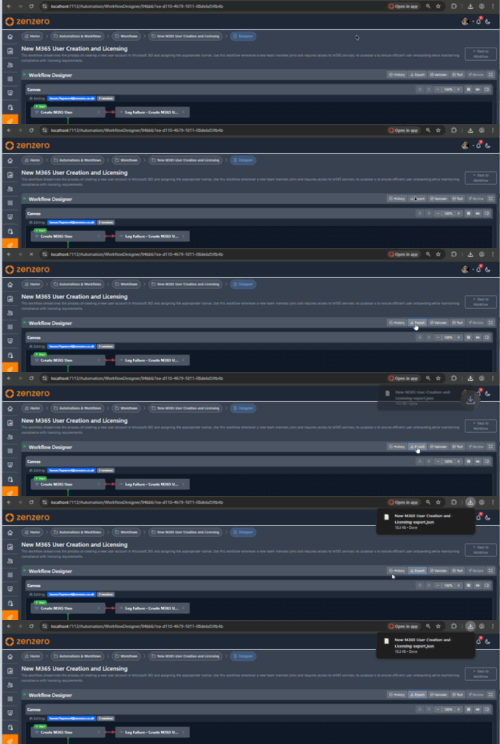
Exporting Workflows
New Feature
Export workflows as portable JSON files for backup, sharing, or migration.
Demo: Exporting a workflow to JSON
Click the Export button in the toolbar to download the workflow as a JSON file containing:
- Workflow metadata (ID, name, description)
- All steps with configurations
- All connections with types and positions
- Version information
- Name-based references (portable across environments)
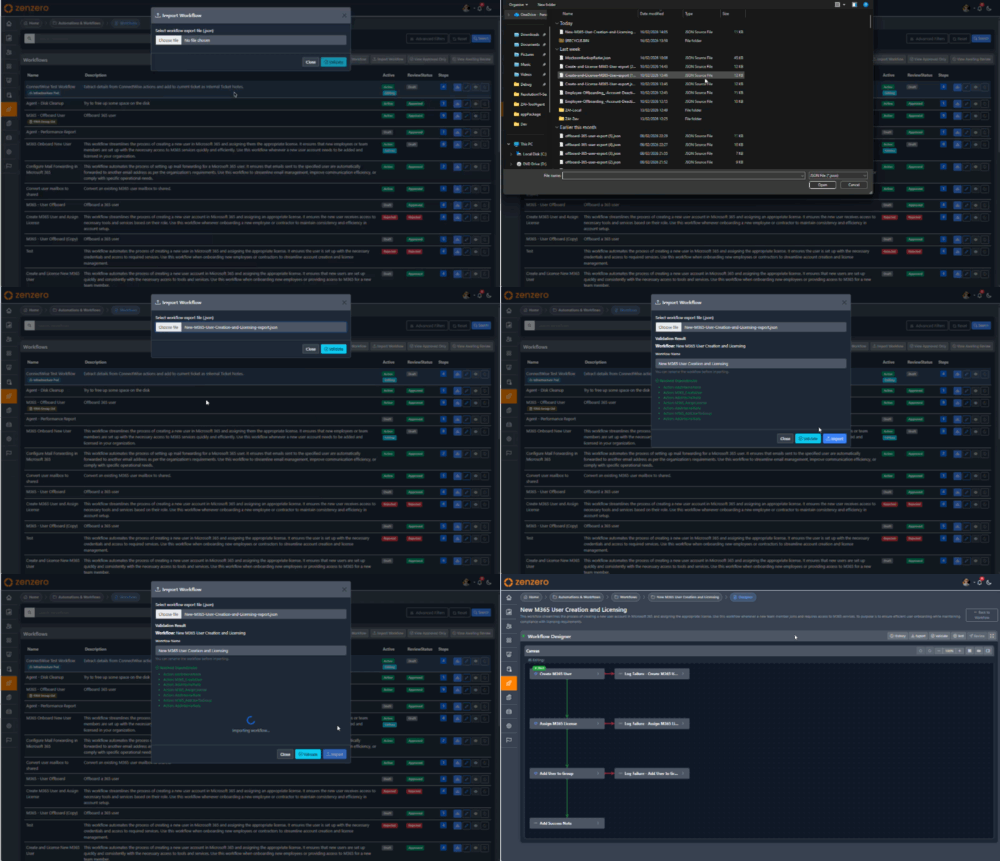
Importing Workflows
New Feature
Import workflows from JSON files, with automatic dependency resolution.
Demo: Importing a workflow from JSON
To import a workflow:
- Navigate to the workflow import page
- Upload the JSON file
- The system validates the file and checks dependencies
- Missing dependencies are flagged for resolution
- The imported workflow is created in Draft status
Tip
Imported workflows always start as drafts so you can review and test them before publishing.
Test Runs (What-If)
New Feature
Run test executions of your workflow to verify behaviour without affecting real systems.
Demo: Running a test with forced step failures and live results
Starting a Test Run
- Click the Test Run button in the toolbar or press T
- If you have unsaved changes, you'll be prompted to save first
- The test run panel loads with runtime parameter fields
Forcing Step Failures
During test setup, click any step on the canvas to toggle force failure mode for that step. Forced-fail steps show a red badge and will simulate a failure during the test run. This lets you:
- Test failure paths and On Failure connections
- Verify error handling logic
- Check that cleanup steps execute correctly
Test Parameters
The test run form auto-fills parameters with test values:
| Parameter Type | Auto-Fill Value |
|---|---|
| Numbers | Random 10000-99999 |
| testuser@example.com | |
| GUIDs | Randomly generated |
| Text | "Test_" + parameter name |
Viewing Test Results
During execution, the test run panel shows:
- Elapsed time counter
- Step-by-step progress with live status indicators:
- Blue spinner - Running
- Green tick - Completed
- Red X - Failed (with error output)
- Orange clock - Timed Out
- Grey dash - Skipped
- Duration per step in milliseconds
- Canvas highlighting - Steps light up in real-time:
- Blue border - Currently running
- Green border - Completed successfully
- Red border - Failed
- Orange border - Warning/timeout
Collaborative Editing
New Feature
Multiple users can edit the same workflow simultaneously with real-time presence awareness and step locking.
Real-Time Presence
The presence bar below the toolbar shows all users currently editing the workflow. Each user appears as an avatar with their name and email.
Step Locking
When another user selects a step, it becomes locked for you:
- A yellow border appears around the locked step
- The step becomes non-interactive (you can't click or drag it)
- A tooltip shows who is editing that step
- The lock releases when the other user deselects the step
Live Updates
Changes made by other users appear in real-time on your canvas:
| Event | What You See |
|---|---|
| Step moved | Step slides to new position (throttled at 60ms) |
| Step added | New step fades in with animation |
| Step deleted | Step fades out and disappears |
| Connection created | New arrow draws as a ghost arrow |
| Connection deleted | Arrow disappears |
| Connection type changed | Arrow colour updates |
| Workflow saved | Banner shows who saved with version number and a Reload button |
Submitting for Review
New Feature
Submit your workflow for formal review before it can be activated.
To submit a workflow for review:
- Ensure all changes are saved (Save button not visible)
- Run validation — the workflow must pass with no errors
- Click Submit for Review in the toolbar
The Submit for Review button is disabled if there are unsaved changes or validation has errors. Once submitted, the workflow moves to Awaiting Review status and is locked from further editing until reviewed. Approvers are notified immediately.
For full details on the review process, notifications, the review page, and approval decisions, see Workflow Review & Approval.
Multi-Step Approval
New Feature
Configure multi-level approval chains for workflows that require sign-off from multiple stakeholders.
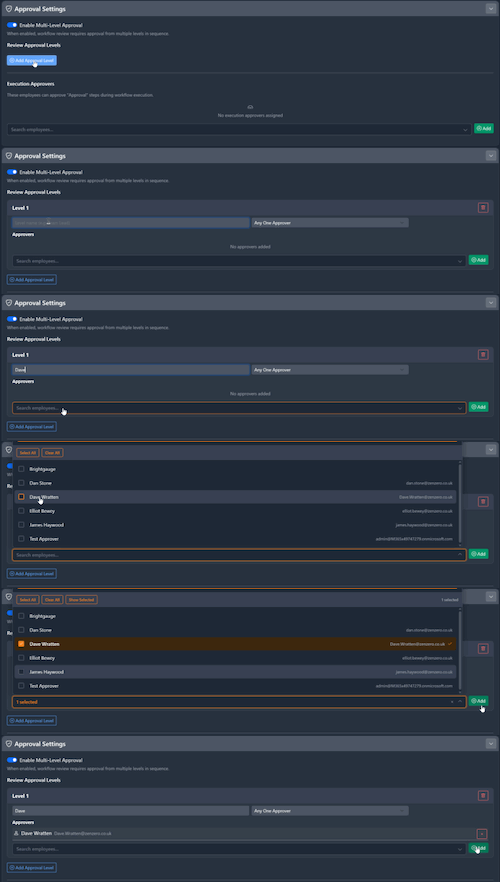
Configuring Approval Levels
Approval is configured in sequential levels within the designer. Each level must be approved before the next level is activated.
- Open the approval configuration in the designer
- Toggle Enable Multi-Level Approval
- Add levels with a name, logic type, and approvers
- Select approvers from the searchable employee dropdown
- Levels execute in numeric order (Level 1, Level 2, etc.)
Execution Approvers
Configure who can approve workflow executions at runtime.
Demo: Setting up execution approvers for a workflow
Single-Level Approval
Set up a single approval level with one or more approvers.
Demo: Configuring a single-level approval chain
Multi-Level Approval
Add a second (or further) approval level to create sequential approval chains.
Demo: Adding a second approval level for sequential sign-off
Approval Logic
Each approval level can use one of two logic modes:
| Mode | Description |
|---|---|
| Any One | Any single approver at this level can approve |
| All Required | Every approver at this level must approve |
Approval Scopes
Approvers can be assigned at different scopes (resolved in priority order: Workflow → Pod-Client → Pod):
| Scope | Description |
|---|---|
| Workflow | Specific users assigned to this workflow (highest priority) |
| Pod-Client | Default for workflows in a specific pod + client combination |
| Pod | Default for all workflows in a pod (lowest priority) |
Approval Steps in Workflows
You can also add an Approval step within a workflow using the User Prompt step type with the Approval prompt type. This pauses workflow execution and waits for an authorised approver to approve or reject before continuing.
For full details on the review process, notifications, and the reviewer experience, see Workflow Review & Approval.
AI Features
The designer includes AI assistance to help build better workflows.
AI Suggestions
Click the AI Suggestions button (or press A) to get AI-powered recommendations for:
- Performance optimisations
- Branch coverage analysis
- Error handling recommendations
- Optional step identification
- Parameter optimisation
AI-Generated Steps
When creating a workflow via the wizard, AI automatically suggests initial steps based on your natural language description. These steps appear pre-configured on the canvas.
Keyboard Shortcuts
Press ? in the designer to see the full shortcut reference.
Navigation
| Shortcut | Action |
|---|---|
| Tab | Select next step |
| Shift+Tab | Select previous step |
| J | Select next step (Vim-style) |
| K | Select previous step (Vim-style) |
| Esc | Close panel and deselect step |
Step Movement
| Shortcut | Action |
|---|---|
| Up / Down / Left / Right | Move selected step 20px |
| Shift+Up / Shift+Down / Shift+Left / Shift+Right | Move selected step 100px |
Editing
| Shortcut | Action |
|---|---|
| N | Add new step |
| Del or Backspace | Delete selected step |
| Ctrl+C | Copy selected step |
| Ctrl+V | Paste step |
| Ctrl+Z | Undo |
| Ctrl+Y or Ctrl+Shift+Z | Redo |
| Ctrl+S | Save current step |
| Ctrl+Shift+S | Save entire workflow |
View
| Shortcut | Action |
|---|---|
| Ctrl+= | Zoom in (10%) |
| Ctrl+- | Zoom out (10%) |
| Ctrl+0 | Reset zoom to 100% |
| Ctrl + mouse wheel | Mouse wheel zoom |
Quick Actions
| Shortcut | Action |
|---|---|
| A | AI Suggestions |
| V | Validate workflow |
| T | Start test run |
| ? | Show keyboard shortcuts |
Example: Building a User Onboarding Workflow
Step 1: Create User
- Click New in the configuration panel
- Set Step Name: "Create M365 User"
- Step Type: Action
- Integration: Microsoft 365
- Action: Create User
- Configure parameters:
tenant_id: ContextInput →${context.tenant_id}user_principal_name: RuntimeInputdisplay_name: RuntimeInputpassword: Fixed → Generate Random
- Click Save
Step 2: Assign License
- Click New
- Set Step Name: "Assign E3 License"
- Step Type: Action
- Integration: Microsoft 365
- Action: Assign License
- Configure parameters:
tenant_id: ContextInputuser_id: StepOutput →${CreateM365User.user_id}license_sku: Fixed → E3 SKU ID
- Click Save
Step 3: Connect the Steps
- Hover over "Create M365 User" to reveal connection ports
- Click the green (Success) dot
- Drag to "Assign E3 License" and release
- The license assignment now only runs if user creation succeeds
Step 4: Validate and Test
- Press V to validate - fix any errors
- Press T to start a test run
- Review the test results
- When satisfied, press Save then Submit for Review
Best Practices
Step Naming
Use clear, descriptive names:
- "Create M365 User" (describes what it does)
- "Assign E3 License" (specific about the licence)
Avoid generic names like "Step 1" or "Do Action".
Connection Strategy
- Use On Success for dependent steps (e.g., can't assign licence without user)
- Use On Failure for error handling or cleanup
- Use On Condition for decision-tree branching based on step outputs (e.g., route based on user prompt response)
- Use Default only when you always want the next step to run
Parameter Organisation
- Use ContextInput for tenant and company IDs
- Use RuntimeInput for user-provided values
- Use StepOutput to chain step results
- Use Fixed sparingly for truly constant values
Version Control Practices
- Save frequently to create version snapshots
- Use meaningful change descriptions when saving
- Review version history before making major changes
- Restore previous versions if something goes wrong
Draft Workflow
- Work in draft mode for significant changes
- Test your draft thoroughly before publishing
- Discard drafts if you decide not to proceed with changes
Validation
- Run validation before every review submission
- Fix all errors before submitting
- Review warnings even though they don't block submission
Troubleshooting
Step Won't Save
- Check all required fields are filled
- Verify parameter values are valid
- Ensure an action is selected
Connection Won't Create
- Check you're not creating a duplicate connection type
- Ensure you're not creating a circular reference
- Verify the target step exists and isn't being deleted
Parameters Missing
- Verify the action is selected
- Check the integration is configured
- Some actions load parameters dynamically
Undo Not Working
- Undo history is limited to 50 actions
- Some actions (like saving) are not undoable
- Check if the undo button is enabled in the toolbar
Version Conflict
- Another user saved while you were editing
- Click Reload to fetch the latest version
- Re-apply your changes after reloading
Collaborative Editing Issues
- Check your internet connection (SignalR requires a stable connection)
- If steps appear locked but no other users are shown, the other user may have disconnected - the lock should release automatically
- Refresh the page if presence indicators seem stale
Validation Errors
- Click on each error to jump to the affected step
- Steps with errors show a red border on the canvas
- Fix errors in order - some may resolve when earlier ones are fixed
Test Run Failures
- Check that the workflow is saved before testing
- Verify test parameters are reasonable
- Review forced-failure steps if unexpected failures occur
- Check browser console for connection errors
Next Steps
- Workflow Review & Approval - The review process, notifications, and approval decisions
- Creating Workflows - Full workflow creation guide
- Running Workflows - How to execute workflows