Chat Interface Overview
The Zenzero ZAI chat interface is embedded as a pod within ConnectWise service tickets, allowing technicians to look up information, run workflows, and collaborate in real-time.
Accessing the Chat
The chat interface appears as a pod within ConnectWise tickets. When you open a ticket, you'll see the ZAI chat panel.
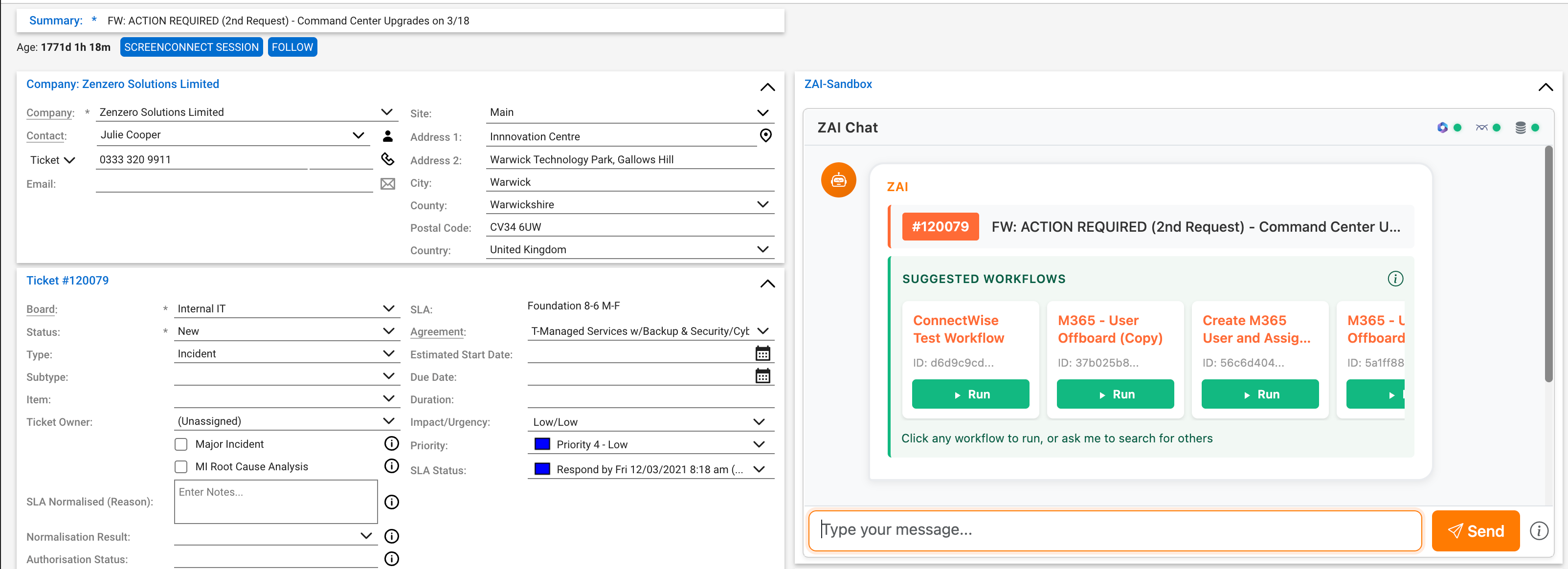 Screenshot: The ZAI chat pod embedded in a ConnectWise ticket
From the chat you can:
- Query information about users, licenses, and tenants
- Run workflows to perform actions
- Collaborate with other technicians viewing the same ticket
The Slash Menu
Type / in the chat input to open the command menu. This provides quick access to workflows and M365 queries.
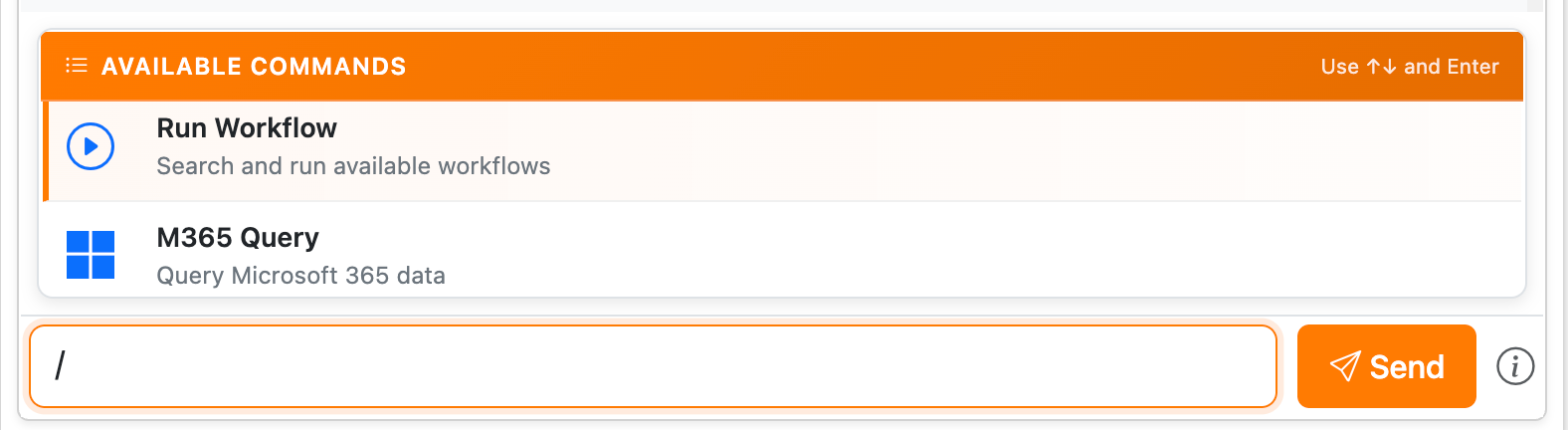 Screenshot: The slash menu showing available command options
Main Menu Options
When you type / you'll see two main options:
| Command | Description |
|---|---|
/run |
Run a workflow |
/365 |
M365 queries |
Running Workflows (/run)
Type /run to see available workflows. As you type, the list filters to match your search.
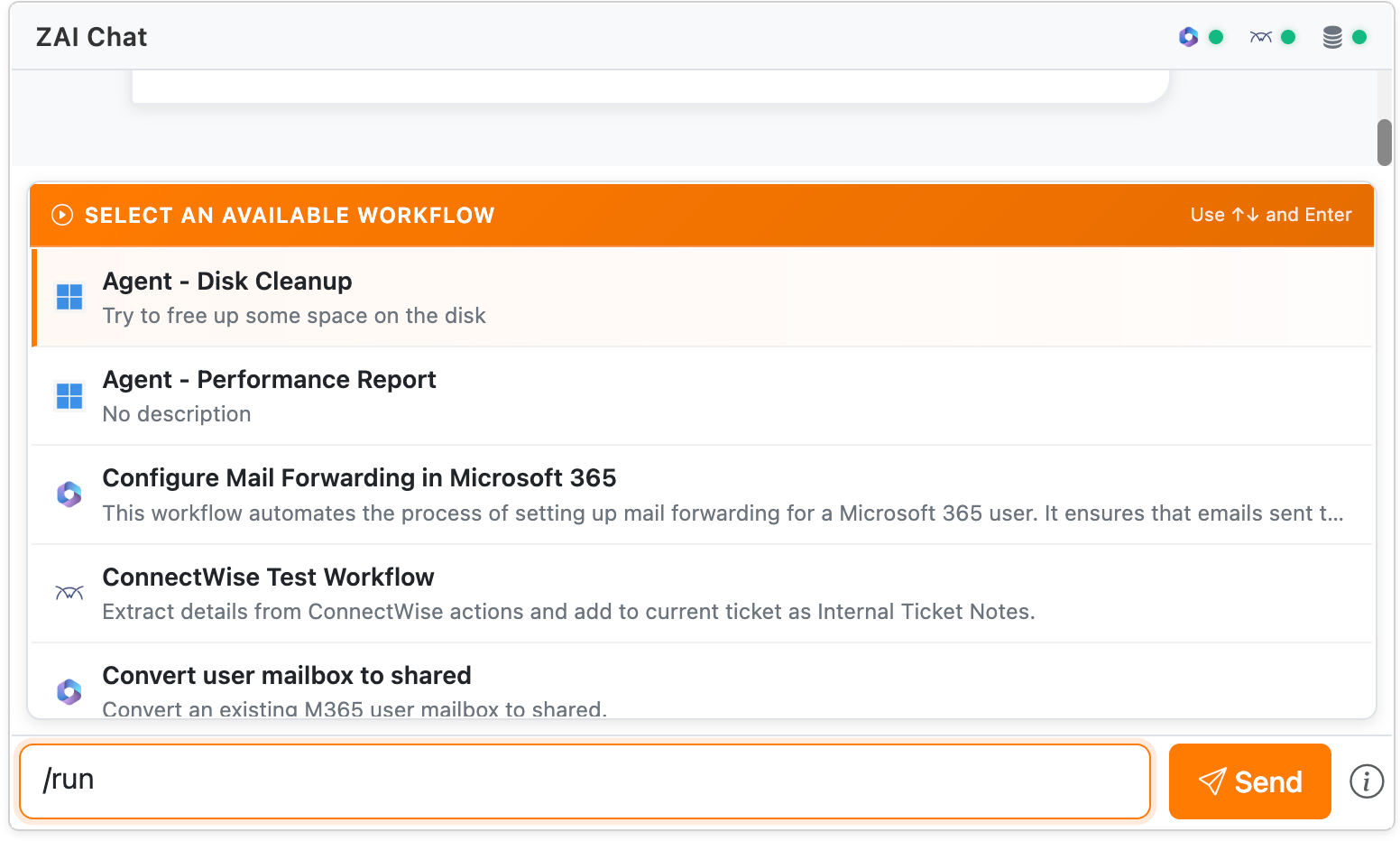 Screenshot: The /run menu showing available workflows
This shows workflows containing "password" in the name or description.
M365 Queries (/365)
Type /365 to see available M365 queries:
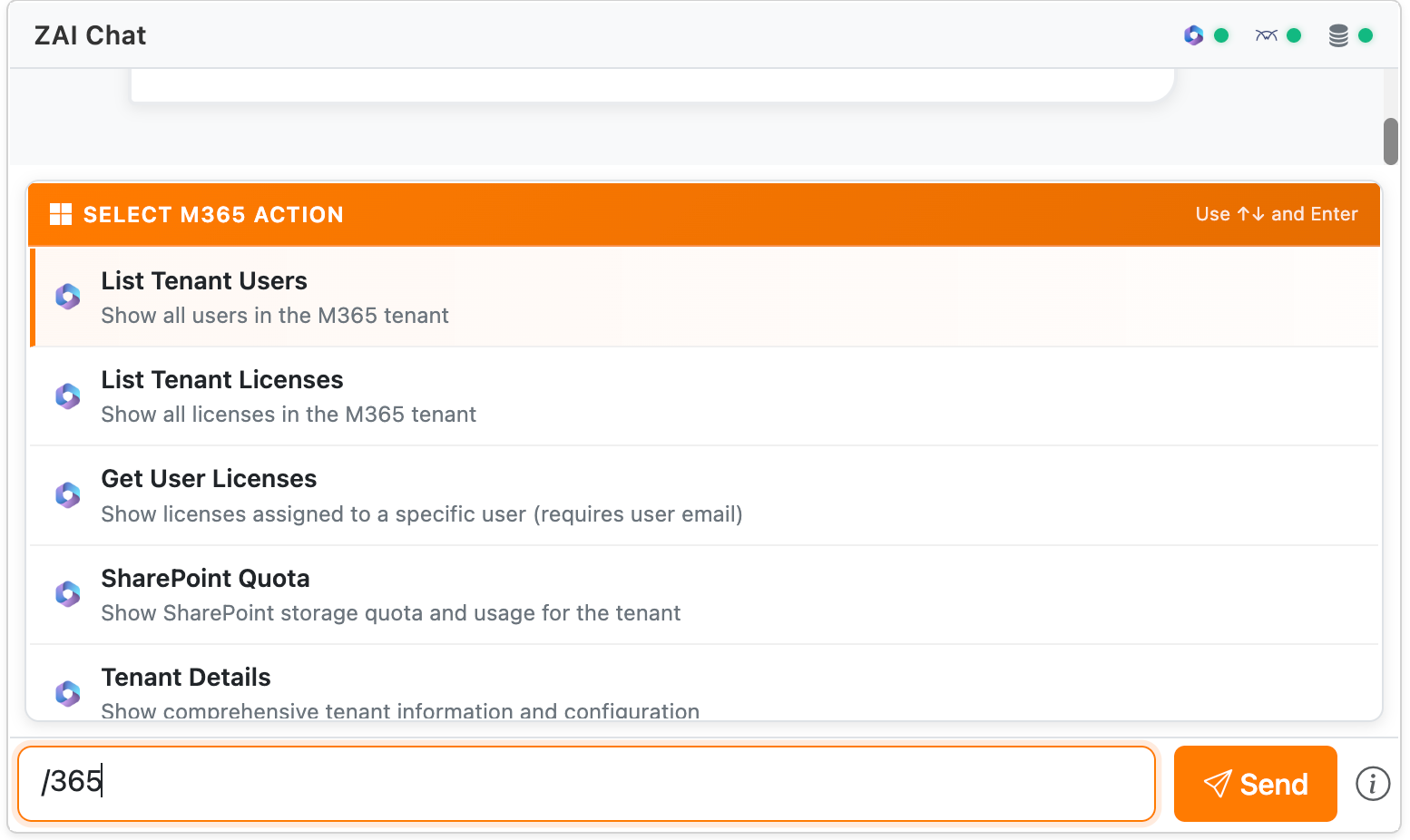 Screenshot: The /365 menu showing M365 query options
| Command | What It Does |
|---|---|
/365 list tenant users |
List all users in the tenant |
/365 list tenant licenses |
List all licenses and usage |
/365 get user licenses for [email] |
Get licenses for a specific user |
/365 sharepoint quota |
Check SharePoint storage usage |
/365 tenant details |
Get tenant configuration info |
/365 defender status |
Check Defender security status |
Connection indicator
The pod's Microsoft 365 indicator shows whether ZAI can reach the ticket's customer tenant. If there's a problem, click it — a diagnostics dropdown shows exactly which part of the connection is failing, so you can tell your administrator precisely what's wrong instead of just "M365 isn't working".
Keyboard Navigation
When the menu is open:
| Key | Action |
|---|---|
| ↑ / ↓ | Navigate through options |
| Enter | Select the highlighted option |
| Escape | Close the menu |
Running Workflows
When you select a workflow from the /run menu, an approval card appears.
Approval Card
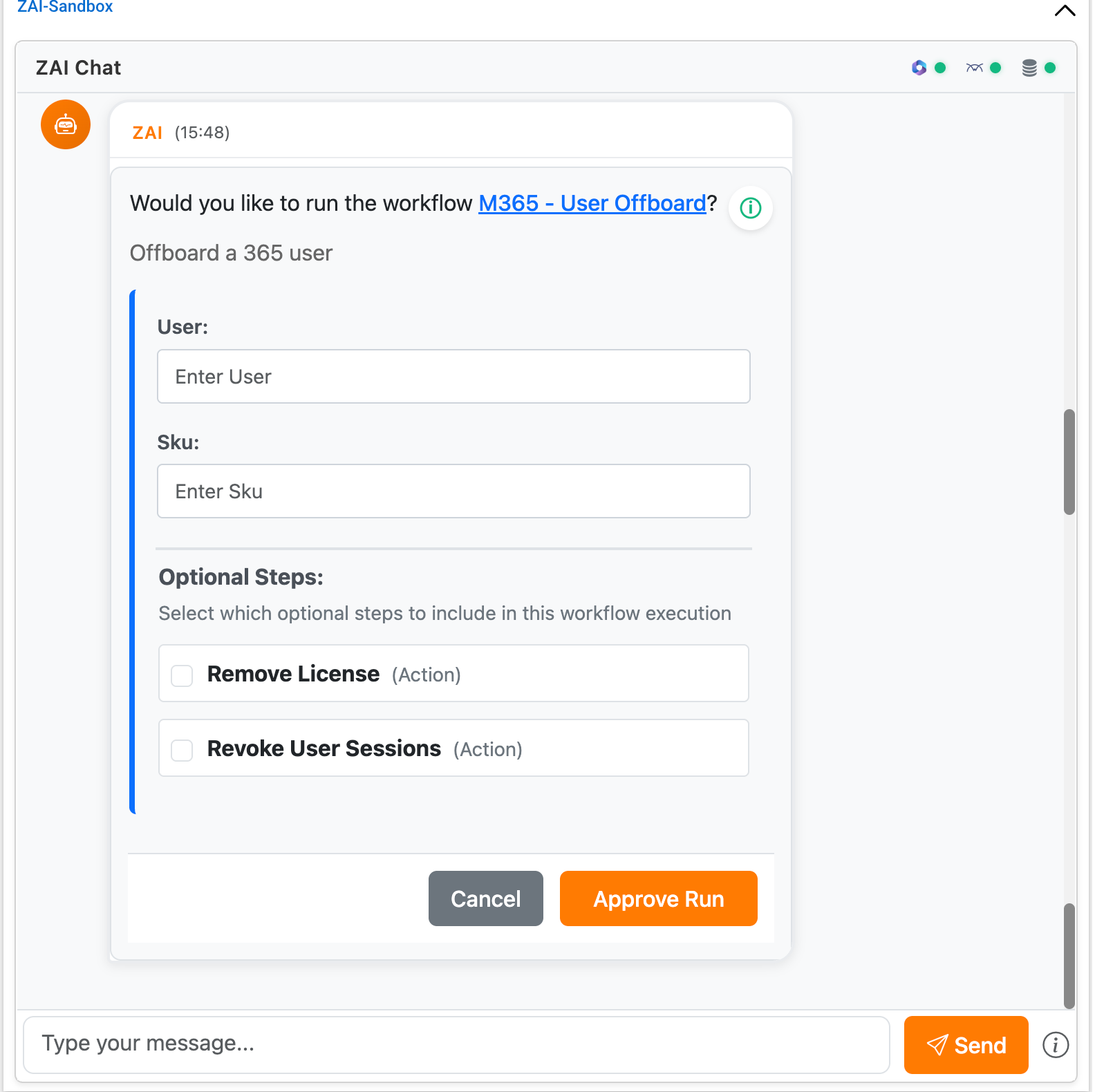 Screenshot: A workflow approval card with parameters
The approval card shows:
- Workflow name and description
- Context parameters (auto-filled from ticket)
- Tenant ID
- Company ID
- Client ID
- Ticket ID
- Runtime parameters (you fill these in)
- Text inputs
- Dropdowns
- Checkboxes
- Optional steps (if the workflow has any)
- Checkboxes to include/exclude optional steps
Executing a Workflow
- Review the parameters
- Fill in any required runtime parameters
- Select optional steps if needed
- Click Approve to run the workflow
Real-Time Execution Updates
Once approved, you'll see live progress:
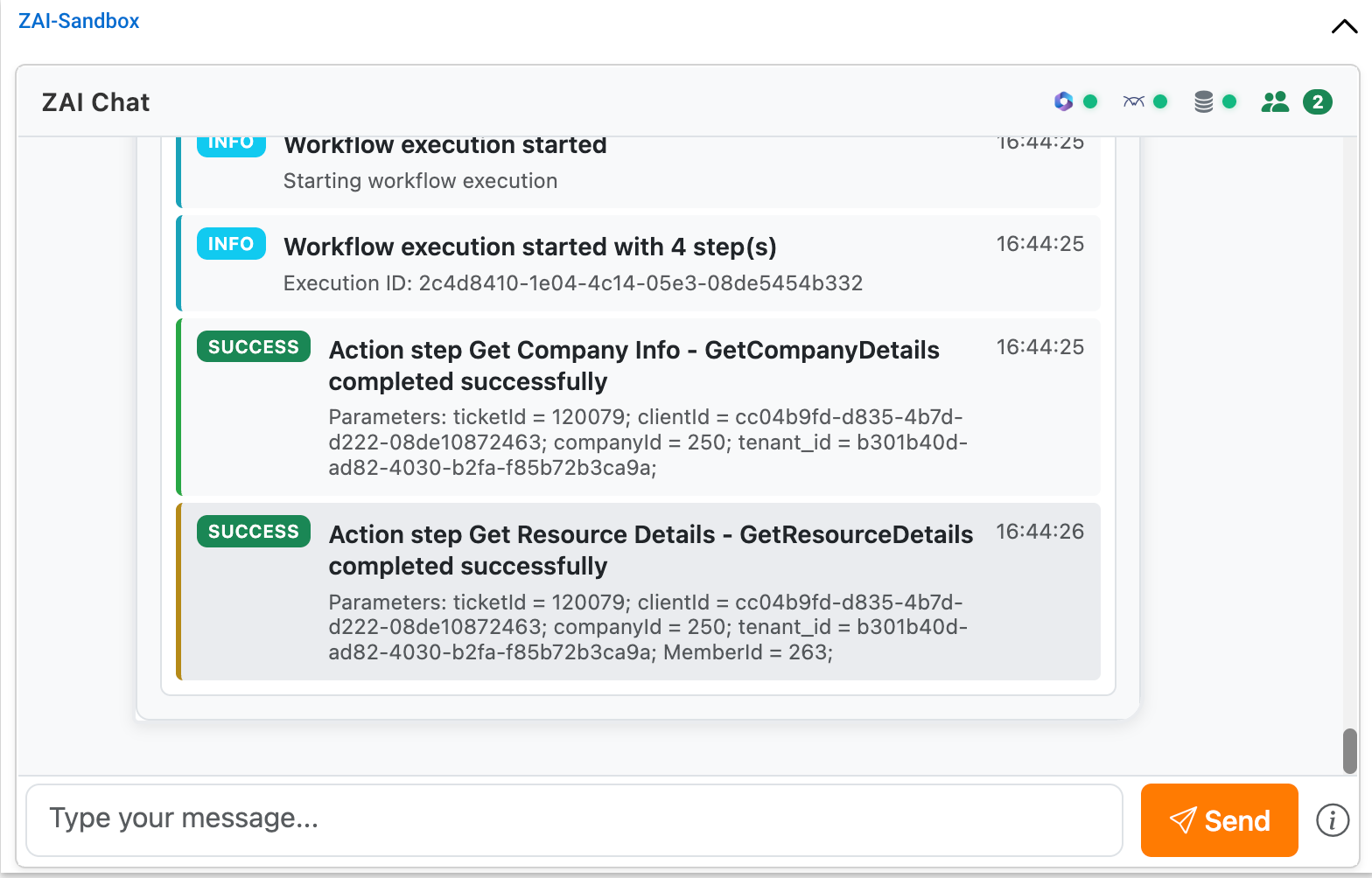 Screenshot: Workflow execution showing step progress
- Live status updates as each step executes
- Step-by-step progress with timing
- Output from each step
- Any errors that occur
The workflow status updates automatically in real time - no need to refresh.
Completed Workflow
When a workflow completes, you'll see the results:
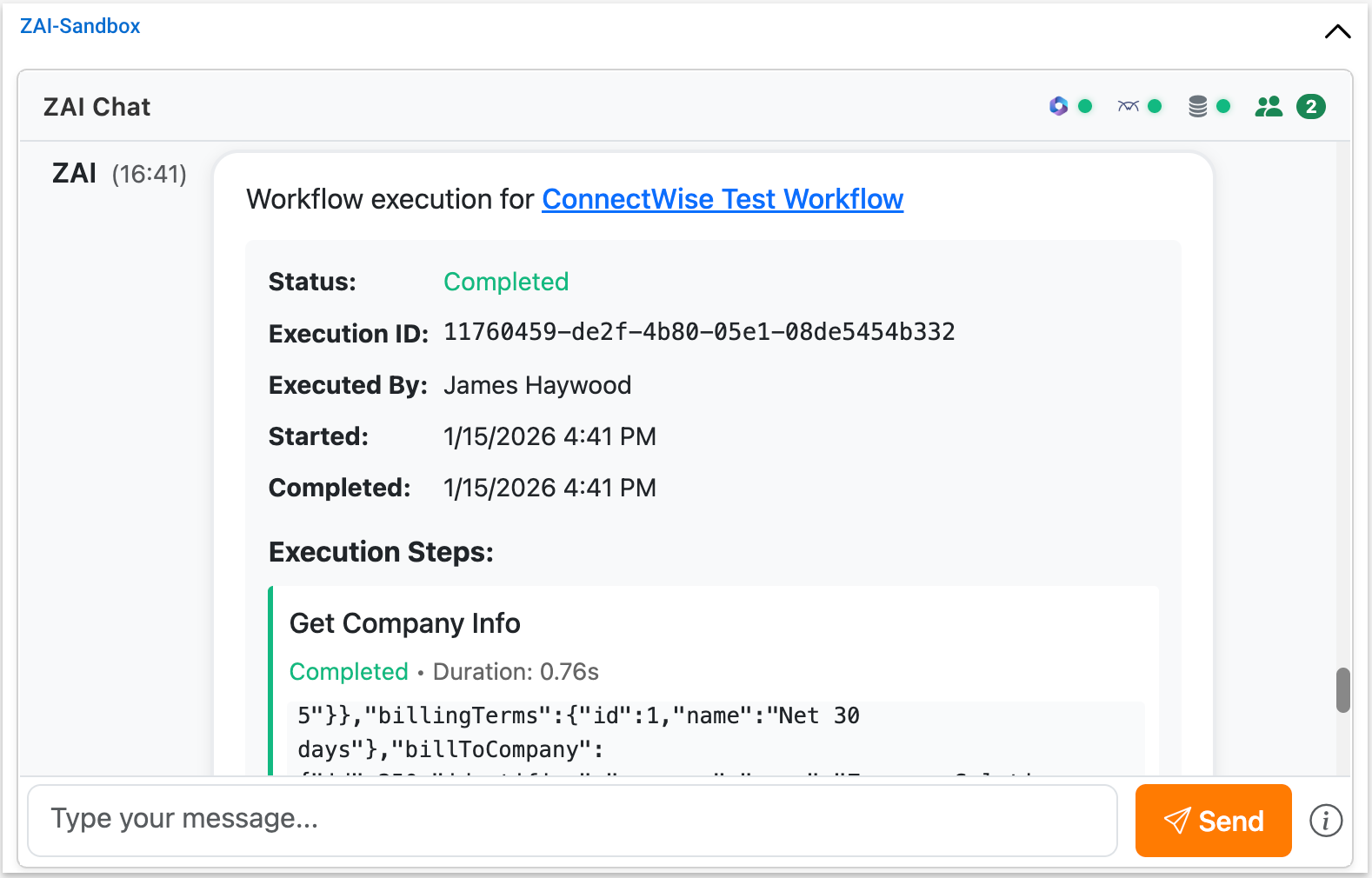 Screenshot: A completed workflow showing results
Collaboration
Multiple technicians can view and interact with the same ticket's chat simultaneously.
How It Works
- When you open a ticket, you join the chat session for that ticket
- Other technicians viewing the same ticket see the same chat history
- Messages and workflow executions are visible to all participants
- Typing indicators show when someone else is typing
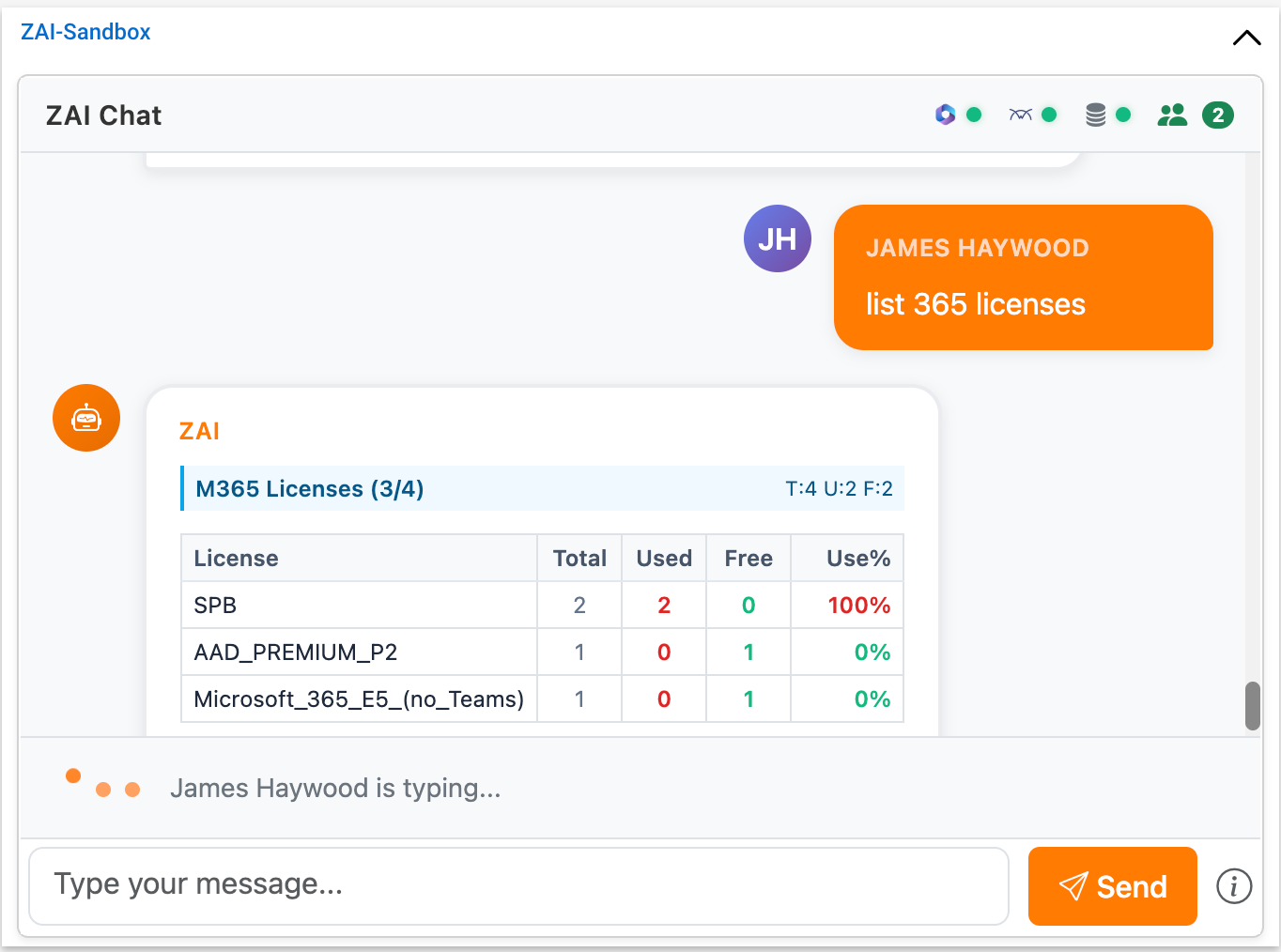 Screenshot: Chat showing typing indicator from another technician
What's Shared
| Feature | Shared? |
|---|---|
| Chat messages | Yes - all technicians see messages |
| Workflow executions | Yes - everyone sees execution progress |
| Query results | Yes - results visible to all |
| Typing indicators | Yes - see who's typing |
Best Practices for Collaboration
- Check if another technician is already working before running workflows
- Coordinate on complex tasks to avoid duplicate work
- Use the chat to communicate with colleagues about the ticket
Context Awareness
When working from a ConnectWise ticket, the chat automatically knows:
| Context | Source |
|---|---|
| Tenant ID | Looked up from client configuration |
| Company ID | From the ConnectWise ticket |
| Client ID | From the ticket's company |
| Ticket ID | From the current ticket |
This context is: - Used to target the correct M365 tenant for queries - Auto-filled in workflow parameters - Passed to all workflow executions
Query Results
Query results appear as formatted cards in the chat:
User List Results
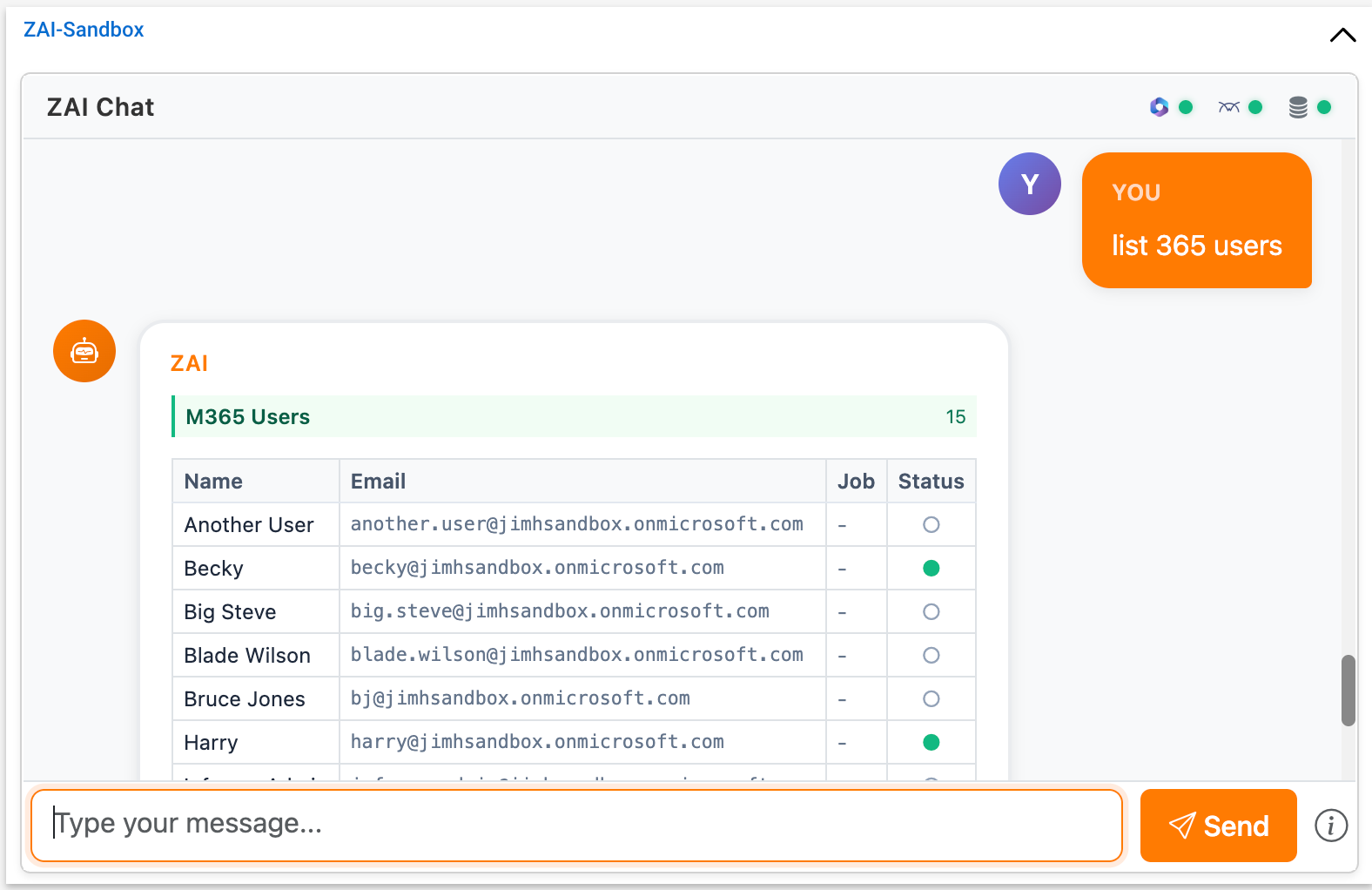 Screenshot: User list query results showing user cards
License Results
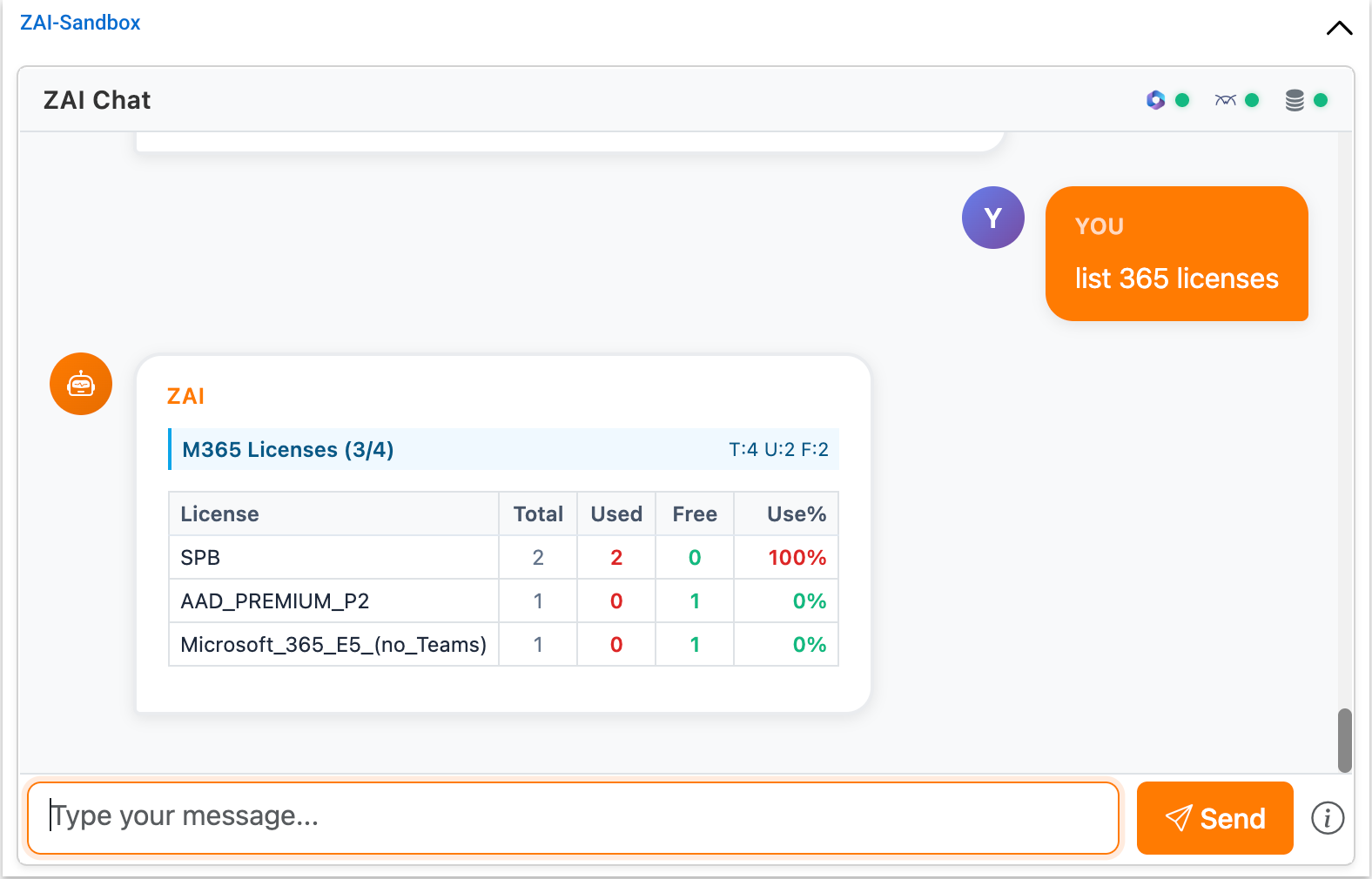 Screenshot: License query results showing license information
Chat Feedback
You can rate AI responses to help improve ZAI's accuracy over time. Each AI message displays thumbs up and thumbs down icons on hover.
 Screenshot: Thumbs up/down feedback buttons on an AI response
- Hover over an AI response to reveal the feedback icons
- Click thumbs up if the response was helpful, or thumbs down if it wasn't
- Optionally add a text comment explaining your rating
- Feedback is sent to the Resourcer for analysis
Tip
Negative feedback is especially valuable — it helps identify areas where ZAI's responses can be improved.
Human Chat
Technicians can send messages directly to each other within a ticket's chat, alongside the AI conversation. Human messages are visually distinct from AI responses and are delivered in real time.
- Type
@followed by a name to mention another technician - Press Tab to autocomplete the mention
- Human messages appear with the sender's name and distinct styling
- All technicians viewing the ticket see human messages immediately
Tips
Use the Slash Menu for Speed
The / menu provides quick access without typing full queries. It's faster than typing natural language for common tasks.
Review Before Approving
Always check: - The correct tenant is selected - Parameters are filled correctly - You're not duplicating work another technician is doing
Watch for Collaboration
If you see typing indicators or recent messages from colleagues, coordinate before running workflows that might conflict.
Next Steps
- Running Workflows - Detailed guide to workflow execution
- Chat Queries - Available queries
- Context Awareness - How context works