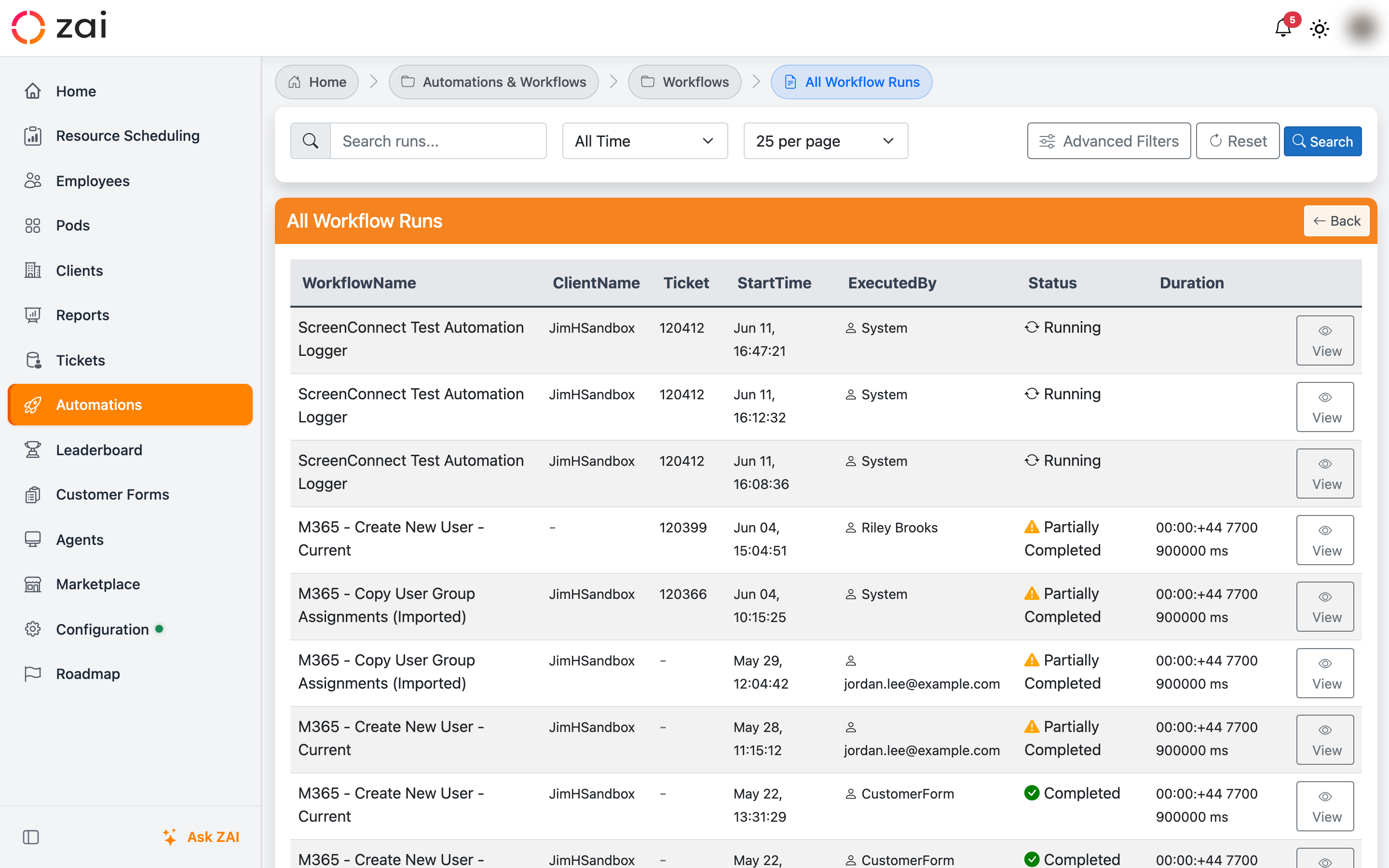
Workflow History
The workflow history feature lets you review past executions, troubleshoot issues, repeat successful operations, and learn from patterns. This guide shows you how to effectively use workflow history.
Accessing Workflow History
From the Main Interface
- Click Workflows in the main navigation
- Select History or Workflow Runs
- View the list of all workflow executions
History View Layout
╔═══════════════════════════════════════════════════╗
║ Workflow History ║
╠═══════════════════════════════════════════════════╣
║ Filters: [All ▼] [Last 7 Days ▼] [Search...] ║
╠═══════════════════════════════════════════════════╣
║ ID Workflow Name Status Date User║
║ #145 M365 Create User ✅ Done Today You ║
║ #144 M365 Assign License ✅ Done Today You ║
║ #143 M365 Reset Password ❌ Fail Today You ║
║ #142 M365 Disable User ✅ Done Yest You ║
║ #141 M365 Create User ⚠️ Warn Jan 14 John║
╚═══════════════════════════════════════════════════╝
History Entry Details
Each history entry shows:
| Field | Description | Example |
|---|---|---|
| Run ID | Unique execution identifier | #145 |
| Workflow Name | Name of executed workflow | M365 Create User |
| Status | Final execution status | ✅ Completed |
| Duration | How long it took | 4.2 seconds |
| Date/Time | When it was executed | 2024-01-15 14:23:45 |
| Executed By | Who ran it | john.doe@company.com |
| Ticket | Associated ticket (if any) | #12345 |
| Tenant | Target M365 tenant | Contoso Ltd |
Status Indicators
| Icon | Status | Meaning | Color |
|---|---|---|---|
| ✅ | Completed | All steps succeeded | Green |
| ❌ | Failed | One or more steps failed | Red |
| ⚠️ | Partial Success | Some steps failed, others succeeded | Yellow/Orange |
| 🚫 | Cancelled | User cancelled before completion | Gray |
| ⏳ | Running | Currently executing | Blue |
Viewing Execution Details
Click any history entry to see full details:
Execution Summary
════════════════════════════════════════════════════
Workflow Run #145 - M365 Create User
════════════════════════════════════════════════════
Status: ✅ Completed Successfully
Duration: 4.2 seconds
Started: 2024-01-15 14:23:45
Completed: 2024-01-15 14:23:49
Executed By: john.doe@yourcompany.com
Context:
• Ticket: #12345 (Password reset for Jane Smith)
• Company: Contoso Ltd (#123)
• Tenant: contoso.onmicrosoft.com
[View Steps] [Export] [Re-run] [Close]
Step-by-Step Breakdown
Expand to see all steps:
📊 Execution Steps (3/3 completed)
✅ Step 1: Validate Parameters
Duration: 0.2s
Status: Completed
[View Details]
✅ Step 2: Create User in M365
Duration: 2.3s
Status: Completed
[View Details]
✅ Step 3: Return User Details
Duration: 1.7s
Status: Completed
[View Details]
Click [View Details] on any step:
════════════════════════════════════════════════════
Step 2: Create User in M365
════════════════════════════════════════════════════
Status: ✅ Completed
Duration: 2.3 seconds
Started: 14:23:45.123
Completed: 14:23:47.456
Action: M365_CreateUser
📥 Input Parameters:
{
"tenant_id": "ca735f40-c2de-4ec8-9b6f-c96fd3dee932",
"user_principal_name": "jane.smith@contoso.com",
"display_name": "Jane Smith",
"password": "●●●●●●●●",
"force_change_password_next_sign_in": true,
"usage_location": "GB"
}
📤 Output Results:
{
"user_id": "5c3102ee-ec2e-4885-8959-32d739cb90fd",
"user_principal_name": "jane.smith@contoso.com",
"display_name": "Jane Smith",
"password": "TempPass123!",
"account_enabled": true,
"force_change_password_next_sign_in": true
}
📊 Performance:
• API Call Time: 1.8s
• Validation Time: 0.3s
• Processing Time: 0.2s
[Copy Input] [Copy Output] [Copy All] [Close]
Filtering and Searching
Pre-Built Filters
Use quick filters to find specific workflows:
Search Functionality
Use the search bar to find specific executions:
| Search For | Search Query | Results |
|---|---|---|
| User email | jane.smith@contoso.com |
All workflows affecting that user |
| Ticket number | #12345 or 12345 |
Workflows run on that ticket |
| Run ID | #145 or 145 |
Specific workflow execution |
| Workflow name | Create User |
All Create User workflows |
| Date | 2024-01-15 |
All workflows on that date |
| Tenant | Contoso |
All workflows in that tenant |
Advanced search:
Finds: Failed workflows from today affecting jane@contoso.com
Analyzing Workflow Runs
Success Patterns
Identify what works well:
Filter: ✅ Successful Only
Sort by: Most Recent
Review patterns:
• What parameters were used?
• How long did it take?
• What context was available?
• Which steps completed fastest?
Example insight:
Pattern found: User creation workflows with
email+display_name provided upfront complete
40% faster than interactive parameter collection.
Recommendation: Provide full details in initial request.
Failure Analysis
Learn from failures:
Filter: ❌ Failed Only
Date: Last 30 Days
Common failure points:
• 45% - Step 2: License Assignment (no licenses available)
• 30% - Step 1: Validation (invalid email format)
• 15% - Step 3: Group Addition (group not found)
• 10% - Other errors
Actionable insights:
💡 Top 3 Failure Causes:
1. No available licenses (45%)
→ Check license inventory before assigning
2. Invalid email format (30%)
→ Use full email addresses, not display names
3. Group not found (15%)
→ Verify group names before workflow execution
Performance Trends
Track execution times:
Workflow: M365 Create User
Date Range: Last 30 days
Average Duration: 4.8 seconds
Fastest: 2.1 seconds
Slowest: 18.3 seconds
Performance by step:
• Step 1 (Validate): 0.2s average
• Step 2 (Create User): 3.5s average ← slowest
• Step 3 (Return Details): 1.1s average
Trend: ↗️ +12% slower than previous 30 days
Possible cause: Increased tenant size (more users)
Re-Running Workflows
Re-run past workflows with same or modified parameters:
Exact Re-Run
Repeat a successful workflow:
Click: [Re-run] on history entry #145
AI: Re-running workflow: M365 Create User
Using previous parameters:
• tenant_id: contoso.onmicrosoft.com ✓
• user_principal_name: jane.smith@contoso.com
• display_name: Jane Smith
• password: [enter new password]
• force_change_password: true ✓
• usage_location: GB ✓
⚠️ User jane.smith@contoso.com already exists!
Options:
1. Use different email address
2. Update existing user instead
3. Cancel
You: 1
AI: What email address should I use?
You: jane.smith2@contoso.com
AI: ✅ Updated email address
[Shows approval card with new email]
Modified Re-Run
Run again with changes:
Click: [Re-run with Changes]
AI: Starting workflow: M365 Create User
Previous parameters (click to use):
• display_name: Jane Smith [Use]
• password: ●●●●●●●● [Change]
• usage_location: GB [Use]
What would you like to change?
You: Use same display name and location, but new email: john.doe@contoso.com
AI: ✅ Parameters updated
[Shows approval card]
Exporting History
Export workflow history for reporting and compliance:
Export Options
Export Formats
PDF Report (Coming Soon)
Feature Coming Soon
PDF export with formatted reports is planned for a future release.
Planned Format:
══════════════════════════════════════════════════════
Workflow Execution Report
══════════════════════════════════════════════════════
Run ID: #145
Workflow: M365 Create User
Status: Completed Successfully
Date: 2024-01-15 14:23:45
Duration: 4.2 seconds
Executed By: john.doe@yourcompany.com
Context: Ticket #12345, Contoso Ltd
Parameters:
• user_principal_name: jane.smith@contoso.com
• display_name: Jane Smith
• usage_location: GB
Results:
• User ID: 5c3102ee-ec2e-4885-8959-32d739cb90fd
• Account Enabled: Yes
• Password: [REDACTED]
Steps:
1. Validate Parameters - Completed (0.2s)
2. Create User - Completed (2.3s)
3. Return Details - Completed (1.7s)
══════════════════════════════════════════════════════
Generated: 2024-01-15 15:00:00
CSV Export
RunID,Workflow,Status,Duration,Date,User,Ticket,Tenant,TargetUser
145,M365 Create User,Completed,4.2s,2024-01-15 14:23:45,john.doe@company.com,12345,Contoso,jane.smith@contoso.com
144,M365 Assign License,Completed,3.1s,2024-01-15 14:20:12,john.doe@company.com,12345,Contoso,jane.smith@contoso.com
143,M365 Reset Password,Failed,2.5s,2024-01-15 13:45:33,john.doe@company.com,12340,Contoso,john.old@contoso.com
JSON Export
{
"run_id": 145,
"workflow": "M365_CreateUser",
"status": "Completed",
"duration_seconds": 4.2,
"started_at": "2024-01-15T14:23:45Z",
"completed_at": "2024-01-15T14:23:49Z",
"executed_by": "john.doe@yourcompany.com",
"context": {
"ticket_id": 12345,
"company_id": 123,
"company_name": "Contoso Ltd",
"tenant_id": "ca735f40-c2de-4ec8-9b6f-c96fd3dee932"
},
"steps": [
{
"step_number": 1,
"name": "Validate Parameters",
"status": "Completed",
"duration_seconds": 0.2
},
{
"step_number": 2,
"name": "Create User in M365",
"status": "Completed",
"duration_seconds": 2.3,
"outputs": {
"user_id": "5c3102ee-ec2e-4885-8959-32d739cb90fd",
"user_principal_name": "jane.smith@contoso.com"
}
}
]
}
Common Use Cases
1. Troubleshooting Failed Workflows
Scenario: License assignment keeps failing
Steps:
- Filter to: Status = Failed, Workflow = M365 Assign License
- Sort by: Date (most recent first)
- Review last 5 failures
- Check error messages
- Identify pattern (e.g., "No available licenses")
- Take corrective action (purchase licenses)
- Re-run failed workflows
2. Auditing User Changes
Scenario: Need to show what changes were made to a user
Steps:
- Search for: User email address
- Filter to: Date range (when changes occurred)
- Review all workflows affecting that user
- Export to PDF for documentation
- Attach to ticket or compliance report
Example:
Search: jane.smith@contoso.com
Date: Jan 10-15, 2024
Workflows Found:
• Jan 10: M365 Create User (Created account)
• Jan 10: M365 Assign License (Assigned E3)
• Jan 11: M365 Add to Group (Added to Sales Team)
• Jan 12: M365 Add to Group (Added to Marketing)
• Jan 15: M365 Reset Password (Password reset)
Export → PDF → Attach to ticket #12345
3. Learning from Successful Patterns
Scenario: Want to optimize onboarding process
Steps:
- Filter to: Workflow = M365 Complete Onboarding, Status = Success
- Date range: Last 90 days
- Sort by: Duration (fastest first)
- Review top 10 fastest runs
- Identify common patterns:
- All parameters provided upfront
- Used default group memberships
- Ran during off-peak hours
- Document as best practice
- Share with team
4. Compliance Reporting
Scenario: Monthly audit report required
Steps:
- Filter to: Date = Last month
- Workflow types: User Management, License Management
- Status: All
- Export to CSV
- Import into Excel/Google Sheets
- Generate pivot tables:
- Workflows by type
- Success rate by workflow
- Average duration
- Users affected
- Add charts and commentary
- Submit to compliance team
Advanced Features
Workflow Comparison
Compare two similar workflows to spot differences:
Select two runs:
• Run #145 - M365 Create User (Success)
• Run #143 - M365 Create User (Failed)
Click: [Compare]
Differences Highlighted:
Run #145 Run #143
Parameter:
email ✓ jane@con... ✗ jane.smith (no domain)
password ✓ TempPass123! ✓ Welcome!
usage_loc ✓ GB ✗ (missing)
Result:
Status ✅ Success ❌ Failed
Error - Invalid usage location
💡 Insight: Run #143 failed due to missing usage_location parameter.
Cloning Workflows
Create a duplicate of an existing workflow for customization:
Workflow View - M365 Create User (Approved)
Click: [Clone]
Confirmation Modal:
━━━━━━━━━━━━━━━━━━━━━━━━━━━━━━━━━━━━━━━━━━━━━
Clone Workflow
This will create a complete copy of the workflow:
• Workflow name will be: M365 Create User (Copy)
• All steps, parameters, tags, and connections
will be duplicated
• The clone will start as Inactive with status
Awaiting Review
Do you want to proceed?
[Clone Workflow] [Cancel]
━━━━━━━━━━━━━━━━━━━━━━━━━━━━━━━━━━━━━━━━━━━━━
Click: [Clone Workflow]
✅ Workflow cloned successfully!
Opening in edit mode...
What Gets Cloned:
- ✅ Workflow name (with " (Copy)" suffix)
- ✅ Description
- ✅ All workflow steps (with new IDs)
- ✅ All parameters
- ✅ All tags
- ✅ All step connections
- ✅ All step configurations
What Doesn't Get Cloned:
- ❌ Execution history (starts fresh)
- ❌ Review status (resets to "Awaiting Review")
- ❌ Active status (starts as Inactive)
- ❌ Approval information
Common Use Cases:
- Create Variations: Clone a working workflow to create tenant-specific or department-specific versions
- Test Changes: Clone before making experimental modifications to preserve the original
- Bulk Create: Clone a workflow and modify parameters for different scenarios
- Learn Structure: Clone an approved workflow to study and customize for learning
Example:
You have: "M365 Standard User Creation"
You clone it to: "M365 Standard User Creation (Copy)"
Then customize:
• Rename to: "M365 Marketing User Creation"
• Modify Step 3: Add to "Marketing Team" group instead
• Add Step 4: Assign Power BI license
• Review and approve
Now you have two workflows:
1. Standard User Creation (general)
2. Marketing User Creation (specialized)
Automated Alerts
Set up alerts based on history patterns:
Alert Configuration:
Trigger: When workflow M365_AssignLicense fails
Condition: More than 3 failures in 1 hour
Action: Send notification to admin@company.com
Message:
"License assignment failures detected.
Check license inventory and review recent
failures in workflow history."
[Save Alert]
Best Practices
✅ Do This
Regular Reviews:
✓ Review failed workflows weekly
✓ Check performance trends monthly
✓ Export compliance reports quarterly
✓ Archive old history after 1 year
Learning:
✓ Study successful workflows before re-running
✓ Compare failed vs successful to find patterns
✓ Share insights with team
✓ Document common failure solutions
Organization:
✓ Use clear naming for custom workflows
✓ Tag workflows with ticket numbers
✓ Add notes to complex executions
✓ Keep exports organized by month/type
❌ Avoid This
Common Mistakes:
✗ Ignoring failed workflow history
✗ Re-running without reviewing why it failed
✗ Not exporting data for compliance
✗ Deleting history prematurely
✗ Not learning from patterns
Keyboard Shortcuts
| Shortcut | Action |
|---|---|
Ctrl + F |
Focus search box |
Ctrl + R |
Re-run selected workflow |
Ctrl + E |
Export selected workflow |
Space |
Expand/Collapse details |
↑ / ↓ |
Navigate workflow list |
Enter |
View selected workflow details |
Privacy and Data Retention
Data Stored
Workflow history includes:
✅ Stored: - Workflow name and version - Execution date/time - Status and duration - Step results - Context (tenant, ticket, company) - Executor (who ran it) - Input/output parameters
❌ NOT Stored: - Passwords (redacted as ●●●●) - Sensitive personal data - Email message contents - Private notes
Retention Policy
Default retention:
| Data Type | Retention Period | After Expiry |
|---|---|---|
| Successful runs | 90 days | Archived |
| Failed runs | 180 days | Archived |
| Compliance exports | 7 years | Permanent |
| Archived data | Indefinite | Searchable (slower) |
Compliance
Workflow history supports compliance with GDPR, SOC 2, and ISO 27001 requirements.
Troubleshooting
Can't Find a Workflow
Problem: Recent workflow not appearing in history
Solutions: 1. Check filters - may be filtering it out 2. Try "All Workflows" filter 3. Search by ticket number or user 4. Refresh the page 5. Check if it's still running (⏳ Running filter)
Missing Step Details
Problem: Can't see step inputs/outputs
Solutions: 1. Ensure you have permission to view 2. Workflow may be older than retention period 3. Data may be archived (contact admin) 4. Try exporting - may include more detail
Export Fails
Problem: Export doesn't download or errors
Solutions: 1. Check popup blocker (PDF exports) 2. Reduce date range (too much data) 3. Try different format (CSV vs PDF) 4. Check disk space 5. Clear browser cache
Next Steps
- Common Workflows - Learn specific workflows in detail
- M365 User Management - Deep dive into user operations
History is Your Teacher
Workflow history isn't just for auditing - it's a learning tool. Review your history regularly to improve efficiency and avoid repeating mistakes!