Employee Page Overview
The employee page is typically used by pod managers to monitor and manage employee skills, availability and information.
Basic Overview Of Employee Page
Inside of the employee page you will find 5 sections, these include:
- Employees: View and manage all employees
- Employee Skills: View and manage employee skills
- Employee Work Schedule: View and manage employee work schedules
- Employee Location: View and manage employee locations
- Employee Client Suitability: View and manage employee client suitability
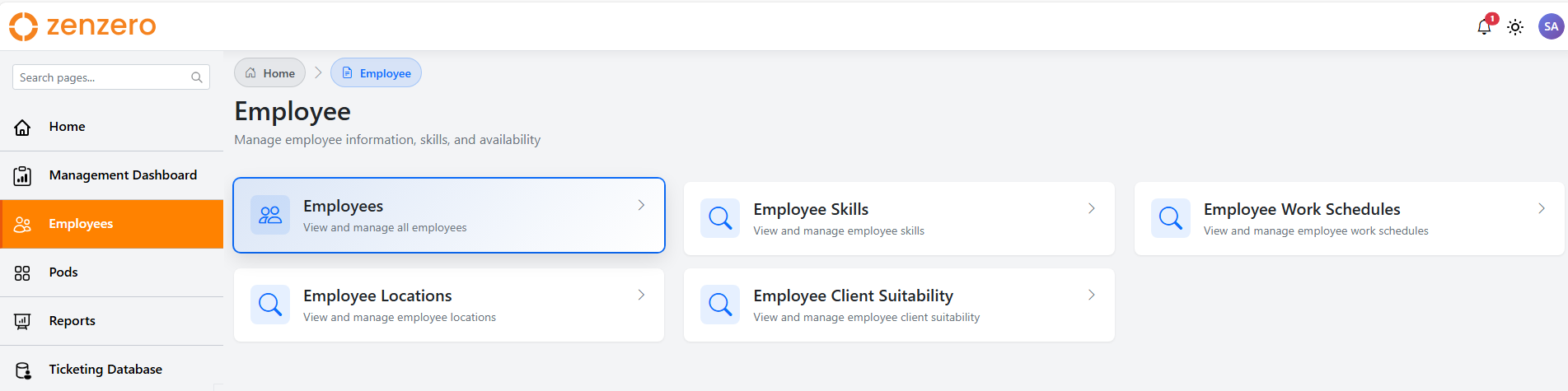 Screenshot: Employee page overview
-
Direct Link - Employee Page
Employee Section
The employee section allows the user to see all employees. It has a search section at the top as well as advanced search sections. In the employee table you can add and onboard new employees. You can also click into each employee by clicking the eye icon.
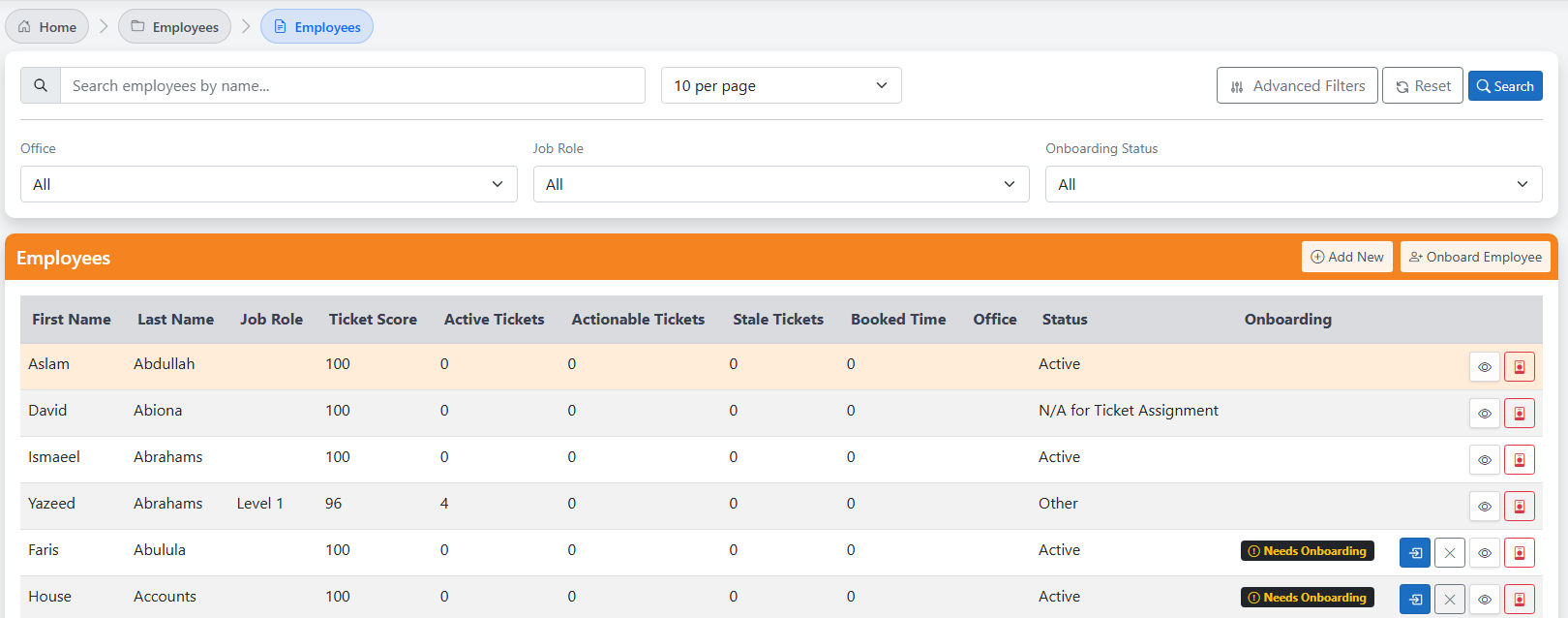 Screenshot: Employee Section
-
Direct Link - Employee Section
Adding New Employee Steps
- Upon clicking the "Add New" button it will take you to a page called new employee.
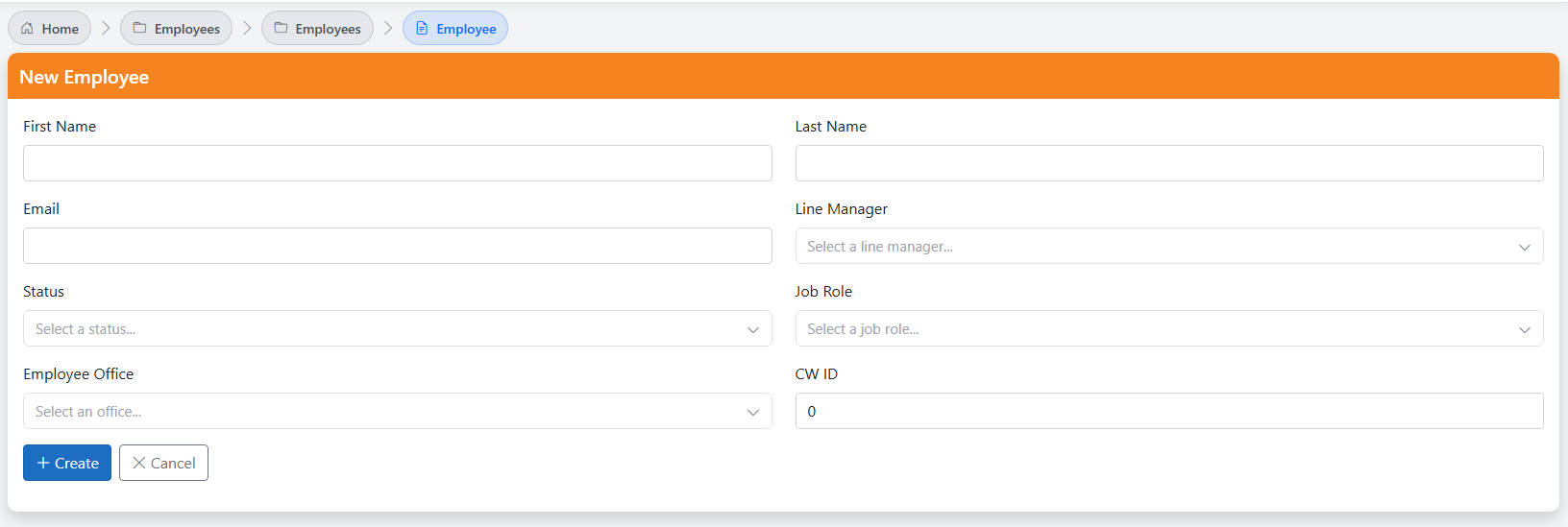 Screenshot: New employee
-
Fill out the details as required, these are the employees first name, last name, email, status (current working status), employee office, line manager, job role and CW ID (ConnectWise id).
-
Then click create
-
Direct Link - Adding New Employee Section
Onboarding A New Employee Steps
- After clicking onboard employee, you are taken to the onboarding steps.
-There are 5 steps, these are:
- Find in CW: Locate the employee in ConnectWise and fill in their basic information
- Role & Pods: Role and Pod assignment section as well as office location
- Schedule: Employee Schedule
- Skills: Any specific skills the employee may have
- Review: Review any information you have entered and then confirm
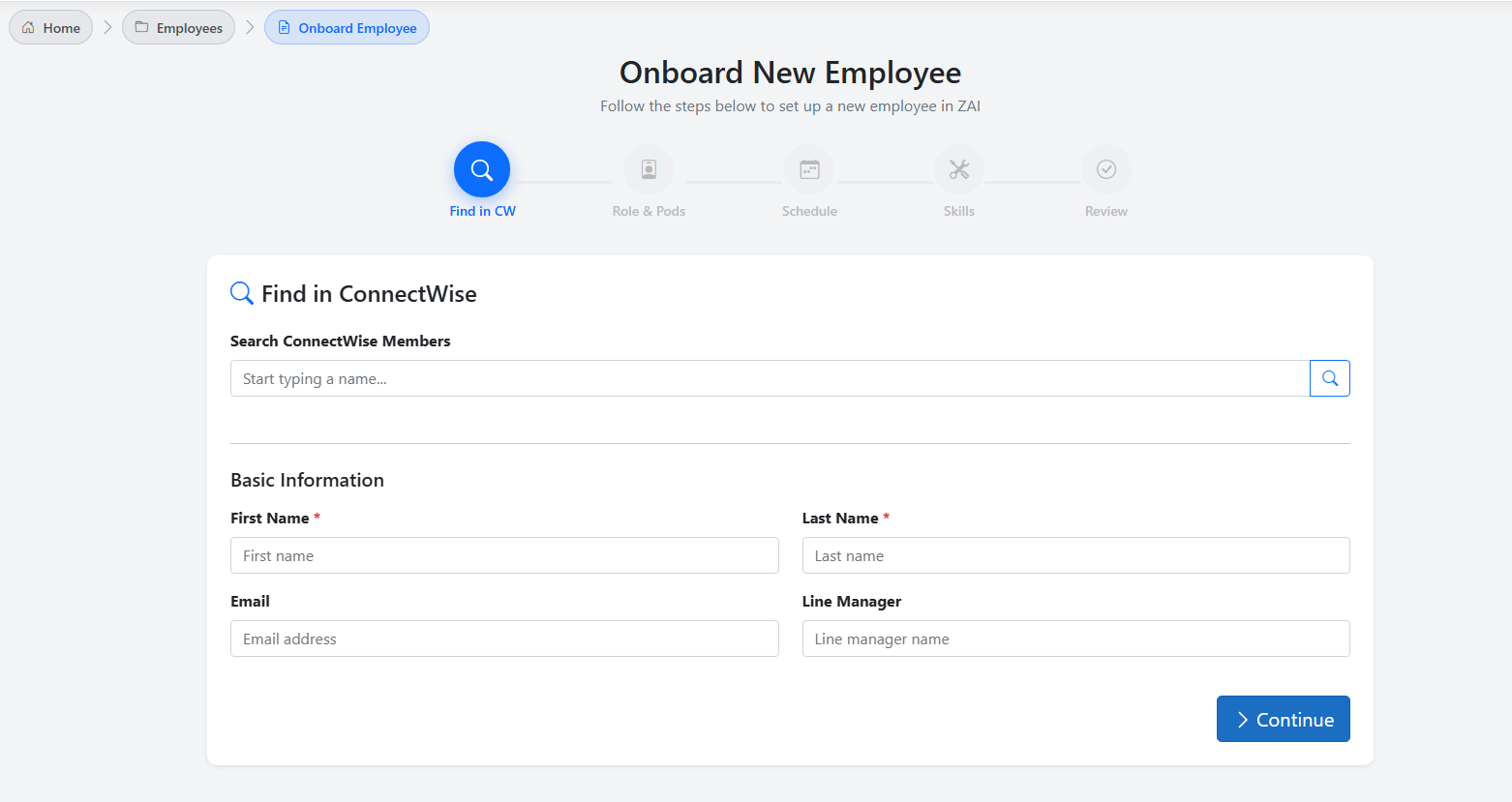 Screenshot: Onboard employee steps
- Once clicking confirm the employee is then onboarded
-
Direct Link - Onboarding New Employee Section
Viewing Employees
On the far right of each employee on the table, there is an eye icon located, upon clicking this you are taken to the employee details.
 Screenshot: Employee table section
After clicking this icon it will show the employee profile. On this profile you can see their working status, actve tickets, actionable tickets, stale tickets, booked time, ticket score, points and their rank on the leaderboar. You can also find the details of their line manager, office, CW ID and last ticket assigned.
Each employee also has quick links on their profiles, these include skills, client suitability, work schedules and locations.
There is also a sections for notification preferences, which can be controlled by the pod administrators. These settings are available for pending apporval and ticket assignment. You will have the option to have this on default, on or off. You can do this for both your teams or emails and there is a test option as well. The only time you will be unable to make any changes to this is if your pod administrator has locked the setting.
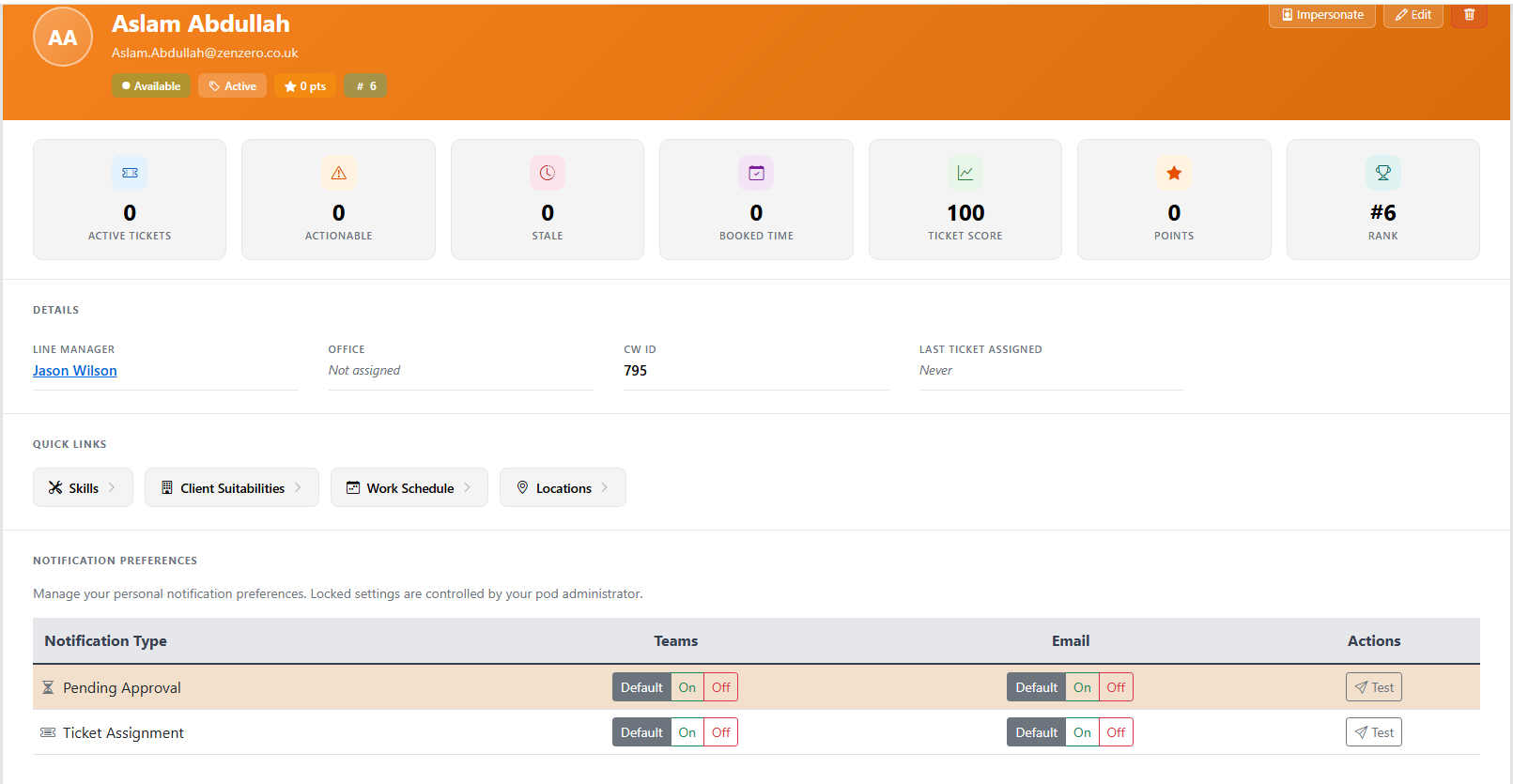 Screenshot: Employee profile
Employee Skill Section
The employee skill section will be a place to see the full potential of our employees. It gives an overview of the employees skill and rating for the skill, this is out of 5. At the top of the page you can filter by skill.
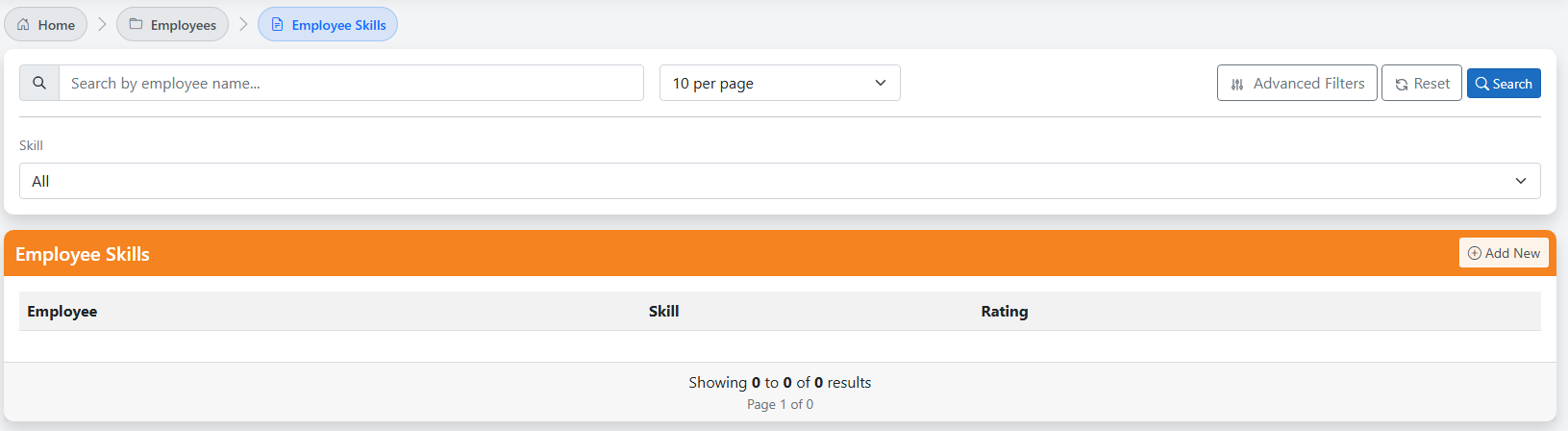 Screenshot: Employee skill page
-
Direct Link - Employee Skills Section
Employee Work Schedule Section
This section allows you to be able to view all employees schedule, this includes bank holidays, sick leave and active hours.
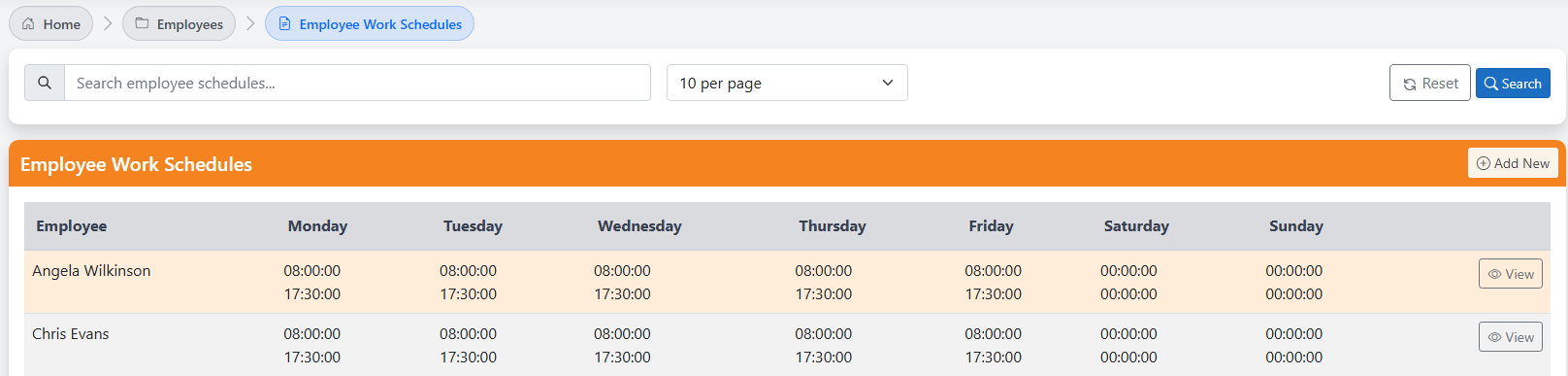 Screenshot: Employee work schedule page
-
Direct Link - Employee Work Schedule Section
Employee Locations Section
Employee locations shows whether an employee is based on a client site.
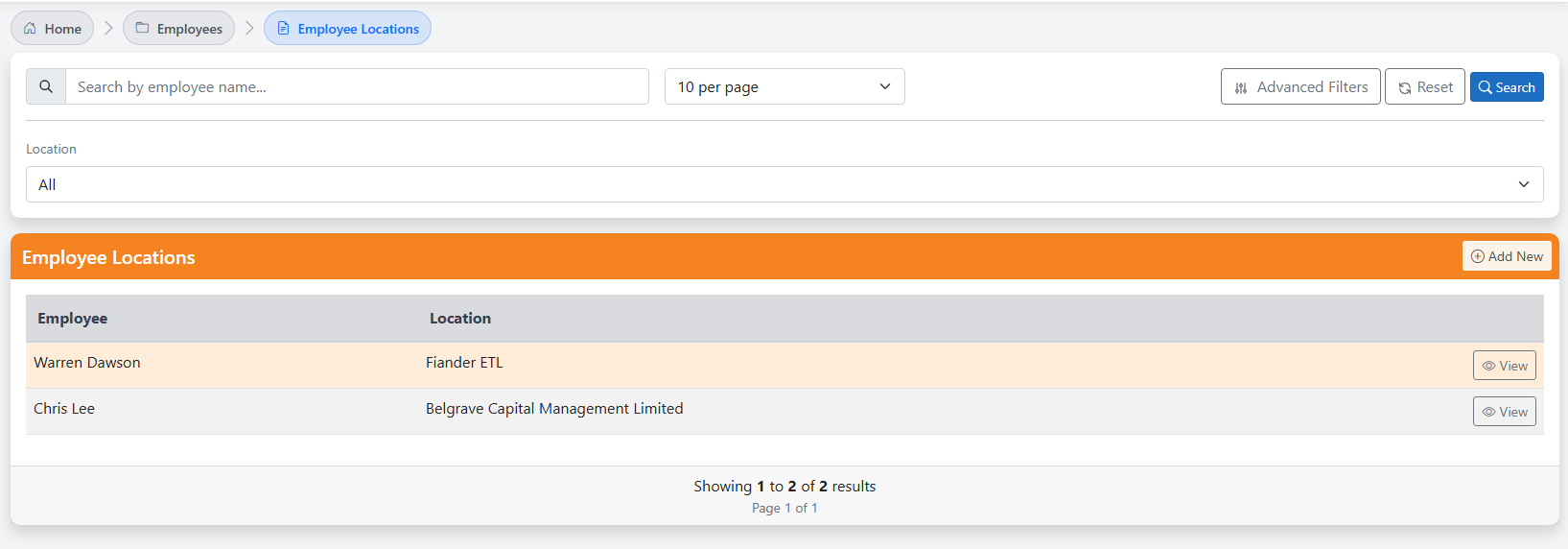 Screenshot: Employee location page
-
Direct Link - Employee Location Section
Employee Client Suitabilities Section
Employee client suitability allows assignment and resolution of tickets to become more efficient.
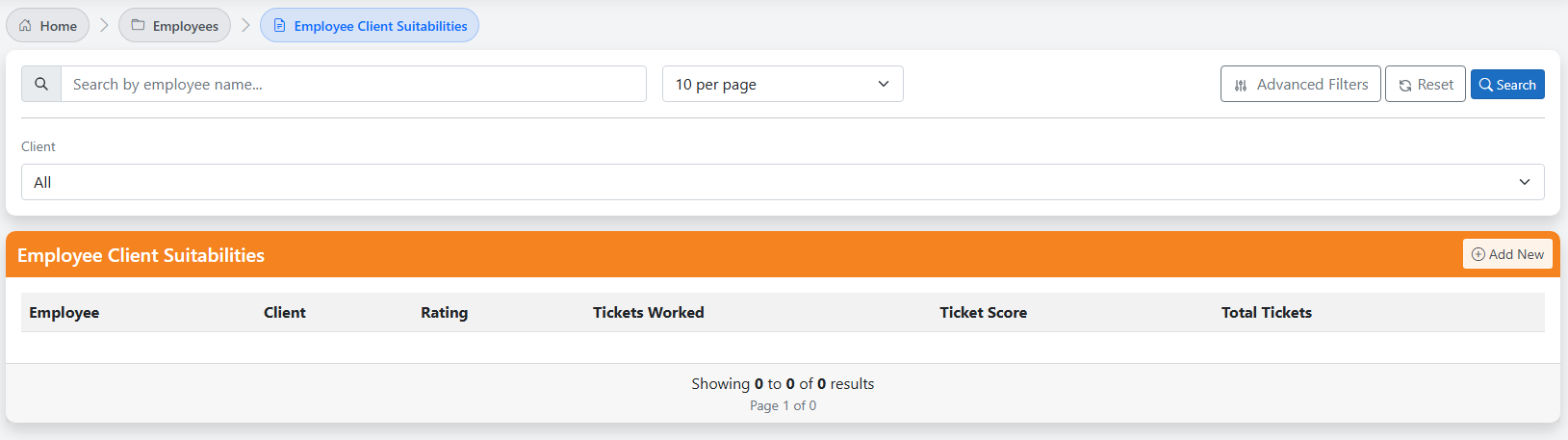 Screenshot: Employee client suitability
The employee client suitability table includes various rows, these are:
- Employee: The name of the employee
- Client: Client they worked/work with
- Rating: Their rating from the client
- Ticket Score: Score of tickets assigned ect
- Total Tickets: Ticket total