Creating Workflows
This guide covers how to create workflows in Zenzero ZAI using the workflow wizard.
Overview
Workflows are created using a 4-step wizard that uses AI to help generate workflow structure from a natural language description.
The workflow wizard steps are:
- Tell ZAI - Describe what you want the workflow to do
- Additional Options - Select optional actions suggested by AI
- Tags - Categorise the workflow with tags
- Design Steps - Configure the workflow steps
Accessing the Workflow Wizard
Navigate to:
Screenshot: The workflow list showing the "Add New Workflow" button
Step 1: Tell ZAI
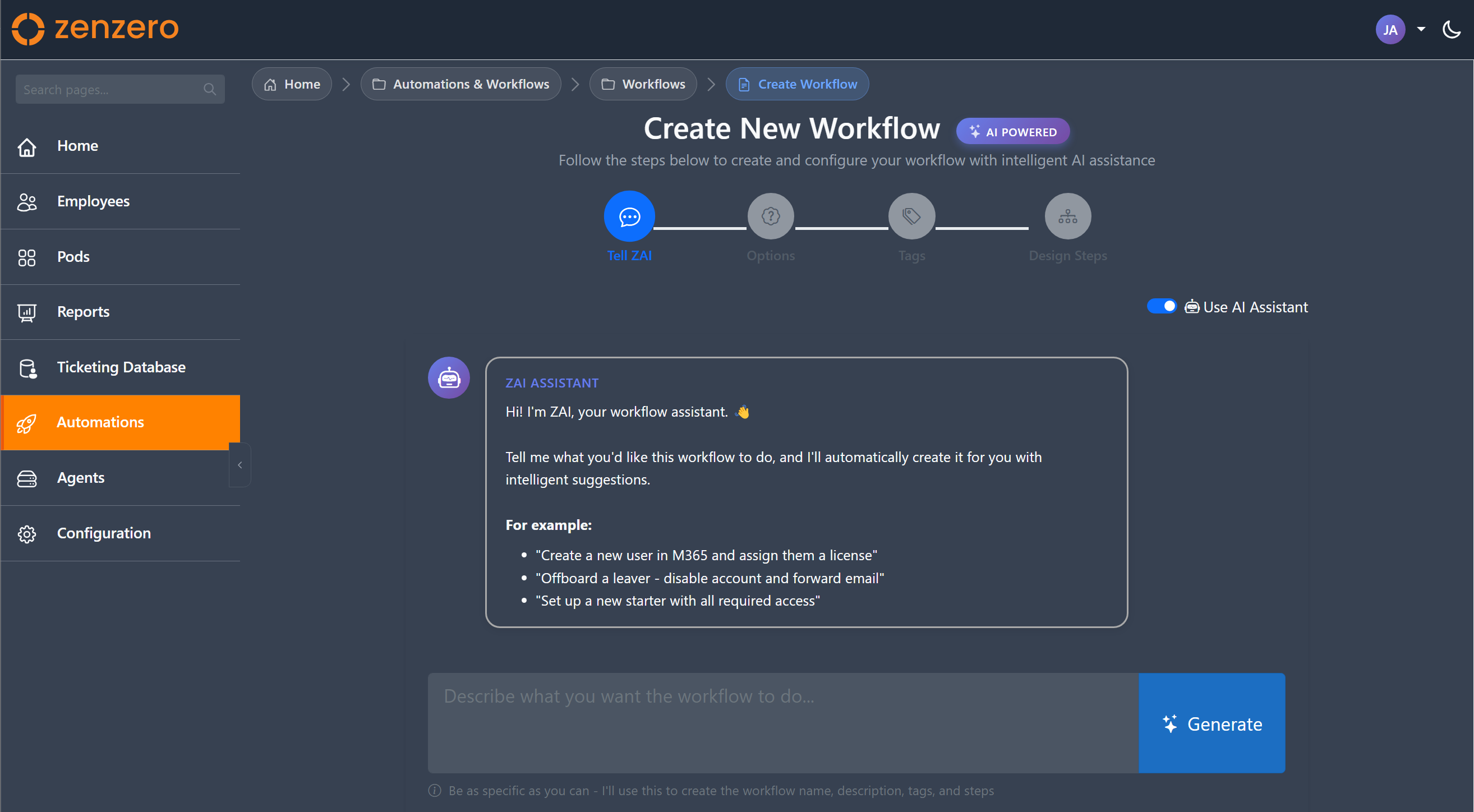
The first step uses AI to understand what you want the workflow to do.
Screenshot: The "Tell ZAI" step with the chat interface
Describing Your Workflow
In the chat interface, describe what you want the workflow to accomplish:
Example descriptions:
- "Create a new M365 user with a license and add them to the standard groups"
- "Disable a user account and remove their licenses when they leave"
- "Reset a user's password and force them to change it on next login"
AI Response
After clicking Generate, ZAI will:
- Parse your description
- Generate a workflow name
- Create a description
- Suggest the steps needed
The generated name and description appear in preview fields below the chat.
Manual Mode
If you prefer not to use AI, toggle the AI Mode switch off to enter manual mode where you can type the workflow name and description directly.
Step 2: Additional Options
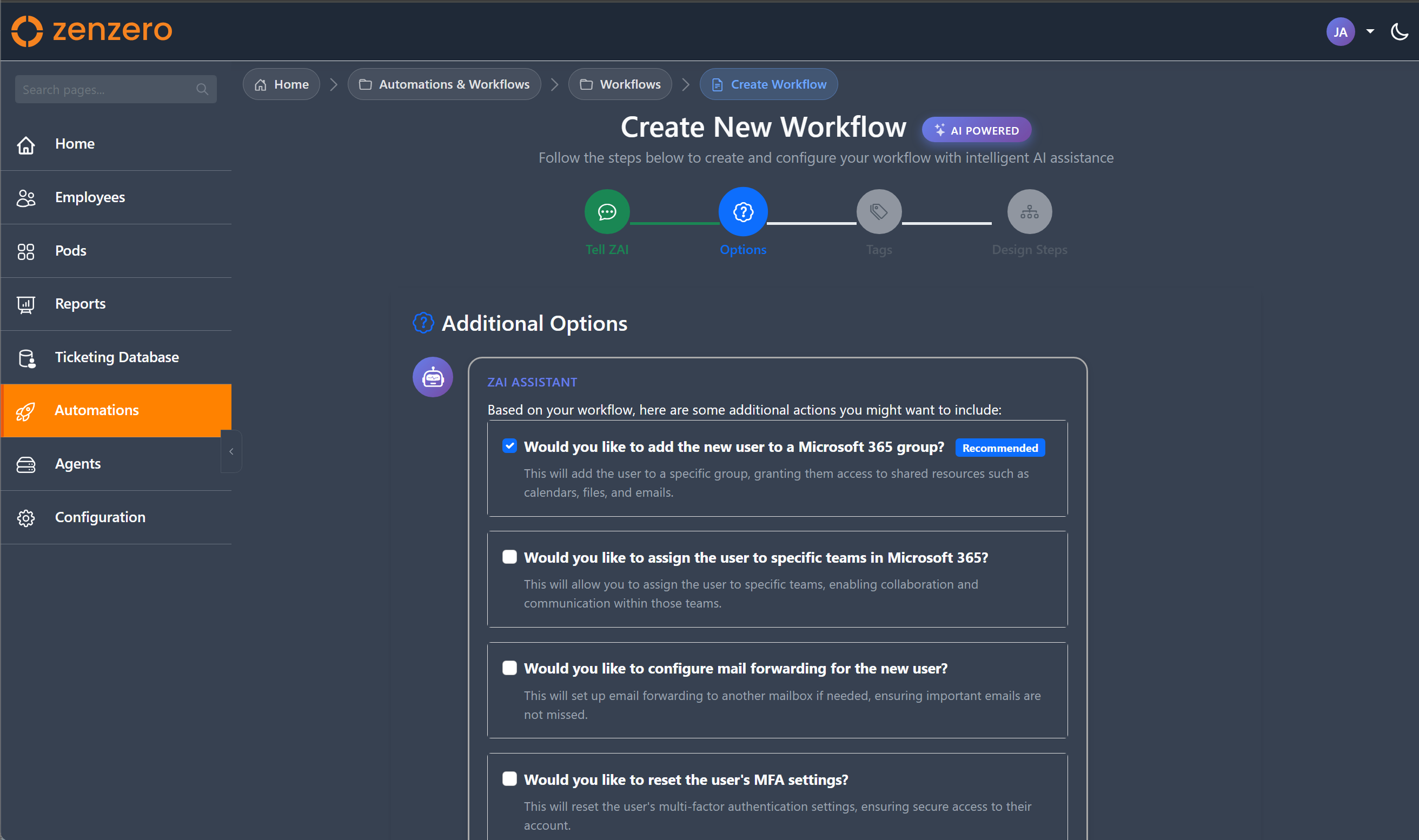
Based on your description, ZAI may suggest additional actions to include.
Screenshot: Follow-up questions with checkboxes for optional actions
Each suggestion shows:
- A checkbox to include/exclude the action
- A "Recommended" badge if ZAI thinks it's important
- An explanation of what the action does
Select the options you want to include and click Next.
Step 3: Tags
Tags help categorise your workflow for easier discovery.
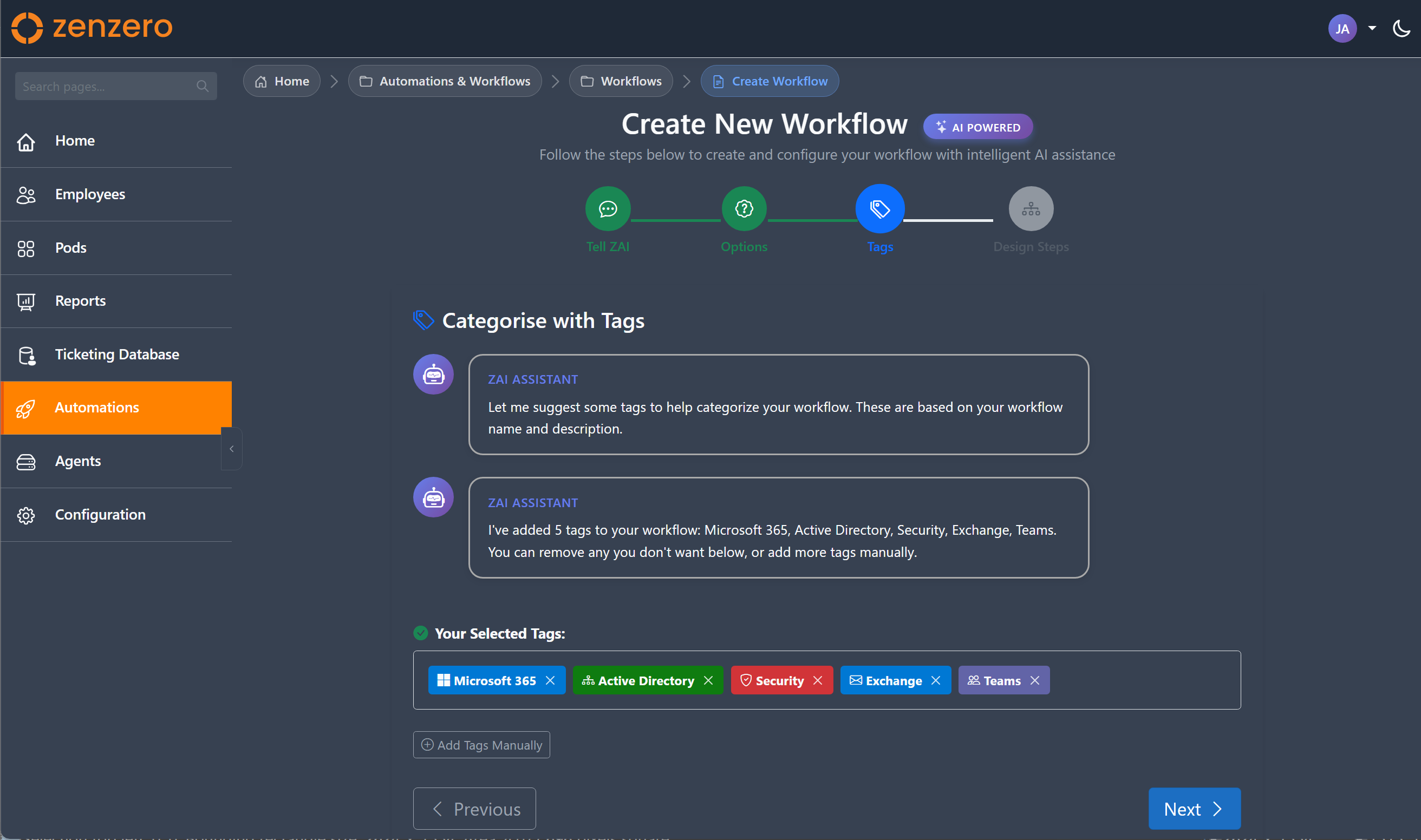
Screenshot: Tag selection with AI-suggested tags
AI-Suggested Tags
ZAI automatically suggests relevant tags based on your workflow description. These appear as coloured badges in the "Selected Tags" section.
Adding Tags Manually
Expand the Add Tags Manually section to:
- Browse tags by category
- Select additional tags from a dropdown
- Remove tags by clicking the X on the badge
Step 4: Design Steps
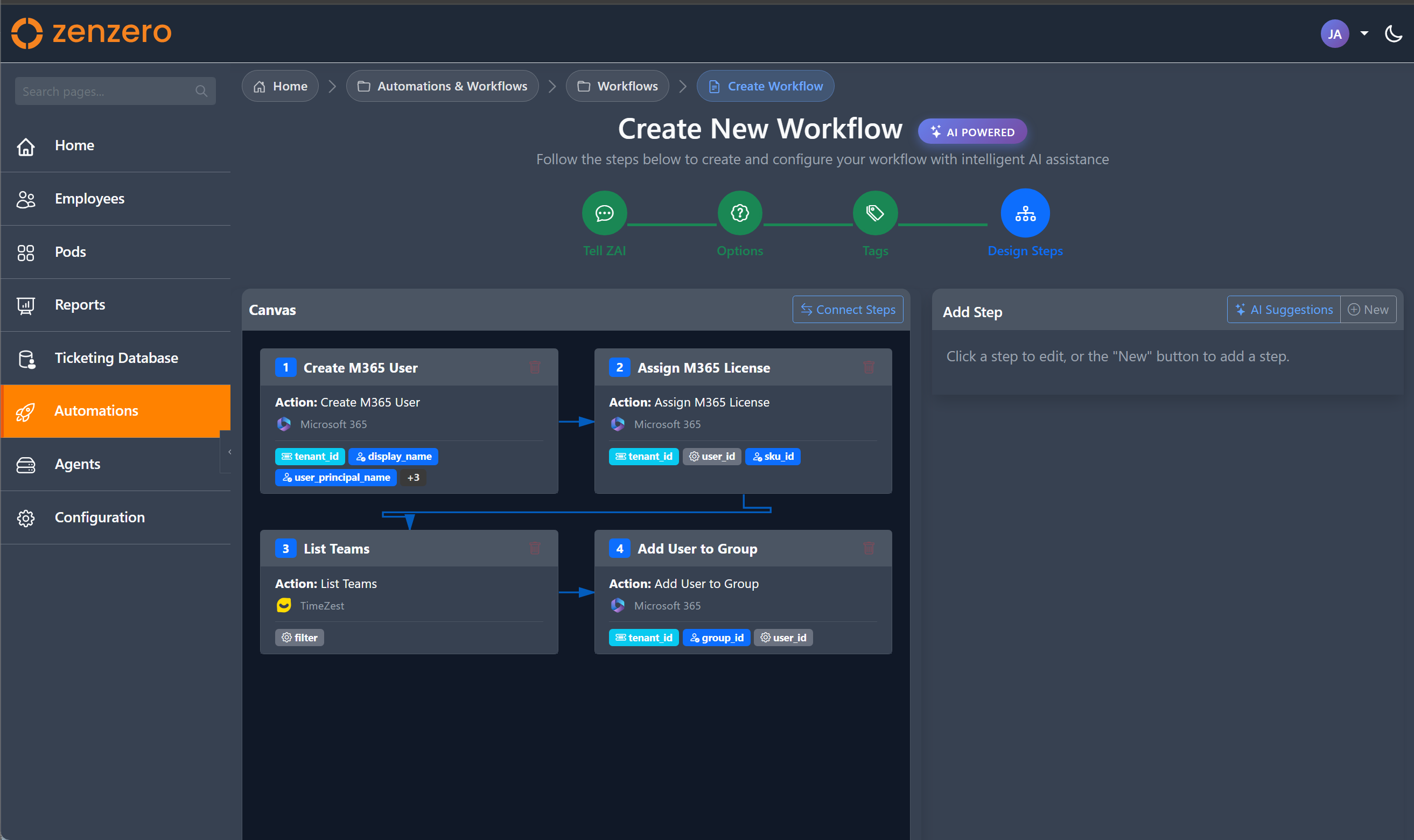
The final step opens the workflow designer where you configure the actual workflow steps.
Screenshot: The workflow designer loaded in the wizard
ZAI will suggest initial steps based on your description. You can then:
- Modify the suggested steps
- Add new steps
- Delete unwanted steps
- Configure step parameters
- Set up connections between steps
See Workflow Designer for detailed information on using the designer.
Completing the Wizard
After configuring your steps, click Finish to create the workflow.
The new workflow is created as a Draft. It follows the workflow lifecycle:
- Draft - Initial state after creation. Review and refine in the designer.
- Validate - Run validation in the designer to check for errors.
- Submit for Review - Submit the workflow for approval.
- Awaiting Review - Approvers are automatically notified via bell icon and toast notifications, and can approve or reject from the review page.
- Approved - The workflow is approved and ready to be activated.
- Active - Set the workflow to active so it can be triggered by users.
Version Control
A first version is created automatically when the workflow is saved. Every subsequent save creates a new version, allowing you to track changes and restore previous versions from the designer.
Multi-Step Approval
Workflows can be configured with multi-step approval chains:
- Approval Levels - Configure sequential approval levels that must be completed in order.
- Approval Logic - Each level uses either AnyOne (any single approver can approve) or All (every approver must approve).
- Approval Scopes - Assign approvers at the Workflow, Pod, or PodClient scope.
See Workflow Designer - Multi-Step Approval for configuration details.
Workflow List
After creation, your workflow appears in the workflow list.
Screenshot: Workflow list showing the newly created workflow
The list shows:
| Column | Description |
|---|---|
| Name | Workflow name (click to view) |
| Description | Brief description |
| Active | Green tick if active, red X if inactive |
| Review Status | Status badge: Draft, Awaiting Review, Approved, Changes Requested |
| Version | Current version number |
| Steps | Number of steps in the workflow |
| Actions | Designer, View, History, Export buttons |
Available Actions
| Button | Purpose |
|---|---|
| Review | Open the workflow review page with AI analysis (yellow button) |
| Designer | Open the workflow designer to edit |
| View | View workflow in read-only mode |
| History | View execution history |
| Export | Download workflow as JSON for backup or sharing |
AI Review
When a workflow is submitted for review, an AI analysis is automatically generated on the review page. The analysis examines workflow steps and provides:
- Summary — What the workflow does
- Key Steps — Up to 5 of the most important steps
- Risk Assessment — Security and operational risks colour-coded by severity (HIGH / MEDIUM / LOW)
- Configuration Concerns — Issues or recommendations
See Workflow Review & Approval for full details on the review process, notifications, and approval decisions.
Workflow Lifecycle
stateDiagram-v2
[*] --> Draft: Created via Wizard
Draft --> AwaitingReview: Submit for Review
AwaitingReview --> Approved: Reviewers Approve
AwaitingReview --> ChangesRequested: Reviewers Request Changes
ChangesRequested --> Draft: Edit in Designer
Approved --> Active: Admin Activates
Active --> Draft: Edit in Designer (new draft)
note right of Draft
Version control tracks
all changes as snapshots
end note
Best Practices
Writing Good Descriptions
When describing your workflow to ZAI:
- Be specific about what systems are involved (M365, ConnectWise, etc.)
- Mention the key actions (create user, assign license, add to group)
- Include any conditions or requirements
- Describe the expected outcome
Good example:
"Create a new M365 user for onboarding. Assign them an E3 license, add them to the All Staff group, and send a welcome email with their temporary password."
Poor example:
"Onboard a user"
Naming Conventions
Use consistent naming for workflows:
[Platform] [Action] - [Variant]
Examples:
- M365 User Onboarding - Standard
- M365 Password Reset - Force Change
- M365 License Assignment - E3
Tags
Apply relevant tags to make workflows discoverable:
- User Management - User creation, modification, deletion
- License Management - License assignment and removal
- Security - Password resets, MFA, account disable
- Groups - Group membership changes
Version Control
- Save regularly in the designer to create version snapshots
- Use the version history to review changes before publishing
- Restore previous versions if a change introduces problems
Drafts
- New workflows start as drafts - take time to refine before submitting
- Use draft mode for significant changes to active workflows
- Discard drafts if you decide against the changes
Next Steps
- Workflow Designer - Learn to use the designer interface
- Workflow Review & Approval - The review process, notifications, and approval decisions
- Running Workflows - How workflows are executed