Ticket Assignment Calculator
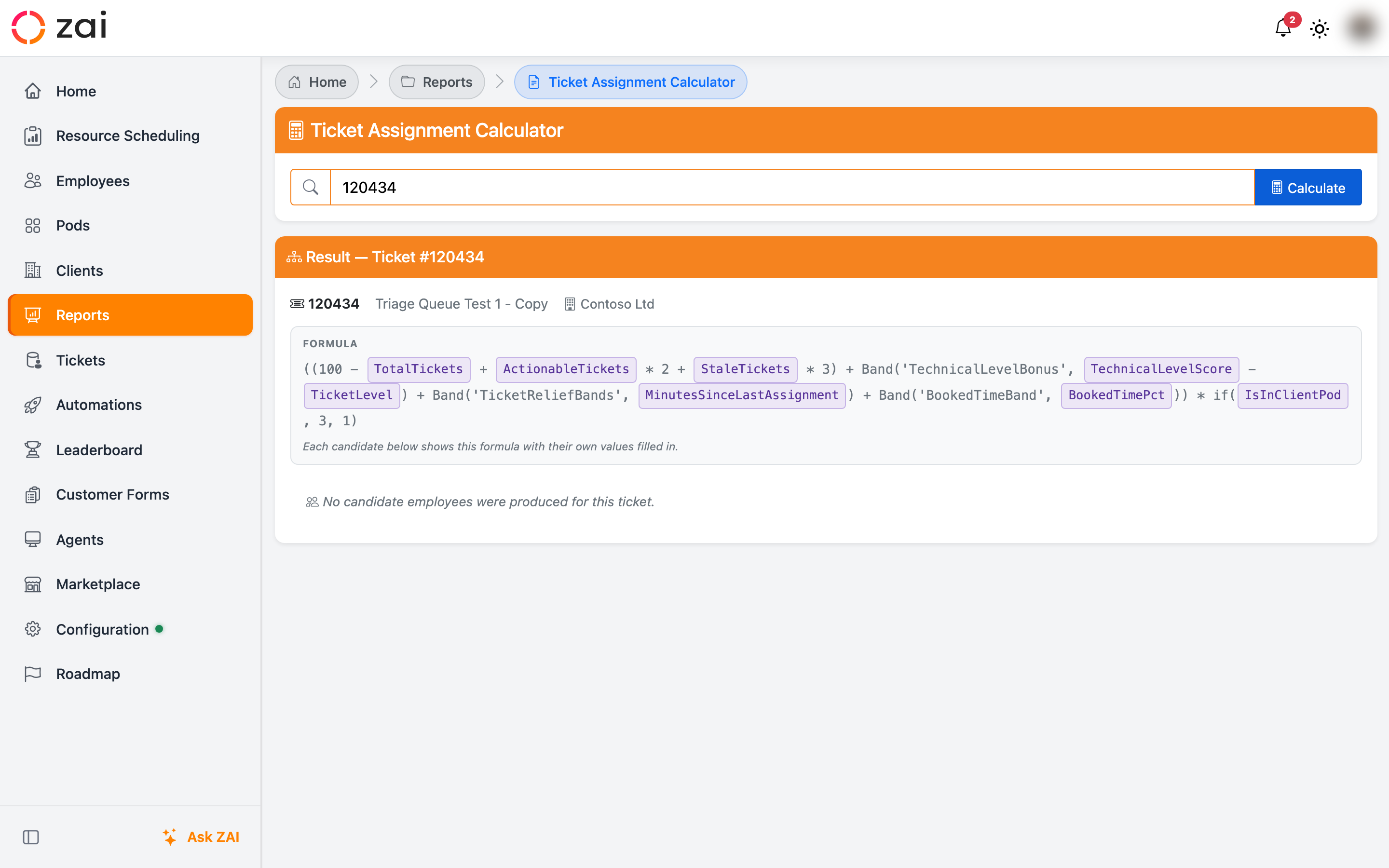
The Ticket Assignment Calculator lets you pick any open PSA ticket and see exactly who ZAI would assign it to — and why. Use it to verify your assignment configuration, investigate a routing decision, or answer "why didn't this go to person X?" before it happens for real.
Overview
You pick a ticket from your connected PSA, ZAI runs its full assignment evaluation against your current pod configuration, and the result shows the ranked candidate list with the score breakdown for each employee.
Safe to run any time
The calculator is read-only. It evaluates the ticket but does not actually assign it.
Getting started
Prerequisites
- Your PSA integration (ConnectWise, Autotask, or HaloPSA) must be configured and reachable.
- You need at least the View Only role.
- Pod assignment rules must be configured for the result to be meaningful.
Running a calculation
- Go to Reports → Ticket Assignment Calculator (or
/Report/CheckTicketAssignmentCalculation). - Click the search box. It loads the 50 most recent open tickets from your PSA automatically.
- Type to filter by ticket number, title, or company name — the list narrows as you type.
- Select a ticket, or type a ticket number directly and press
Enter. - Click Calculate. The result loads below the picker without a page reload.
Share a result
Append ?id=<ticket-number> to the URL — for example /Report/CheckTicketAssignmentCalculation?id=12345 — and ZAI runs the calculation on load and shows the result straight away.
Key concepts
Ticket scopes
The scope toggle controls which tickets the picker pulls from your PSA:
| Scope | Returns |
|---|---|
| Open | All open tickets (default) |
| Unassigned | Open tickets with no current assignee |
| All | Open and closed tickets — requires a search term |
Use Unassigned to focus on what ZAI would be deciding right now. Use All to investigate a ticket that's already closed or assigned.
How search works
With Open or Unassigned scope, ZAI fetches the list and filters it as you type — fast, covering whatever the PSA returns. With All scope, typing runs a search directly against the PSA.
Reading the result
The result card shows:
- The ticket that was evaluated.
- A ranked list of candidate employees with their assignment scores.
- The individual factors behind each score (workload, availability, skill match, and so on).
- Any formula errors, or the reason no candidates were found.
If ZAI couldn't pick a candidate, the result explains which step failed and why. An Explain link next to a factor opens its triage breakdown, so you can trace the exact data behind the decision.
Troubleshooting
No tickets appear in the dropdown. Check your PSA integration is active under Configuration → Integrations. If the PSA is reachable but returns nothing, confirm open tickets exist on the connected board/queue.
"Failed to process ticket" in the result. The assignment service couldn't evaluate the ticket — usually because required pod configuration (assignment rules, pod members) is missing. Review your pod setup and try again.
The calculation returns no candidates. Everyone in the relevant pod may be unavailable, or no employee matches the criteria for this ticket type. Check the Resource Scheduling dashboard for current availability.
Ticket picker not loading?
If the live ticket picker won't load at all, your deployment may need an update — contact ZAI support.