Resource Scheduling
The Resource Scheduling dashboard gives pod managers a real-time view of every employee's availability across all pods. Instead of checking individual employee pages, you can see your whole team at a glance, make instant status changes, and set advance schedules — all from one screen.
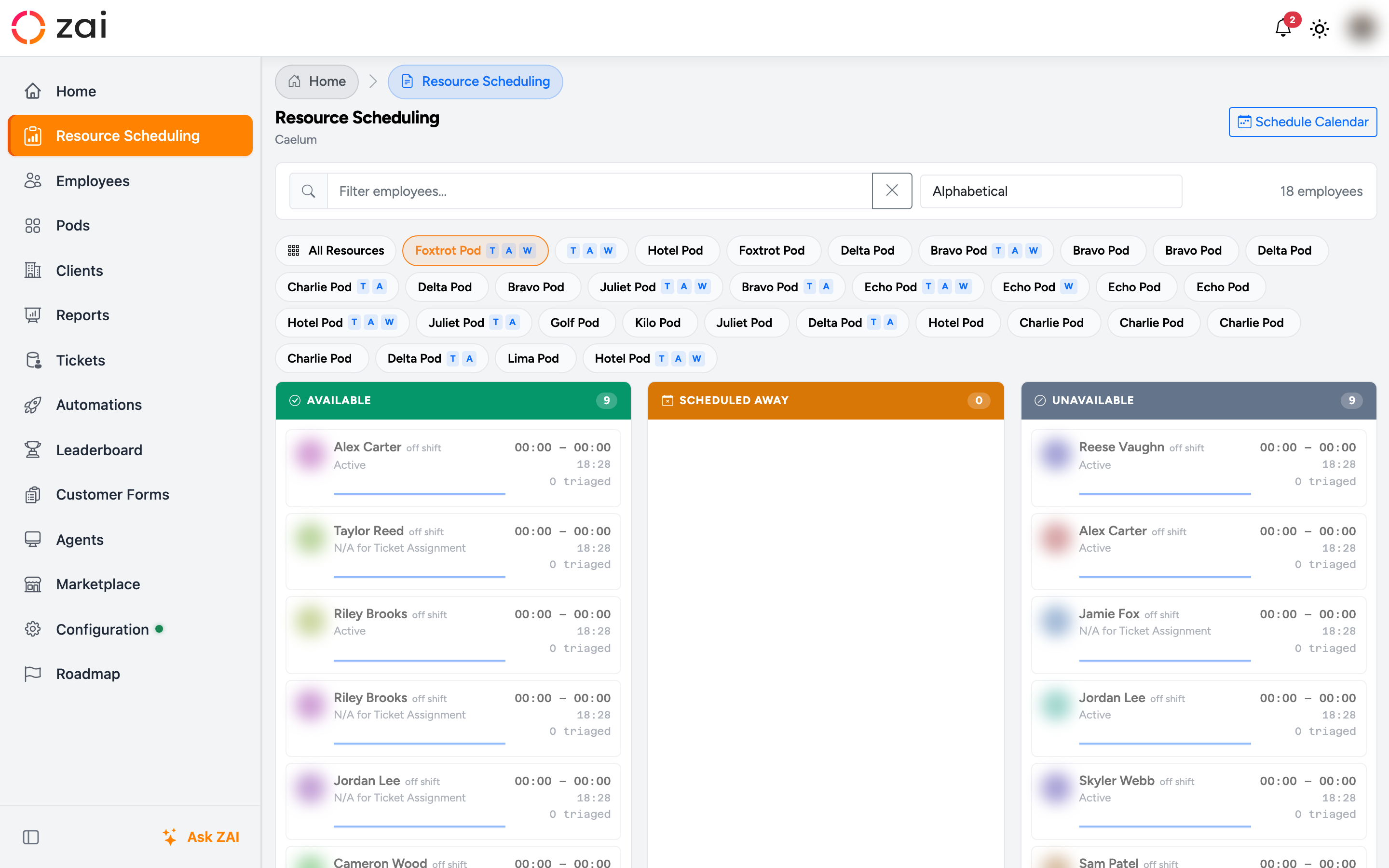
Overview
The dashboard organises employees into three columns:
| Column | Meaning |
|---|---|
| Available | On shift and available for ticket assignment |
| Scheduled Away | Has a scheduled unavailability window (e.g. planned leave or training) |
| Unavailable | Currently marked as not available |
Each card shows the employee's shift hours, current local time, and a sparkline of recent triage activity. Off-shift employees appear dimmed within their column — visible for context, but not considered for assignment.
Fed by your availability sources
Availability reflects the weekly schedule template and, where enabled, Microsoft Shifts rotas and HR Sync leave. As those sync, the board updates live.
Getting started
Prerequisites
- You need the Pod Manager role or ZAI Admin.
- Employees must have a work schedule configured before they appear on the board.
Opening the dashboard
Go to Reports → Resource Scheduling, or open /Report/ManagementDashboard directly. ZAI pre-selects your own pod on first load — change it any time with the pod pills.
Key concepts
Pod pills
The row of pills at the top filters the board to one or more pods without reloading the page. Your own pods are highlighted.
- Click All Resources to show everyone.
- Click a pod pill to filter to it; click again to deselect.
- Multiple pods can be active at once.
The URL updates as you change the selection, so you can bookmark or share a specific view.
Changing availability
Employees start in the column matching their current state. You can move them in three ways:
- Drag and drop — drag a card to another column. Dropping onto Scheduled Away opens an inline form to confirm the window.
- Right-click menu — right-click a card for quick actions: Mark Available, Mark Unavailable, Schedule Unavailability…, Schedule Available…, and View Profile.
- Inline scheduling form — when you choose a scheduled action, the card morphs into a compact from / until form in place. Confirm to save; the card moves immediately, no page reload.
Permissions
Changing status and scheduling windows needs the Pod Manager role. Read-only users can view the board but can't move cards.
Sorting
Use the sort control to order employees within each column:
- Alphabetical (default)
- Total Triaged — busiest employees first
Sorting applies across all three columns and re-applies whenever a card moves.
Configuration
No extra configuration is needed beyond having work schedules set up for your employees. Schedule entries are managed on each employee's profile under their work schedule.
Plan ahead
Use Schedule Unavailability or Schedule Available to set windows that start in the future — for example, blocking an employee out for planned leave before it begins. ZAI honours these windows when calculating availability for ticket assignment.
Troubleshooting
An employee isn't on the board. Check they have an active work schedule. Employees with no schedule don't appear.
Drag-and-drop isn't working. Make sure JavaScript is enabled and the page has fully loaded. Drag still works without animations if the animation library is blocked by your network.
A status change isn't saving. If the update fails, the card snaps back to its original column. Check your connection and confirm you hold the Pod Manager role.