Triage Configuration Overview
A triage configuration tells ZAI how to read an incoming ticket, decide what it means, and act on it — setting fields, posting notes, and optionally updating the ticket itself. You build one from Configuration → Triage Configurations, then link it to one or more board pods so it runs automatically as tickets come in.
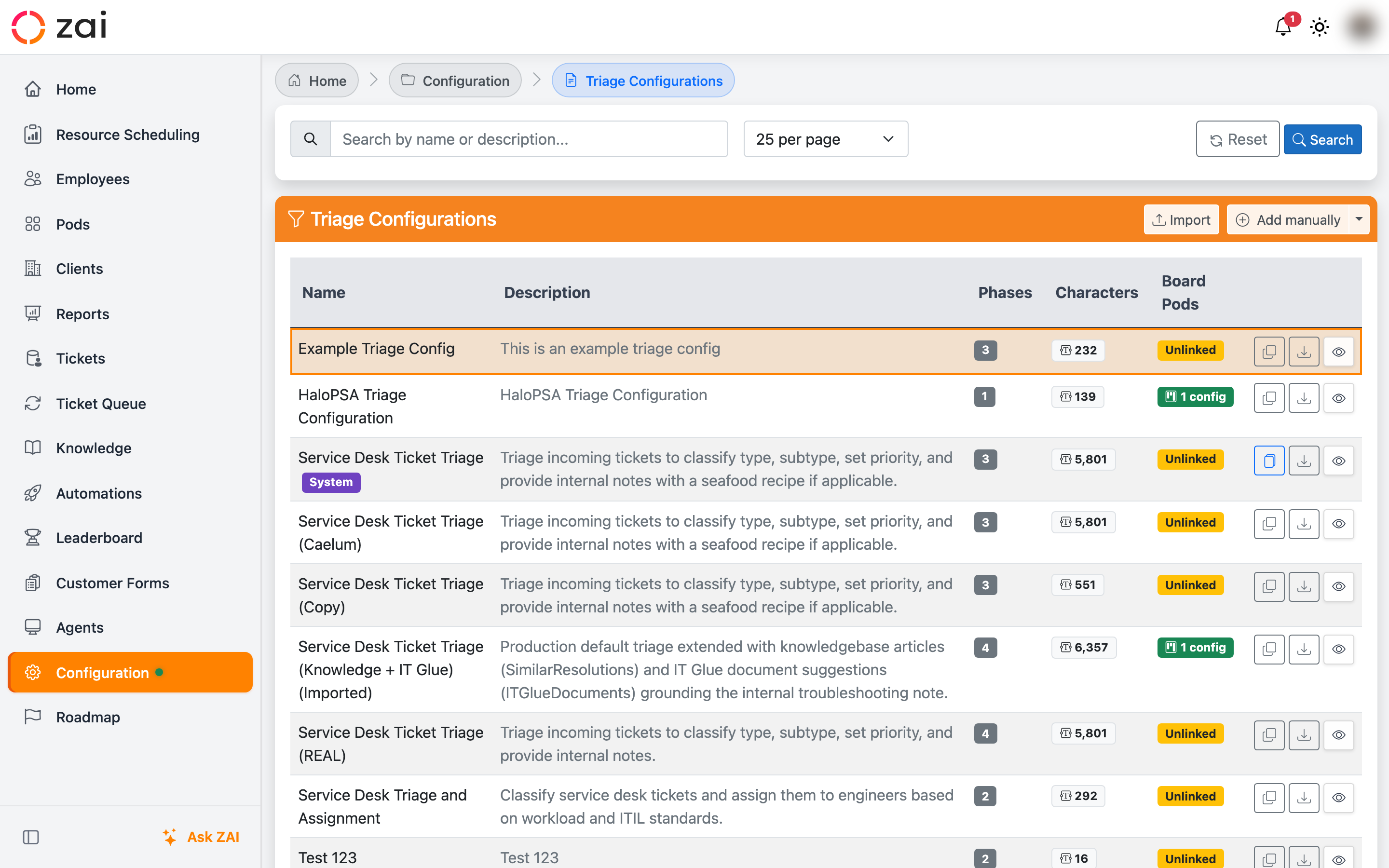
Overview
A triage configuration is made up of an ordered list of phases, and each phase holds an ordered list of steps. Phases run in order, and within a phase, steps run in order — so later steps and phases can build on decisions made earlier in the same run.
One configuration, many pods
A single triage configuration can be linked to several board pods. Editing it changes triage behaviour everywhere it's linked, so check the linked-pods list on the configuration page before making a change to a shared configuration.
Getting started
Prerequisites
- You need the Triage Configuration Manager permission (service desk managers, workflow editors, and admins have this by default).
- At least one board pod should exist to link the configuration to — triage doesn't run against a ticket until a board pod points at it.
Creating a configuration
- Go to Configuration → Triage Configurations.
- Click Add with AI to use the guided wizard, or create one manually and click Add Phase to start building phase by phase.
- Give the configuration a name and description, then add phases in the order you want them to run.
- Link the configuration to a board pod so it actually runs against tickets on that board.
Cloning and exporting
Use Export to download a configuration as JSON, and Import to bring one in — handy for moving a configuration between environments. System configurations deployed from the Marketplace are read-only; use Clone to customise to get an editable copy.
Key concepts
Phase types
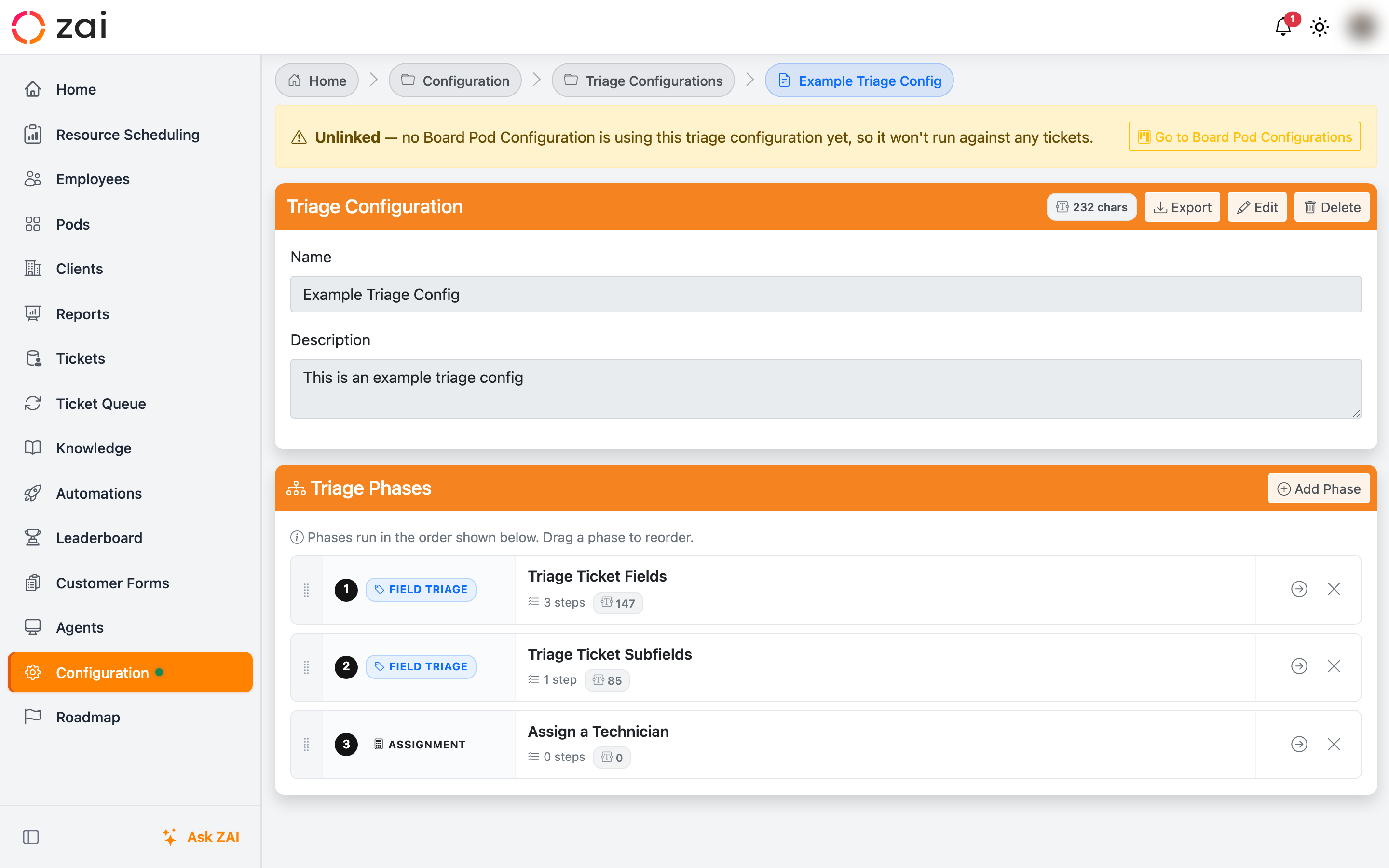
| Phase type | Purpose |
|---|---|
| Field Triage | Sets ticket fields and posts notes using AI-generated values. |
| Scoping Triage | Conditionally includes or excludes prompt instructions from a later phase, based on the outcome of an earlier Set Field step. |
| Assignment | Scores available engineers and picks the best owner. At most one per configuration, and it always runs last. |
| Update Ticket | Writes directly to the PSA ticket — status and queue/board/team — instead of contributing to the AI prompt. |
Phases can be renamed at any time from the phase editor — the name is just a label and doesn't affect behaviour.
Steps and fields
Within a Field Triage phase, each step is one of:
- Set Field — asks the AI to determine a value and writes it to a ticket field.
- Post Note — asks the AI to draft a note and posts it to the ticket, as either an Internal or Discussion (customer-visible) note.
A Set Field step's target can be:
- A Mapped field — one of the ticket's standard fields (Type, Subtype, Priority, and so on).
- A Custom field — a custom field/UDF defined on your PSA.
- A Variable — a
{{{Token}}}resolved at run time rather than a literal ticket field.
Every step also carries a Prompt — the custom instructions given to the AI for that step. Prompts can reference variables using triple-brace syntax, e.g. {{{Ticket.Title}}}.
Passing values between steps
Turn on Promote to Variable on a step to store its result under a variable name, so a later step's prompt can reference it with {{{YourVariableName}}}. This is how one step's decision feeds into another step or an Assignment phase's scoring.
Conditions
Any step can carry one or more conditions that gate whether it runs: Has Value, No Value, Equals, Not Equal, Contains, Does Not Contain, and Regex, with an optional case-sensitive flag. When a step has more than one condition, a Condition Mode of All (AND, the default) or Any (OR) decides how they combine.
Scoping phases
A Scoping Triage phase doesn't set fields itself — instead, each of its Scoping steps references a Set Field step from an earlier phase and either includes or excludes a prompt fragment for a later phase depending on whether that earlier step's conditions passed. Use this when part of your triage instructions should only apply for certain ticket types, e.g. only asking for extra detail when Type was set to "Hardware".
The Update Ticket phase
An Update Ticket phase writes back to the PSA ticket rather than the AI prompt. Its steps are:
- Set Status — moves the ticket to a specific status.
- Set Queue/Board/Team (label depends on your PSA's terminology) — moves the ticket to a specific queue, board, or team.
- Add Time Entry — logs time against the ticket for its assigned resource, with a Minutes value and a Billable / chargeable time checkbox.
An Update Ticket phase runs on one of three triggers:
| Trigger | Runs when |
|---|---|
| Always | The configuration is processed for the ticket, regardless of outcome. |
| Post-Assignment | An owner was actually assigned to the ticket. |
| Post-Triage | Triage actually ran against the ticket. |
If more than one Update Ticket step sets the same kind of change (for example, two steps both set status), the later one wins — only one status and one queue/board/team change are applied per run, though every Add Time Entry step logs its own entry.
Replaces the old per-pod status toggle
Older versions had a "set status on assignment" toggle on the board pod itself. That has been removed — configure an Update Ticket phase with the Post-Assignment trigger instead. Because a single triage configuration can be linked to several board pods that might disagree on the target status, there's no automatic migration; you need to add the Update Ticket phase yourself.
Troubleshooting
A step's conditions never seem to fire. Check the Condition Mode — if it's set to All and one condition can never be satisfied (for example, checking a field that this PSA doesn't populate), none of the step's conditions will pass.
An Update Ticket step is silently skipped. This happens when its target status/queue isn't configured, when a condition references a field or variable that can't be resolved for this ticket, or when a later step in the same run already set the same kind of change.
Triage doesn't run at all on a board. Confirm the board pod is linked to a triage configuration, and that Automatic Triage is switched on for that pod — see Preview-Only Mode for how the preview toggle affects what actually gets written.